Add Sayso Map to your phone's home screen
Updated November 24, 2026
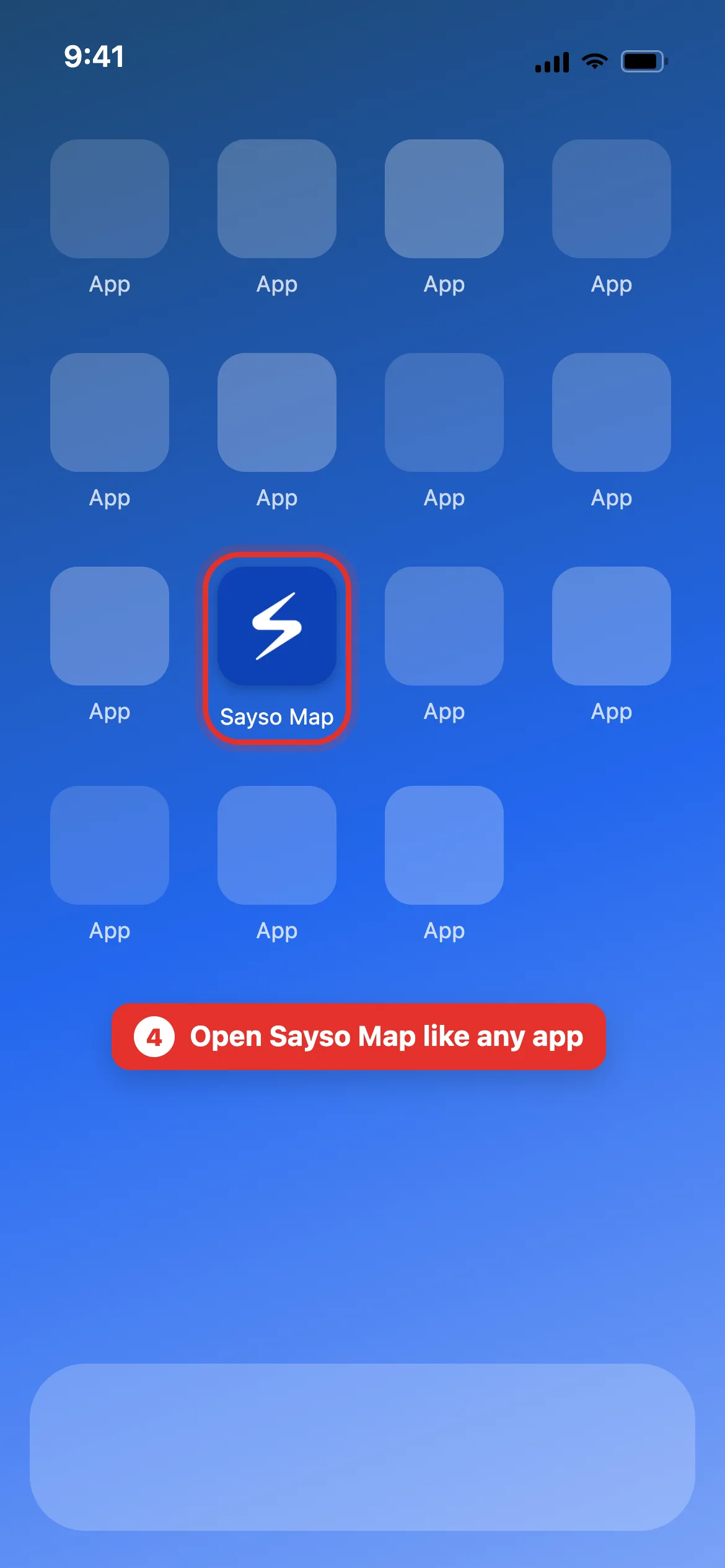
You don't need an app store. Add Sayso Map to your home screen and open it from the Sayso icon like any other app.
In Chrome
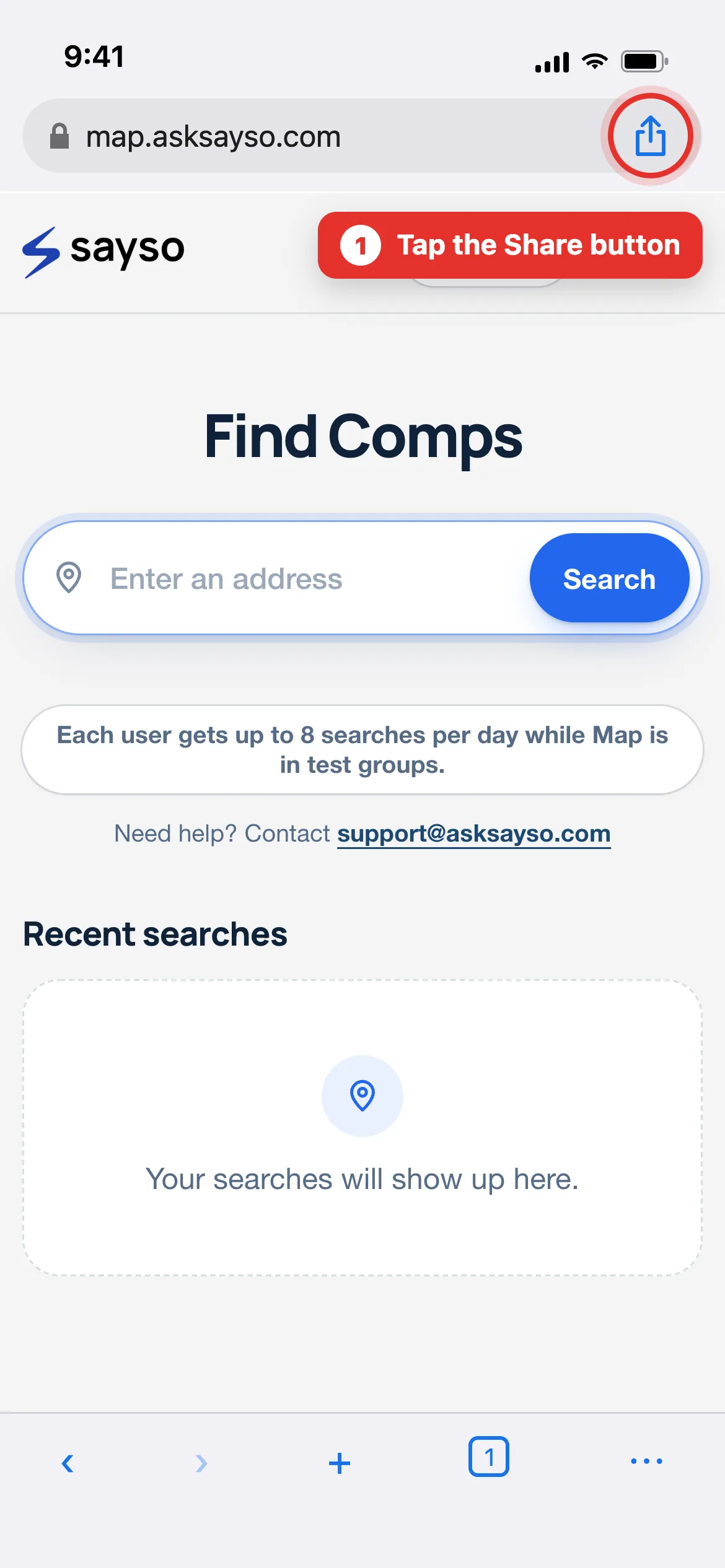
- Open map.asksayso.com in Chrome.
- Tap the Share button in the address bar.
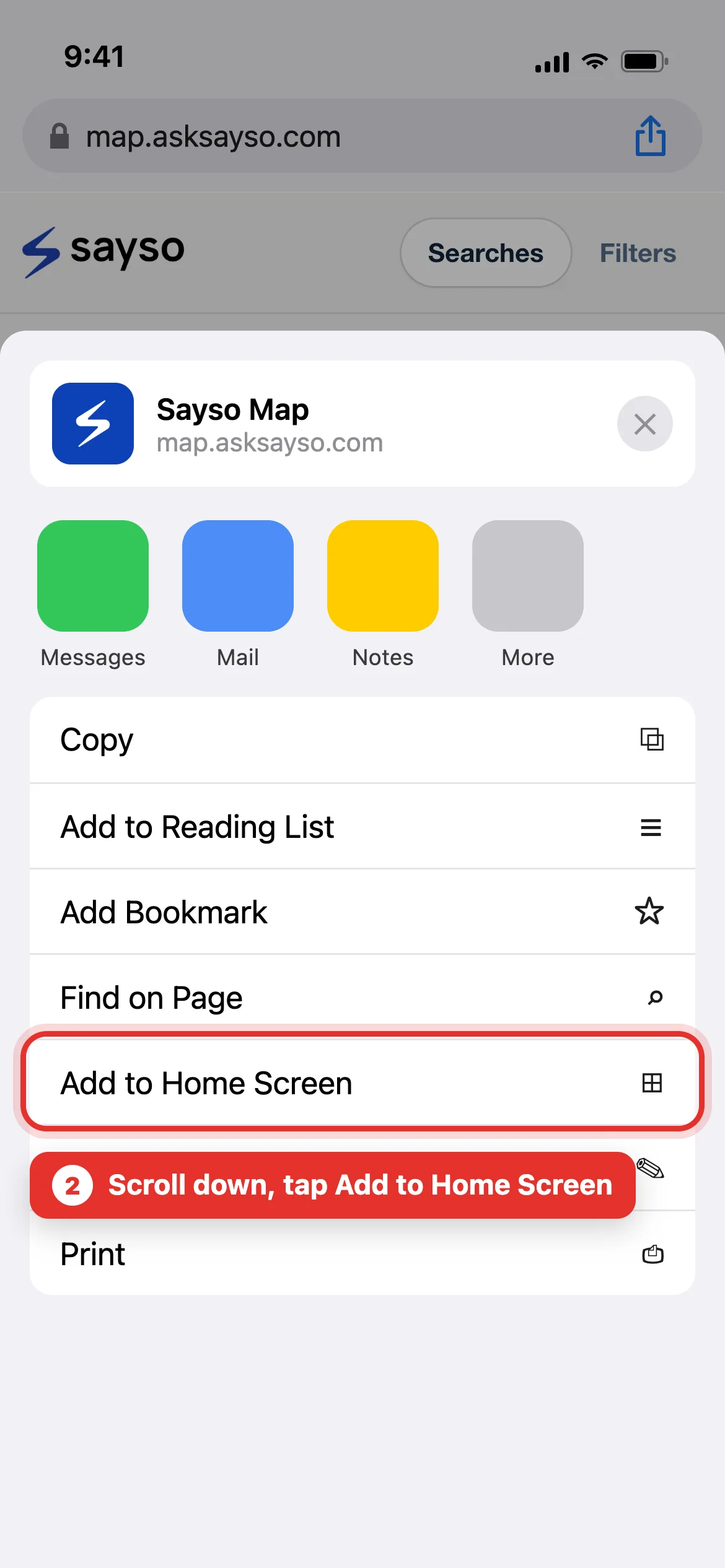
- Scroll down and tap Add to Home Screen.
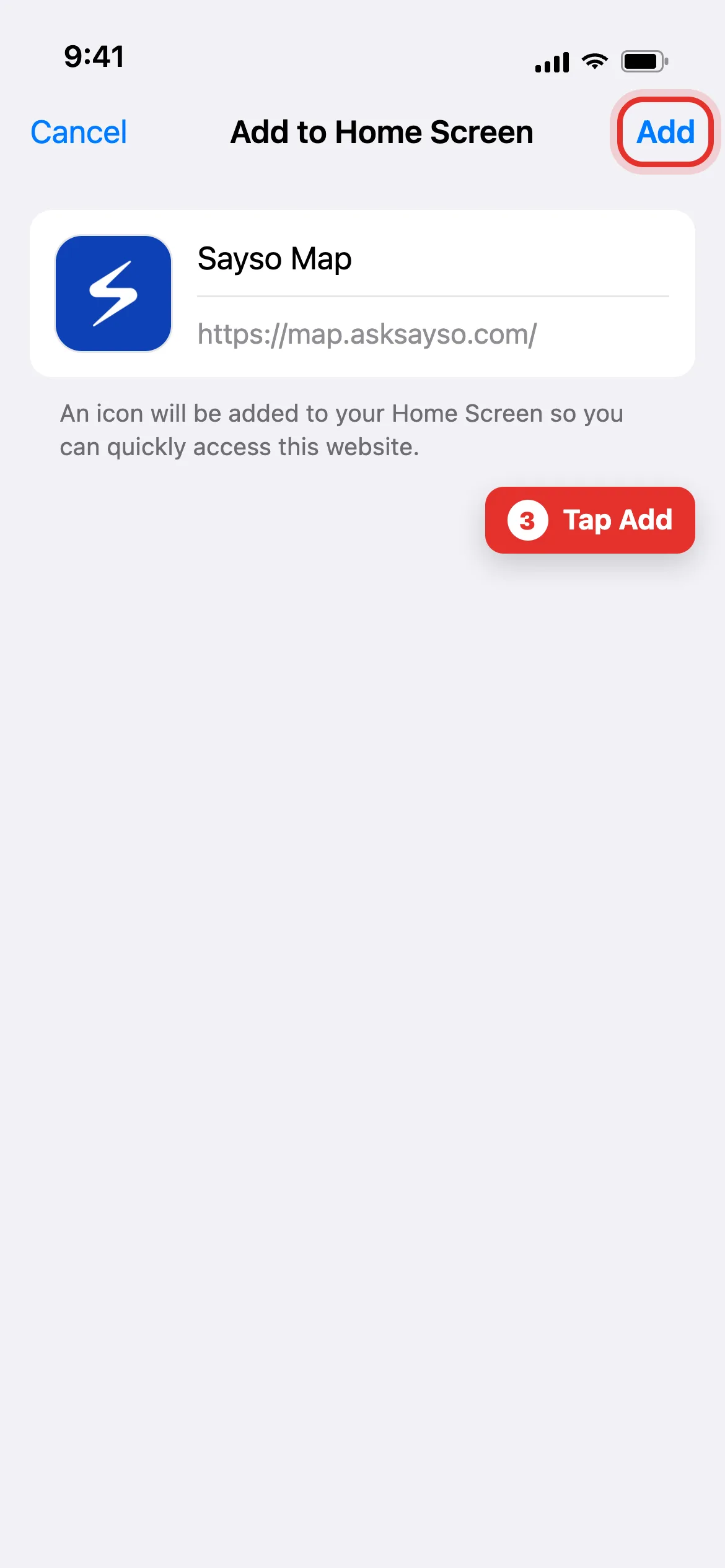
- Tap Add.
In Safari
- Open map.asksayso.com in Safari.
- Tap the Share button at the bottom of the screen (on some versions it's in the ⋯ menu first).
- Scroll down and tap Add to Home Screen, then tap Add.
In Chrome
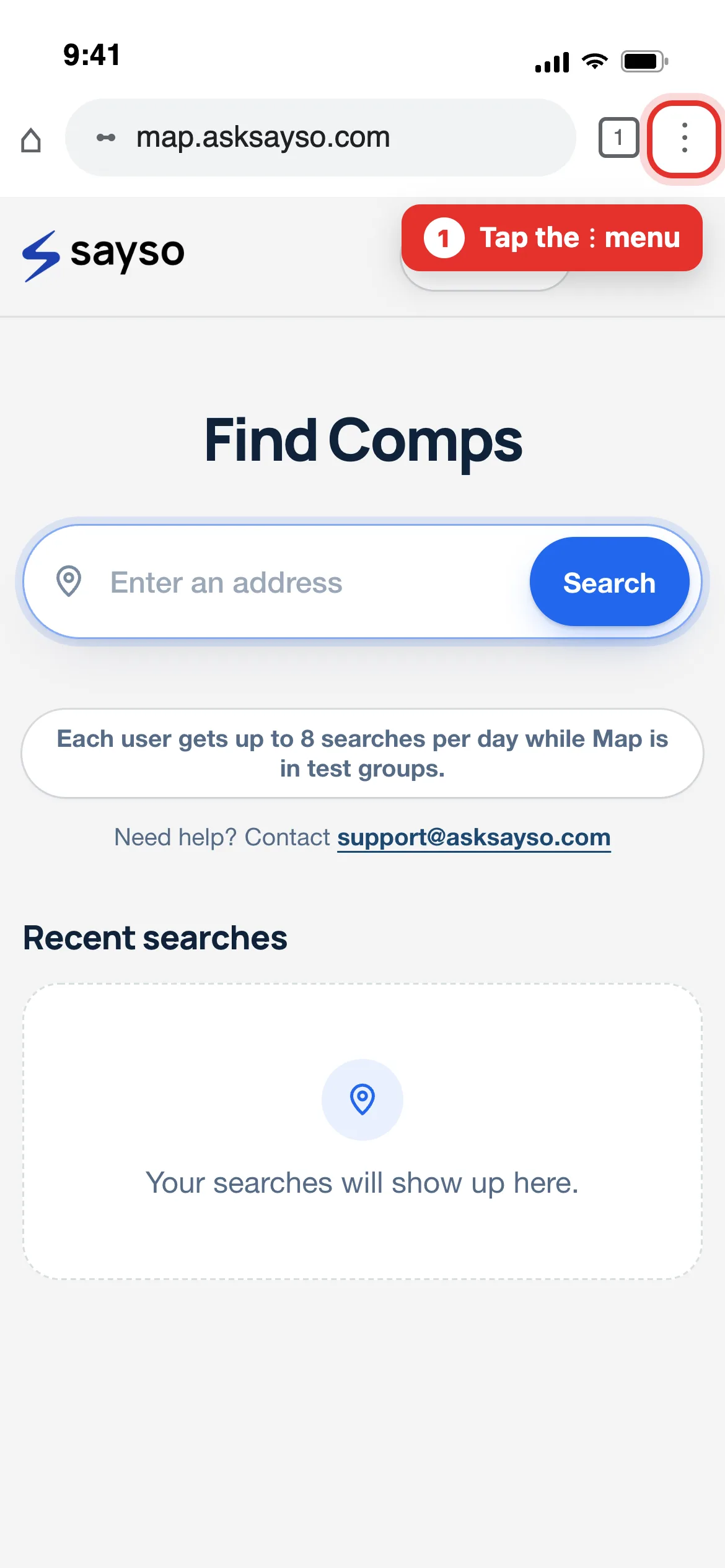
- Open map.asksayso.com in Chrome.
- Tap the ⋮ menu at the top right.
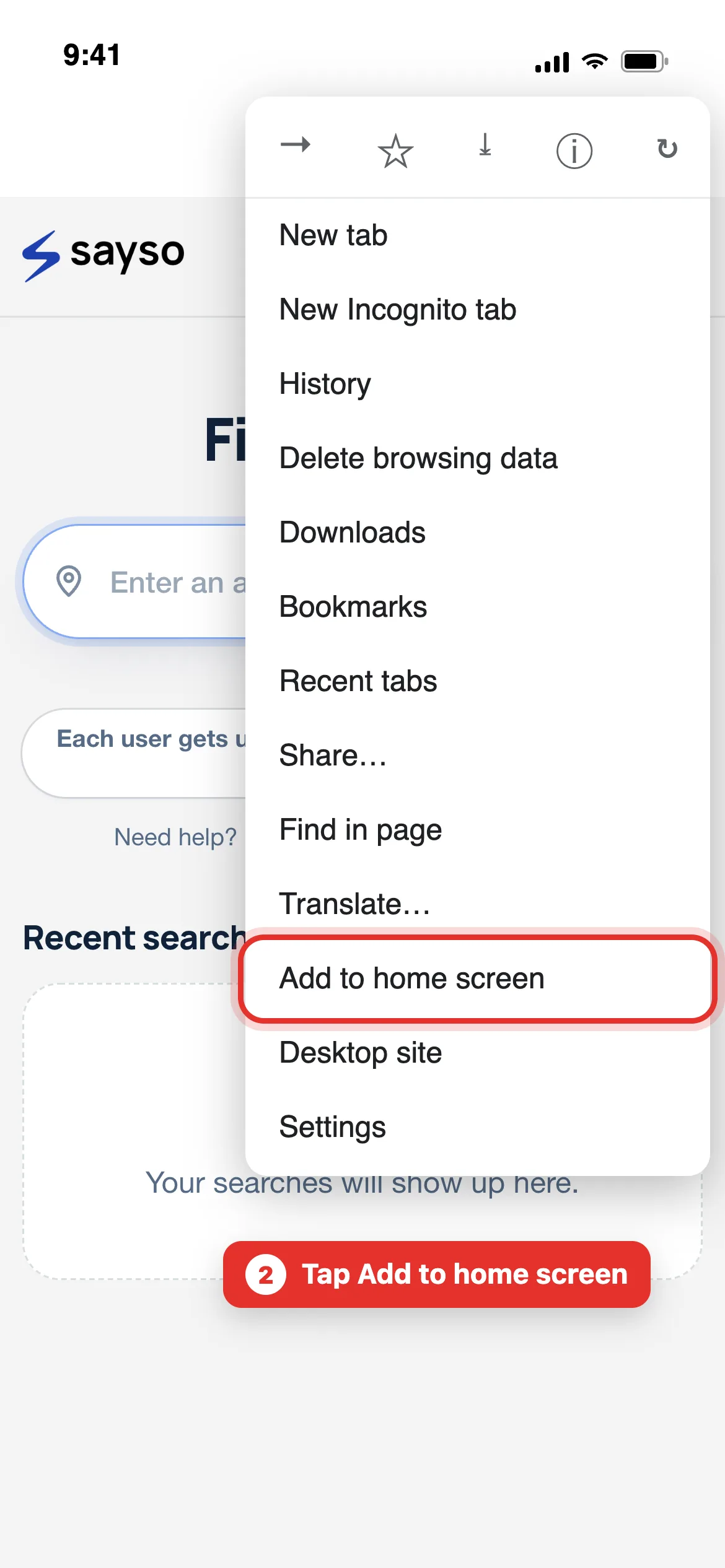
- Tap Add to home screen.
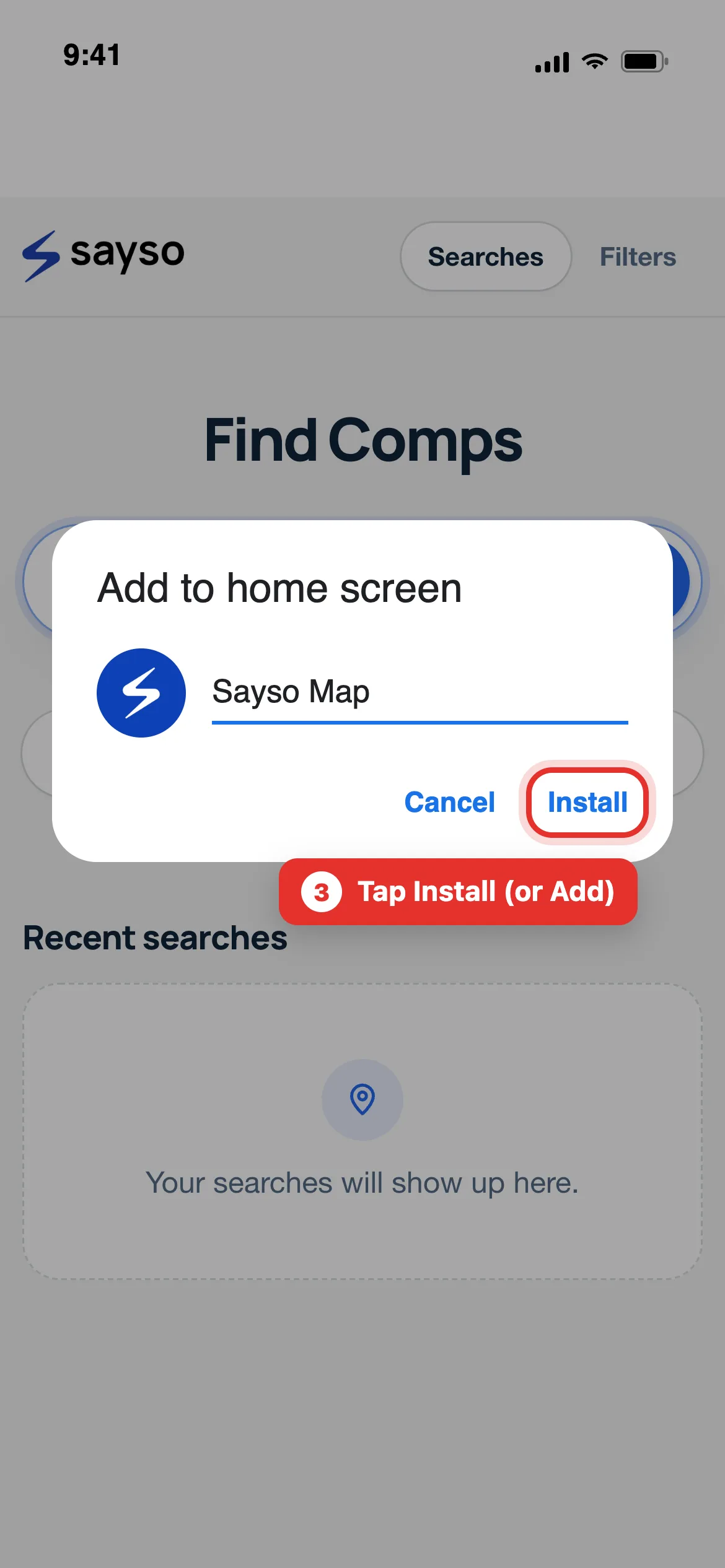
- Tap Install (or Add, depending on your version).
In Samsung Internet
- Open map.asksayso.com in Samsung Internet.
- Tap the ≡ menu at the bottom right.
- Tap Add page to, then Home screen, then Add.
About these screenshots
These are simulated phone screens. Yours may look slightly different, but the buttons have the same names.
After you add it
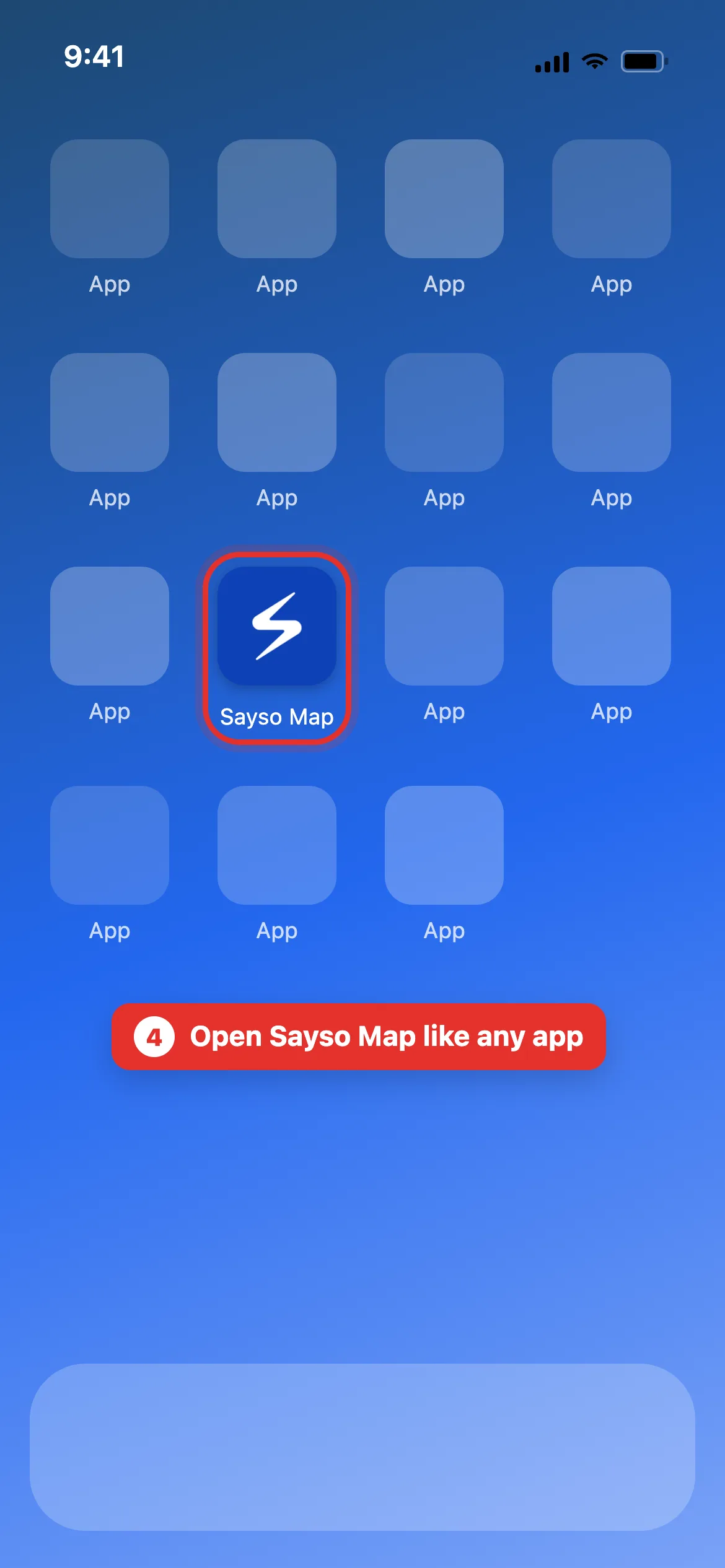
- The icon shows the Sayso logo with the name Sayso Map. Press and hold it to move it.
- On iPhone, the home screen app keeps its own sign-in, so enter your name and passcode once more the first time you open it. See Get access to Sayso Map.
Was this article helpful?
Still stuck? Email support@asksayso.com or join office hours (every Wednesday at 11am PT / 2pm ET).