Start a coaching session
Updated November 23, 2026
A session is one coached conversation. Sayso listens, Cue prompts you, Smart Capture takes notes, and when you stop, the conversation is saved to your web app.
Start a session
- Put on your headphones and get your dialer ready. See Set up your audio.
- Open the Coach widget.
- Click Start for Seller or Start for Buyer, depending on who you're calling.
The Coach widget shows Starting conversation for a moment, then grows into the session view with a timer.
If you started from the Sayso identified a call prompt, hover Start and it splits into Start for Seller and Start for Buyer. See Meeting detection.
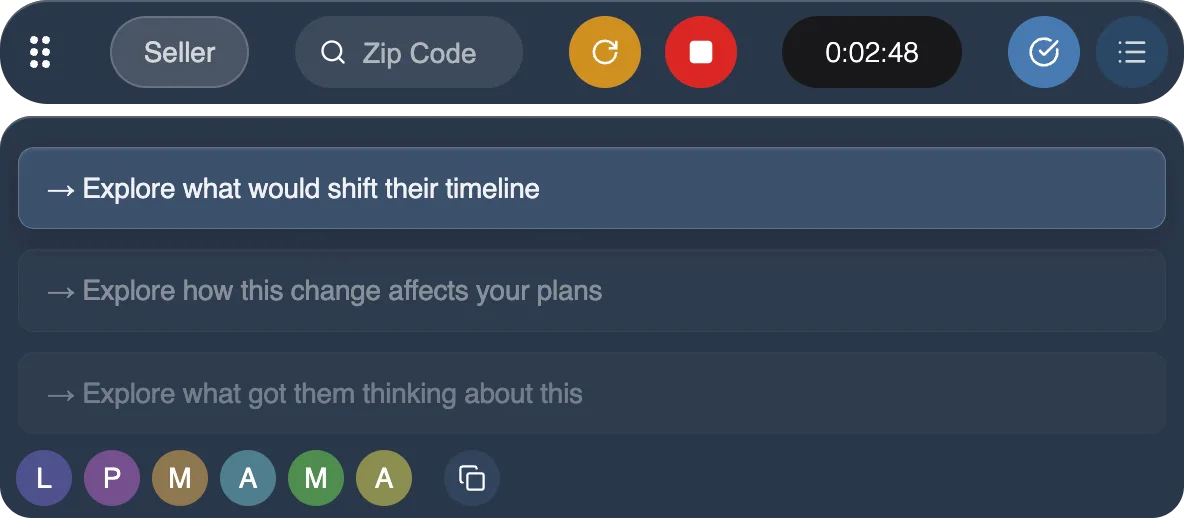
Choosing Seller or Buyer
Cue tailors its prompts to the lead type, so pick the one that matches the person on the other end. The choice is locked once the session starts. If you picked the wrong one, click Stop, then start again with the right type. See Choose Buyer or Seller before you start.
What to expect in the first minute
- Cue needs a little conversation before it has something useful to say, so the first prompt usually shows after the opening exchange.
- If you set a Buffer Time, Cue and Smart Capture wait that long before they start.
- The first insight opens the insights panel.
Starting on every dial
On a dial block, keep one session running and press Reset each time someone new picks up. See When to hit Reset.
If the session won't start
The Coach widget shows a message under the bar. See Messages in the Coach widget. The Start buttons are grayed out while Sayso is reconnecting to the internet.
Was this article helpful?
Still stuck? Email support@asksayso.com or join office hours (every Wednesday at 11am PT / 2pm ET).