Why Sayso needs these permissions
Updated November 23, 2026
Sayso coaches you by listening to the conversation. To hear both sides, it needs access to your microphone and to the sound your computer plays.
On a Mac
The first time you open Sayso, the Permissions screen asks for two things:
| Permission | What it is for |
|---|---|
| Microphone | To hear your side of the conversation |
| Screen & System Audio | To hear the lead through your computer's audio |
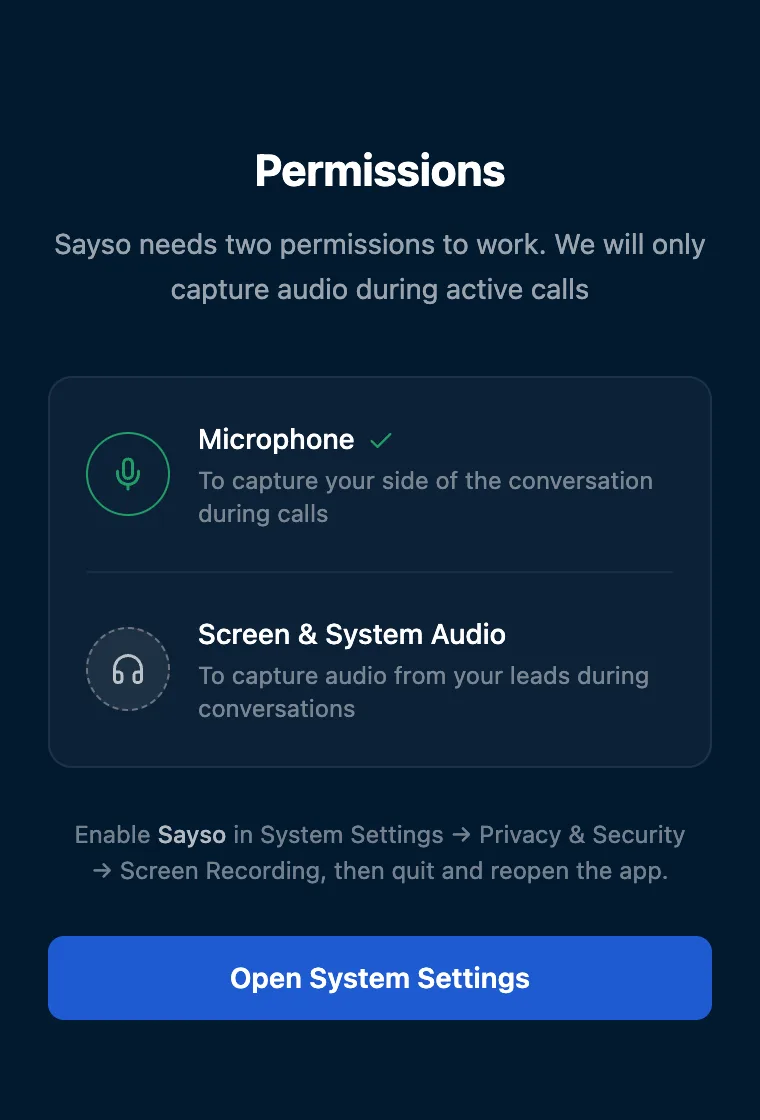
macOS groups system audio with screen recording, so the second permission is listed under Screen Recording in System Settings. Sayso only uses the audio. Nothing on your screen is captured or saved.
Without both permissions, Sayso hears only half the call and prompts will not work. After you allow Screen & System Audio, macOS needs Sayso to restart, which is why the button says Quit and Reopen →.
For the full steps, see Allow microphone and screen & system audio on Mac.
On Windows
Windows lets Sayso hear your computer's audio without a separate permission, so Sayso only asks for the Microphone. Turn on Microphone access and Let desktop apps access your microphone in Windows Settings, then click Continue →. No restart is needed.
For the full steps, see Allow microphone access on Windows.
When Sayso listens
Sayso only captures audio while a coaching session is active, after you start a session in the Coach widget. It stops when you press Stop or when Auto Stop ends the session.
Meeting detection is different: it only checks whether your browser is using the microphone, so Sayso can ask if you want to start coaching. It does not listen to the call.
Audio is never saved. A written transcript of each coached conversation is saved with the conversation. See Privacy and your data.
Clicked "Don't Allow" by accident?
- Open System Settings, then Privacy & Security.
- Open Microphone and turn on Sayso.
- Open Screen Recording and turn on Sayso.
- Quit Sayso and open it again.
If the switches are on but Sayso still says a permission is missing, you may have two copies of Sayso installed. See Install Sayso on Mac.
- Open Settings, then Privacy & security, then Microphone.
- Turn on Microphone access.
- Turn on Let desktop apps access your microphone.
- Go back to Sayso and click Continue →.
Other pop-ups you might see
- "Downloaded from the internet" on a Mac: click Open. macOS shows this for apps downloaded outside the App Store.
- Local network or notifications: Sayso works whether you allow these or not.
Was this article helpful?
Still stuck? Email support@asksayso.com or join office hours (every Wednesday at 11am PT / 2pm ET).