Your first coached call
Updated November 23, 2026
Before you dial
- Put your headphones on and check that your dialer calls through the computer, not your cell. See Set up your audio.
- Open the Coach widget. Use the shortcut (Control + S on Mac, Alt + Shift + S on Windows) or click the Sayso icon in your menu bar or taskbar and choose Launch Coach.
- Click Start for Seller or Start for Buyer. The lead type can't change during a session, so group your seller calls together and your buyer calls together. See Choose Buyer or Seller.

Calling from a browser dialer? Sayso may detect the call and show Sayso identified a call in a small window. You can start from there too. See Meeting detection.
During the call
Wait about 30 seconds. Prompts start once Sayso has heard enough of the conversation.
Follow your script. Glance at prompts during pauses instead of reading them word for word.
Open the insights panel. Click the check mark icon on the right of the Coach widget to show or hide Cue's insights and the Smart Capture row. A dot on the icon means a new insight arrived while the panel was closed.
Pin or close insights. Hover an insight to pin it or close it. You can pin up to 3. When you close one, the next one moves up. See Pin an insight.
Keep your CRM in a normal window. The Coach widget stays on top of normal windows but can hide behind full-screen apps.
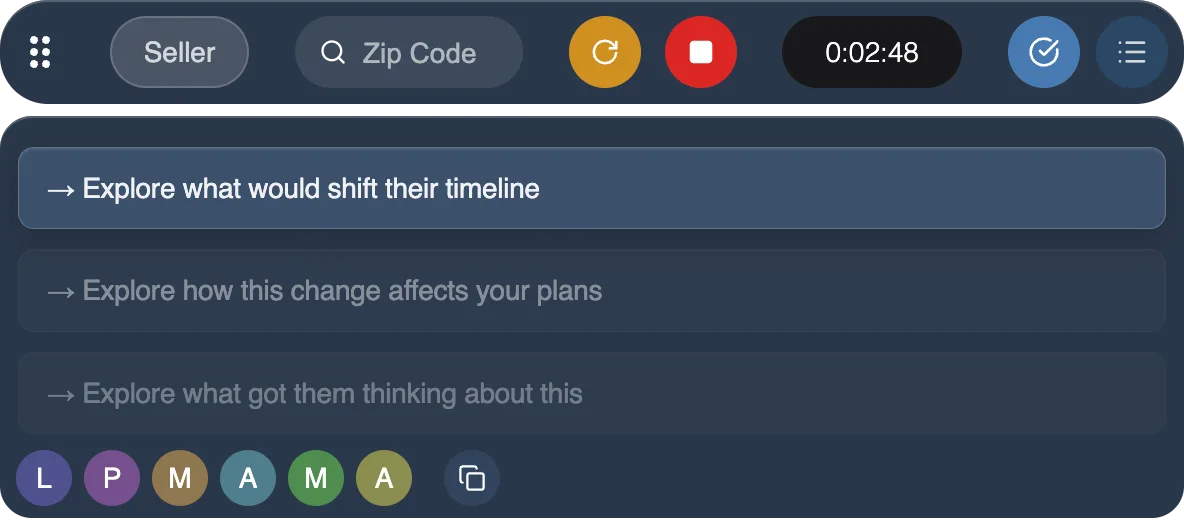
Each time a new person picks up
Press Reset, the orange button with a circular arrow next to the timer. Reset saves the conversation you just had and starts a fresh one with the same lead type. Skip it and you'll get "book the appointment" prompts on a fresh hello. Never press Reset in the middle of a conversation. See When to hit Reset.
Before you press Reset, click the copy icon at the end of the Smart Capture row to paste that call's notes into your CRM. If you forget, the notes are saved in Conversations.
End your session
When your dial block is done, press Stop, the red button with a square. The Coach widget shows Saving conversation while it saves.
If you forget, Auto Stop ends the session after a few minutes without hearing the other person. See Auto Stop.
After your session
Open Conversations at app.asksayso.com. Each conversation has its summary, Smart Capture notes, Cue insights and market data. Send notes to Follow Up Boss or Sure Send with Add lead, and give insights a thumbs up or down. See What to do after each call.
Was this article helpful?
Still stuck? Email support@asksayso.com or join office hours (every Wednesday at 11am PT / 2pm ET).