Change someone's role
Updated November 23, 2026
Only the Owner can change roles. Admins do not see the role options.
Change the role of someone who has joined
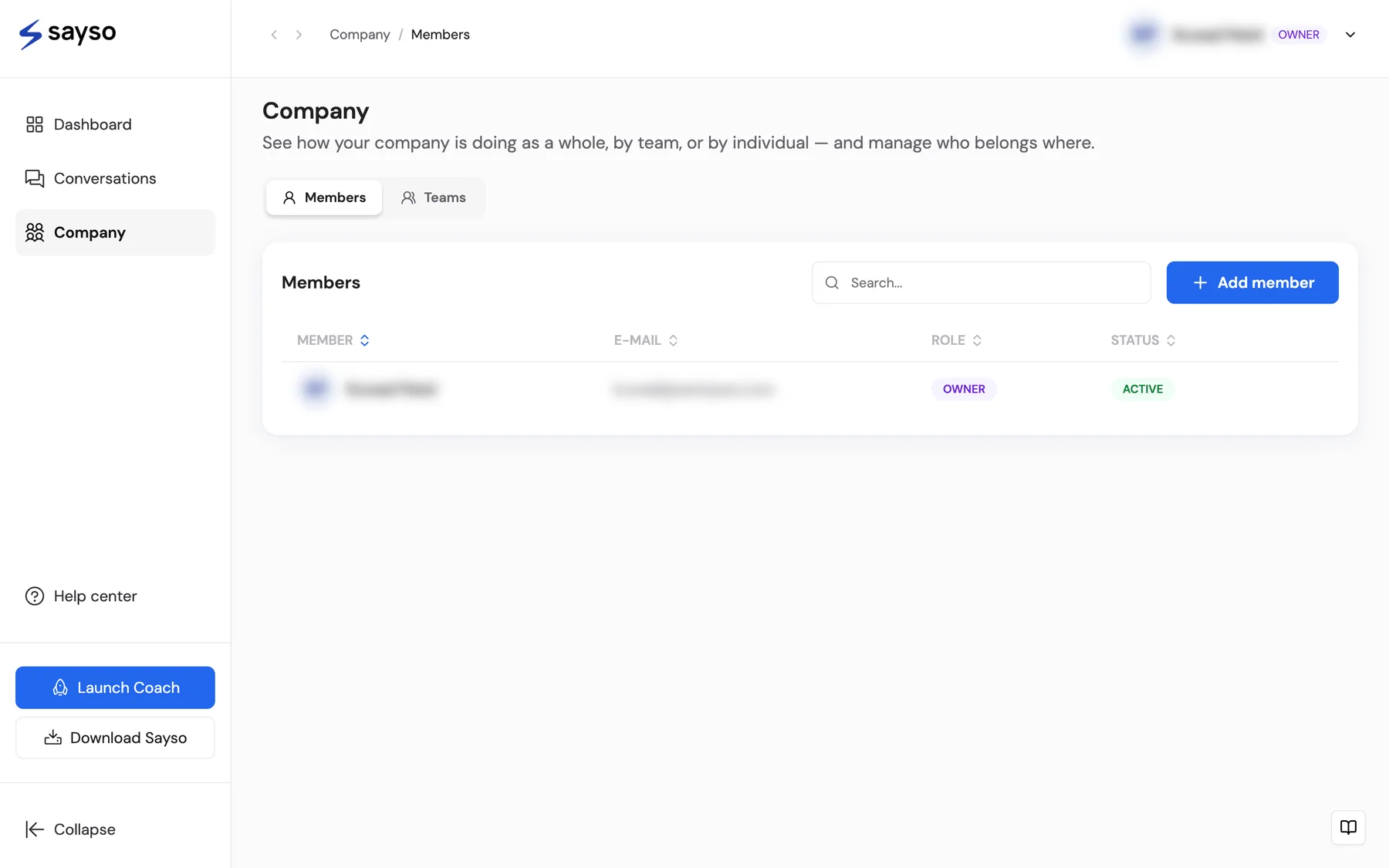
- Sign in at app.asksayso.com and open Company in the sidebar.
- On the Members tab, find the person. You can type their name or email in Search....
- Open the menu at the end of their row and choose Update role.
- Pick Member or Admin in the Role field.
- Click Save. You will see "Role updated."
You can do the same from a team page: open Company > Teams, open the team, and choose Update member role in the person's row menu.
Change the role on an invite that hasn't been accepted
If you invited someone with the wrong role, you can fix it before they join.
- On the Members tab, find the invite. Its status shows Invited or Expired.
- Open the row menu and choose Update role.
- Pick the role they should get when they accept, then click Save. You will see "Invite role updated."
What you can't change
- Your own role. Your row has no menu.
- The Owner's role.
- Roles are Member or Admin only. The Owner role can't be given to someone else in the app. Email support@asksayso.com if ownership needs to move.
Related
Was this article helpful?
Still stuck? Email support@asksayso.com or join office hours (every Wednesday at 11am PT / 2pm ET).