Update your card and download invoices
Updated November 23, 2026
Sayso uses Stripe for payments. Your card and billing details are on a Stripe page you open from the web app.
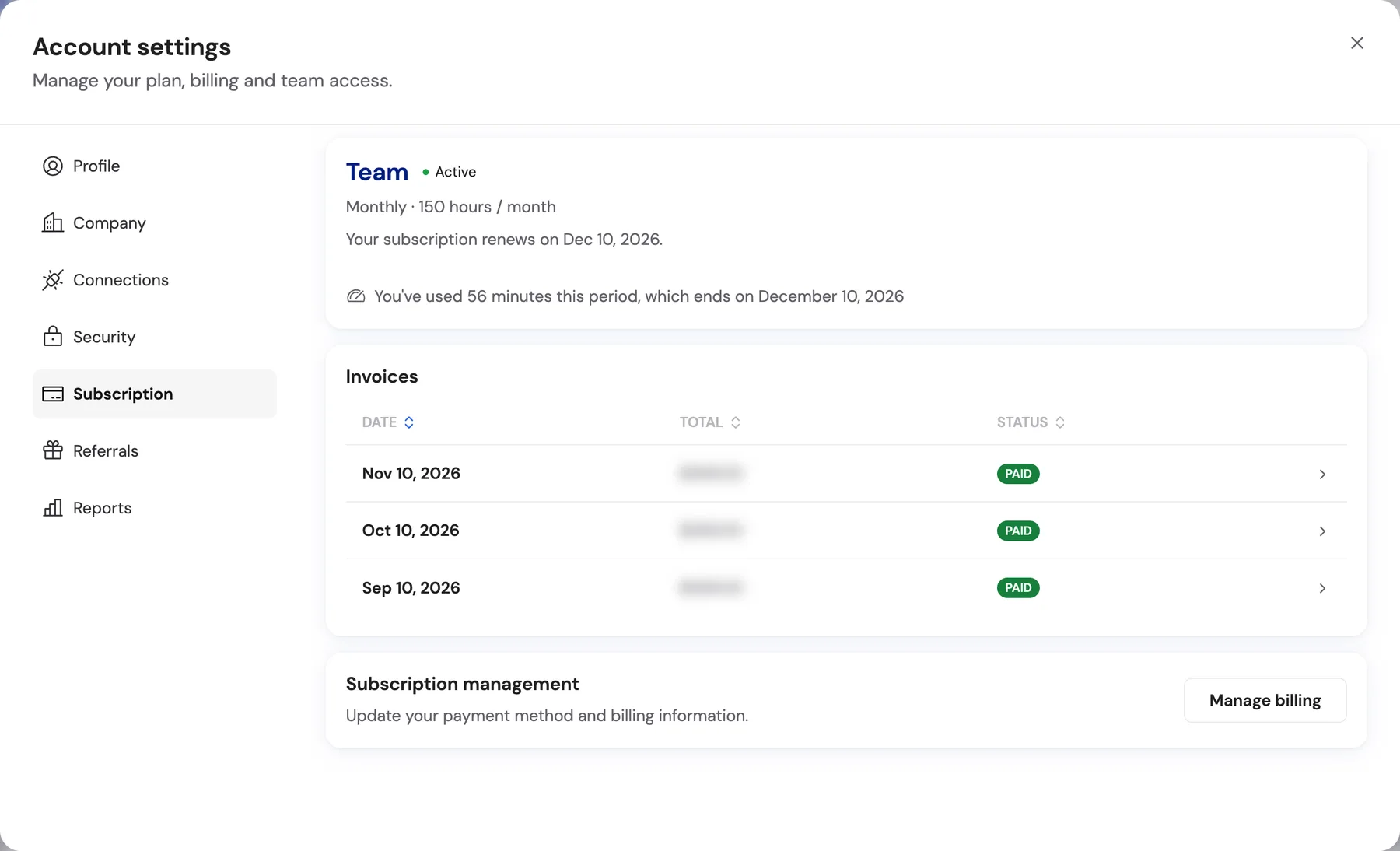
Open the billing page
- Click your name in the top-right corner and choose Account Settings.
- Open Subscription.
- Under Subscription management, click Manage billing.
The Stripe page opens. When you're done, use its link back to Sayso.
What you can do there
- Update your payment method: add a new card and make it the default, or remove an old one.
- Update billing details: name, email, phone, address and tax ID shown on your invoices.
- See invoice history: open, download or print past invoices.
To cancel or pause your plan from this same page, see Cancel, pause or change your plan.
Payment failed?
If a renewal payment fails, your status changes to Past due. Update your card on the Stripe page and Stripe retries the payment.
Invoices without leaving Sayso
The Invoices list on the Subscription tab shows every invoice. Click one to open it.
On a team?
Only the team owner can open Manage billing. See Billing for teams.
Related
Was this article helpful?
Still stuck? Email support@asksayso.com or join office hours (every Wednesday at 11am PT / 2pm ET).