Permissions look on but Sayso says they are missing
Updated November 23, 2026
macOS ties permissions to one exact copy of an app. If something doesn't match, the switches look on in System Settings but Sayso can't use them, and it keeps showing the Permissions screen.
Fix 1: Remove extra copies
The most common cause is two copies of Sayso, for example "Sayso" and "Sayso 2", usually from choosing Keep Both during an install.
- Quit Sayso from the Sayso menu.
- Open your Applications folder and drag every copy of Sayso to the Trash.
- Empty the Trash.
- Install Sayso again. When asked, choose Replace, never Keep Both. See Install Sayso on a Mac.
- Open Sayso and allow both permissions again.
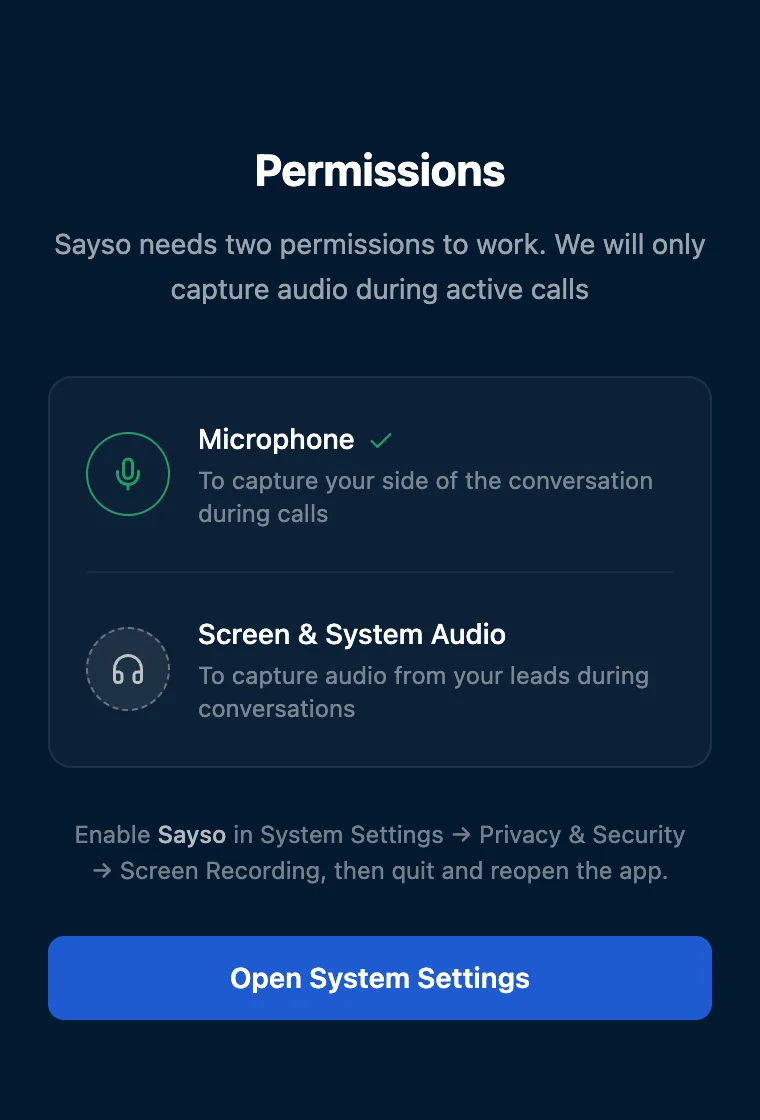
Fix 2: Clear the old permissions
If you had Sayso installed before June 2026, the old version's permissions can get stuck. Clear them once so macOS asks fresh:
- Open System Settings > Privacy & Security > Screen & System Audio Recording (or Screen Recording).
- Select Sayso and click the minus (-) button to remove it, or turn it off. Click Quit if asked.
- Do the same under Microphone.
- Open Sayso again. It asks for both permissions; allow them and click Quit and Reopen →.
Comfortable with Terminal?
You can clear both at once. Quit Sayso, open Terminal and run these two lines, then open Sayso and allow both permissions:
tccutil reset ScreenCapture com.asksayso.app
tccutil reset Microphone com.asksayso.app
This is a one-time fix. If Sayso still asks after both fixes, restart your Mac once, then email support@asksayso.com with your logs.
Was this article helpful?
Still stuck? Email support@asksayso.com or join office hours (every Wednesday at 11am PT / 2pm ET).