Web app tour
Updated November 23, 2026
Use the web app to set up your account and review your calls. Live coaching happens in the desktop app. Both use the same sign-in.
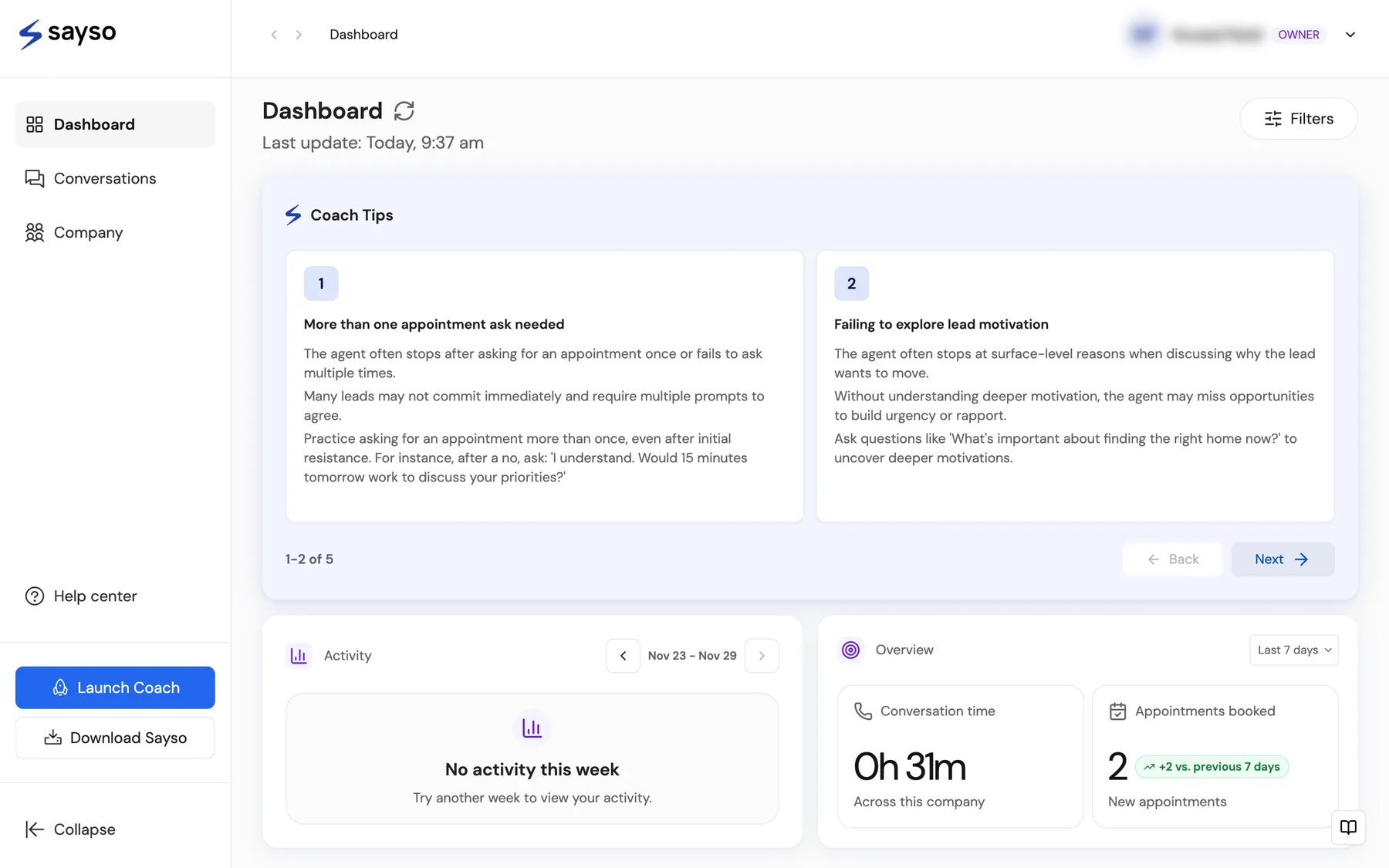
Left sidebar
| Item | What it does | Who sees it |
|---|---|---|
| Dashboard | Coach Tips, your weekly activity and your conversation time and appointments. See Your Dashboard. | Everyone with an active plan |
| Conversations | Every coached call with its summary, Cue insights, Smart Capture notes and Pulse data. See Find and review your conversations. | Everyone with an active plan |
| Company | Members and teams for your company. See Owner, Admin and Member. | Team owners and admins |
| Help center | Opens the Sayso Help Center. | Everyone |
| Launch Coach | Opens the Coach widget in the Sayso desktop app, if it's installed on this computer. | Everyone, on a computer |
| Download Sayso | Downloads the desktop app for Mac or Windows. See Download Sayso from the web app. | Everyone |
Click Collapse at the bottom of the sidebar to shrink it to icons. Click the same button again to expand it.
On a phone, tap the menu button in the top bar to open the sidebar.
Top bar
- Back and forward arrows move through the pages you've visited.
- Your name in the top-right corner opens your menu:
- Your role badge (for example Owner, Admin or Member) if you're on a team
- Account Settings: profile, security, CRM connections, subscription and more. See Account Settings, tab by tab.
- Log out
- Links to the Privacy Policy and Terms & Conditions
Announcements
Sometimes the Sayso team posts an update, such as a new feature or an event. It shows in a small panel in the corner of the web app. You can collapse it or dismiss it.
Related
Was this article helpful?
Still stuck? Email support@asksayso.com or join office hours (every Wednesday at 11am PT / 2pm ET).