Set a team's monthly hours
Updated November 23, 2026
A team cap limits how many coaching hours the agents on one team can use each calendar month. It is optional. Teams without a cap use your company's plan hours freely.
Set or change the cap
- Open Company > Teams and click the team.
- In Allocated hours, click Set hours (no cap yet) or Edit hours.
- Enter the monthly hours in Allocated hours, from 1 to 10,000. You can also use Quick add to add 10, 20 or 30 hours.
- Used so far previews what the team's status will be with the new number.
- Click Save changes. You will see "Team updated."
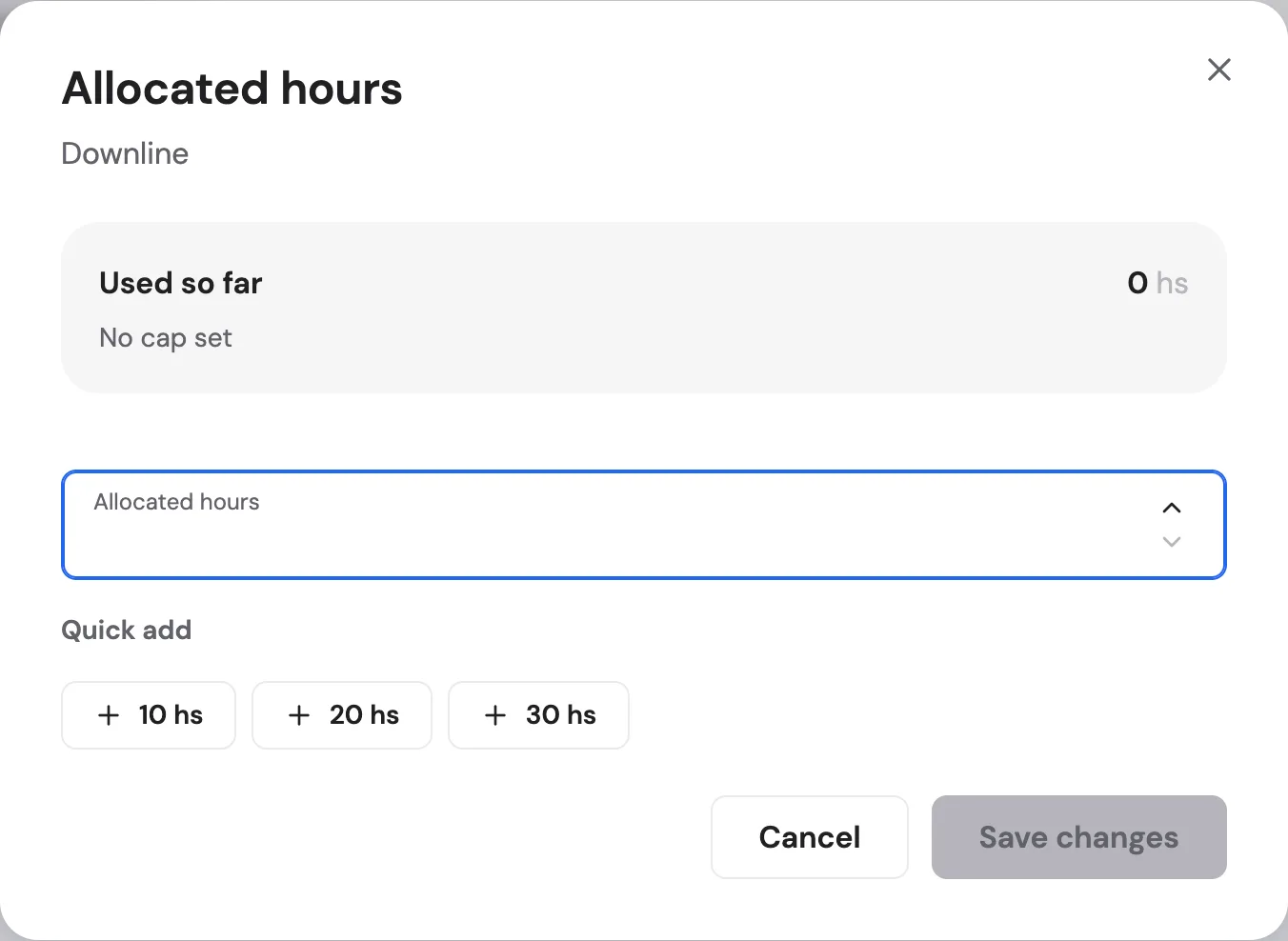
To remove the cap, clear the Allocated hours field and click Save changes.
How usage is counted
- The month runs from the 1st of the calendar month and resets on the 1st of the next.
- Usage is the coaching time of everyone currently on the team this month. When you transfer an agent, their usage this month moves with them.
- Hours show rounded on the page. The percentage uses exact minutes.
Team status
| Status | Meaning |
|---|---|
| On track | Under 80% of the cap. |
| Approaching | 80% or more of the cap. The Owner and Admins get a warning email. |
| Over | The full cap is used. Agents on the team can't start new sessions. |
| No cap set | No limit for this team. |
What happens at the cap
When a team has used all its hours, agents on that team see "Your team has reached its coaching hour limit. Let your team leader know." when they try to start a session. A session that's already going keeps going. To let them continue this month, raise the cap. Otherwise they can start again on the 1st.
The team cap never gives a team more hours than your plan has. If the whole company runs out of plan hours, everyone is stopped, whatever the team caps say.
Related
Was this article helpful?
Still stuck? Email support@asksayso.com or join office hours (every Wednesday at 11am PT / 2pm ET).