Cancel, pause or change your plan
Updated November 23, 2026
You cancel or pause your subscription on a billing page run by Stripe. On a team account, only the owner can do this.
Cancel or pause
- Sign in at app.asksayso.com and open Account Settings from the menu under your name.
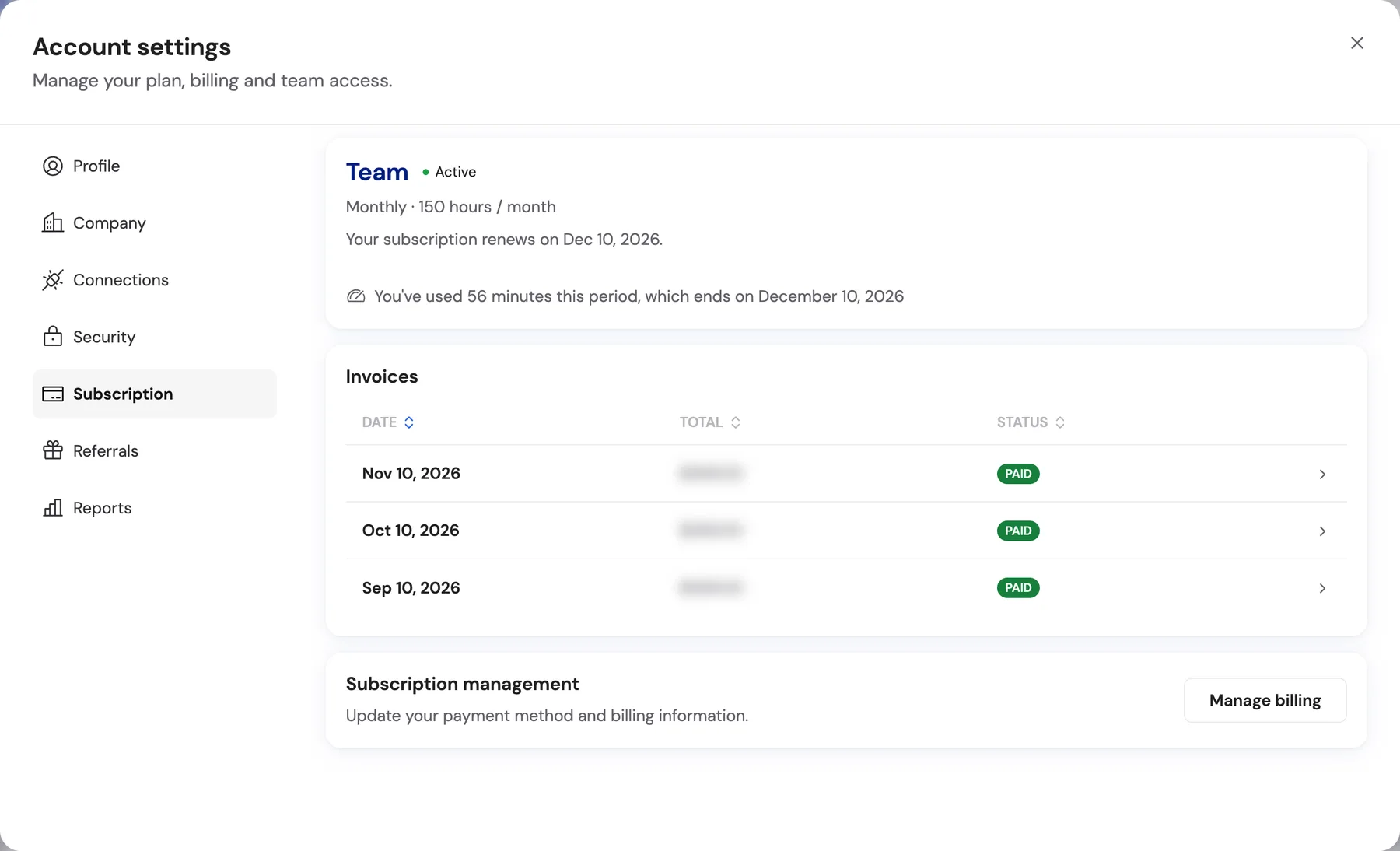
- Click Subscription.
- Under Subscription management, click Manage billing. The billing page opens in a new tab.
- Choose to cancel or pause your plan and follow the steps.
After you cancel
- Your status shows Cancelling, with the line "You can continue using Sayso until" your end date.
- You keep full access, coaching included, until the end of the period you already paid for.
- Your plan doesn't renew, and you aren't charged again.
While your plan is paused
- Your status shows Paused.
- You can still sign in and see your conversations, but coaching is off until your plan resumes.
Upgrade, downgrade or switch billing
Email support@asksayso.com with what you want, for example "Move us to annual billing" or "We need more hours for our team." We'll confirm the change and any price difference before it takes effect.
Coming back later
Subscribe again from the same account at any time. Your conversations are still there.
Related
- Billing questions
- Your subscription: status, hours and invoices
- Update your card and download invoices
Was this article helpful?
Still stuck? Email support@asksayso.com or join office hours (every Wednesday at 11am PT / 2pm ET).