Set up your audio: headphones and calling from your computer
Updated November 23, 2026
Most "no prompts" problems come from these settings.
Rule 1: Wear headphones
On speakers, your microphone picks up the other person's voice too. Sayso then hears them twice, the transcript doubles up, and prompts get worse or stop making sense.
- Wired or Bluetooth headphones both work. A headset with a mic works best.
- Connect your headphones before you start a session. Don't switch audio devices in the middle of a call.
- On Windows, if a Bluetooth headset mic keeps cutting out, use a wired headset, or keep the Bluetooth headset for listening and set your laptop mic as the input.
Rule 2: Place the call from your computer
Sayso listens to what plays through your computer. If the call rings on your cell phone, Sayso can't hear it.
- Dial from your CRM or dialer on the computer, in Google Chrome.
- Check your dialer's calling setting. It must be set to internet, computer or "ask me". If it's set to always use your mobile phone, the call goes to your cell and Sayso hears nothing.
- Calls answered on your cell phone, including Zillow calls, won't work.
See Set up your dialer for Sayso for specific dialers.
Rule 3: Use Google Chrome
Open your CRM and dialer in Chrome. Safari has grabbed the microphone in the past, so Sayso lost your side of the call.
Check your microphone
- Open System Settings, Sound, Input.
- Select the mic you'll talk into (your headset).
- Talk and watch the input level meter move.
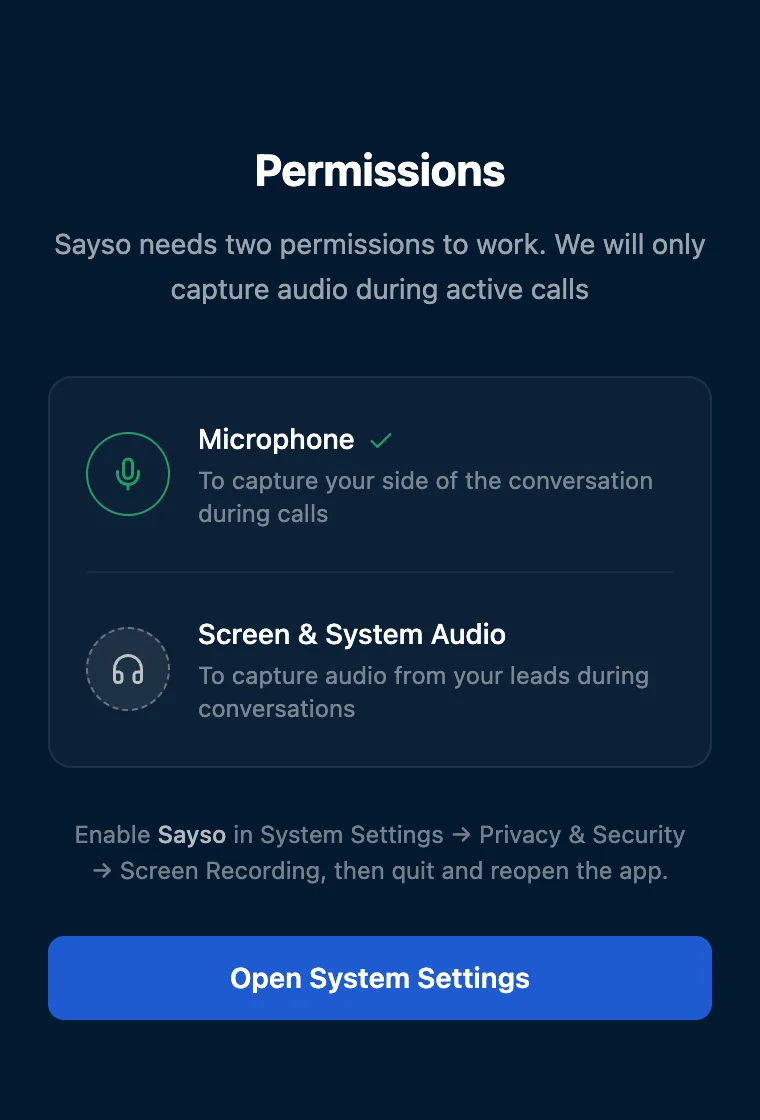
- Open System Settings, Privacy & Security, Microphone and turn on Sayso.
- Open Privacy & Security, Screen & System Audio Recording (called Screen Recording on older macOS versions) and turn on Sayso. This is how Sayso hears the other person. It only uses the audio.
- Right-click the speaker icon in the taskbar and choose Sound settings.
- Under Input, select the mic you'll talk into and check that the level bar moves when you talk.
- Open Settings, Privacy & security, Microphone and turn on Microphone access and Let desktop apps access your microphone.
Test before your first dial block
- Open the Coach widget and click Start for Seller or Start for Buyer.
- Have a teammate call you, or call a teammate, from your dialer on the computer.
- Talk for about 30 seconds the way you would with a lead.
If Smart Capture fills in and prompts show up within about 30 seconds, Sayso is working.
- Smart Capture fills in but no prompts? Sayso may not be hearing you. Recheck your mic.
- Nothing captured from the other person? The call audio isn't coming through the computer. Recheck your dialer setting and, on Mac, Screen & System Audio.
Press Stop when you're done so the test doesn't keep using your hours.
Related
- Why does Sayso need these permissions?
- My microphone isn't working
- Sayso hears me but not the other person
Was this article helpful?
Still stuck? Email support@asksayso.com or join office hours (every Wednesday at 11am PT / 2pm ET).