Install Sayso on Windows
Updated November 23, 2026
Before you start
- You need Windows 10 or Windows 11.
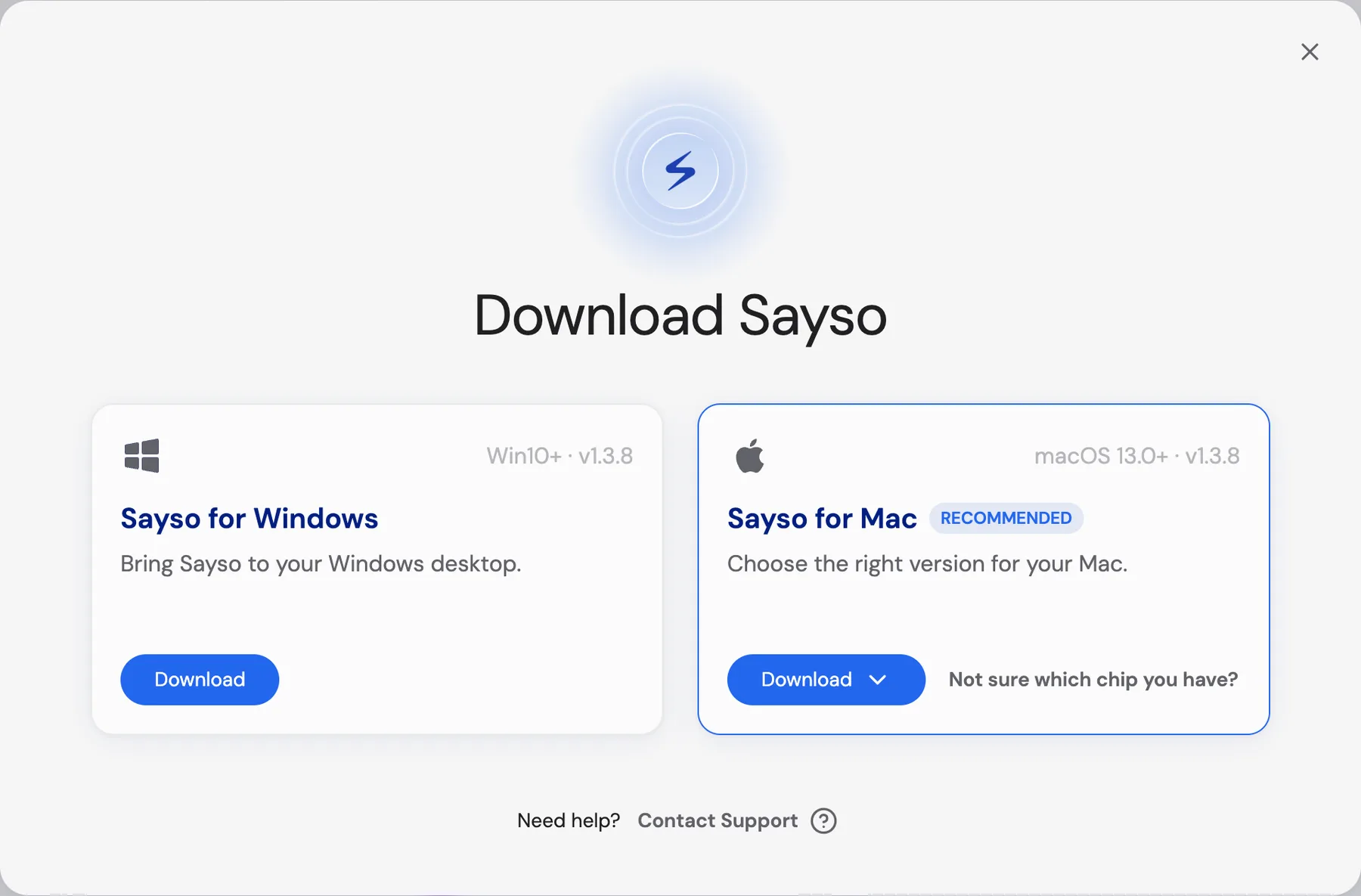
- Download the Windows installer from the web app. See Download Sayso.
Install
- Open your Downloads folder and double-click the Sayso installer.
- If Windows shows Windows protected your PC, click More info, then Run anyway.
- Follow the installer's steps. You can keep the suggested install folder or choose another one.
- When it finishes, Sayso adds a shortcut to your desktop and to your Start menu.
Sayso installs for your Windows user only, so you don't need an administrator account.
Install fails or never finishes?
Your antivirus is the most likely cause. PC Matic and McAfee have both blocked Sayso. Add Sayso to your antivirus allow list, or pause it for the install and turn it back on after. See Antivirus or SmartScreen blocked Sayso.
Open Sayso for the first time
- Open Sayso from the desktop shortcut or the Start menu.
- Sign in with your Sayso email and password. See Sign in to the desktop app.
- If Windows microphone access is turned off, Sayso shows a Permissions screen. See Allow microphone access on Windows.
Sayso then lives in the notification area of your taskbar, next to the clock. Windows often hides new icons behind the ^ arrow. To keep Sayso in view, see Keep Sayso visible on the Windows taskbar.
On Windows, Sayso hears the lead through your computer's audio output, so it does not need a second permission like it does on a Mac.
Was this article helpful?
Still stuck? Email support@asksayso.com or join office hours (every Wednesday at 11am PT / 2pm ET).