Reset a session between calls
Updated November 23, 2026
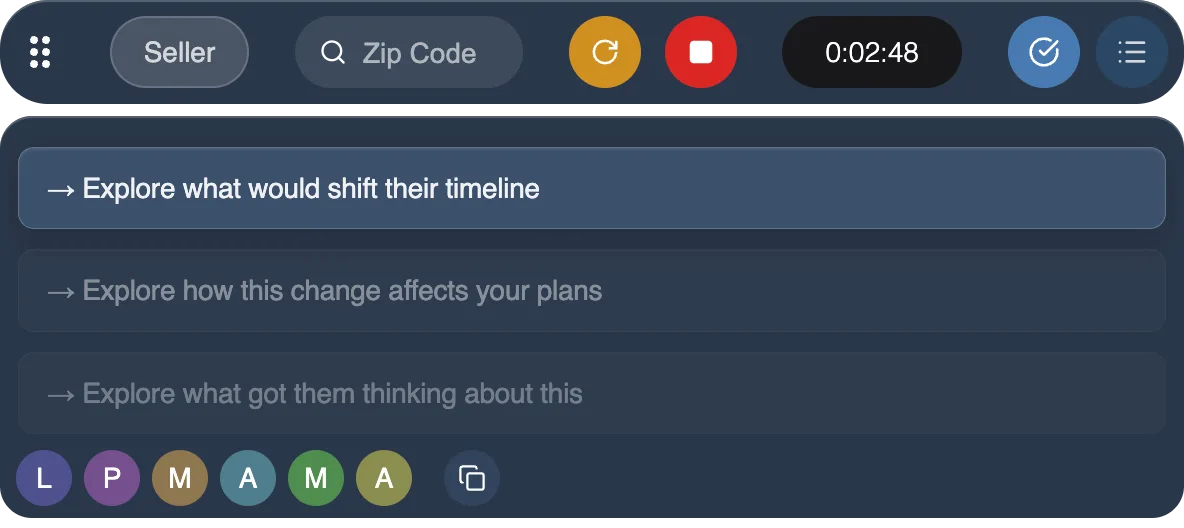
The orange Reset button sits next to Stop in the Coach widget during a session. Press it every time a new person picks up.
What Reset does
Reset:
- Ends and saves the conversation you just had. It shows up in Conversations in the web app like any other.
- Starts a new conversation with the same lead type (Buyer or Seller).
- Clears the insights, the Smart Capture row and the Pulse ZIP code, and sets the timer back to 0:00:00.
- Restarts Cue at the start of the call, so the next person gets opening prompts, not prompts meant for the end of your last call. Your Buffer Time, if you set one, starts again too.
There's no confirmation step.
When to press it
- When a new person answers. Not when you dial, when a person picks up.
- After a voicemail, before your next live conversation.
- On a power or multi-line dialer, at every pickup.
Never press it in the middle of a conversation; Cue would start that person over from the top. More on the habit in When to hit Reset.
Grab your notes before you reset
Reset clears the Smart Capture row in the Coach widget. If you want to paste the notes into your CRM right away, click the copy button at the end of the Smart Capture row first. If you forget, the notes are saved with the conversation in the web app. See Smart Capture.
Reset vs. Stop
| Button | Use it when |
|---|---|
| Reset | The next call is starting and you're keeping the same lead type. |
| Stop | Your dial block is over, or you need to switch between Buyer and Seller. |
If Reset fails
If the Coach widget shows Sayso lost your microphone and couldn't reconnect it. Click Reset to start a new session., Reset is the fix: it reconnects your microphone with a new conversation. If a reset can't start the new conversation, the Coach widget returns to the Start buttons; start again from there.
Was this article helpful?
Still stuck? Email support@asksayso.com or join office hours (every Wednesday at 11am PT / 2pm ET).