Auto Stop: end sessions you forget to stop
Updated November 23, 2026
If you forget to press Stop after your last call, Auto Stop ends the session so it doesn't keep counting time.
How it works
Auto Stop ends a session when both of these are true:
- The session has been running longer than your Auto Stop time.
- Sayso hasn't heard the lead (the other person) speak for longer than your Auto Stop time.
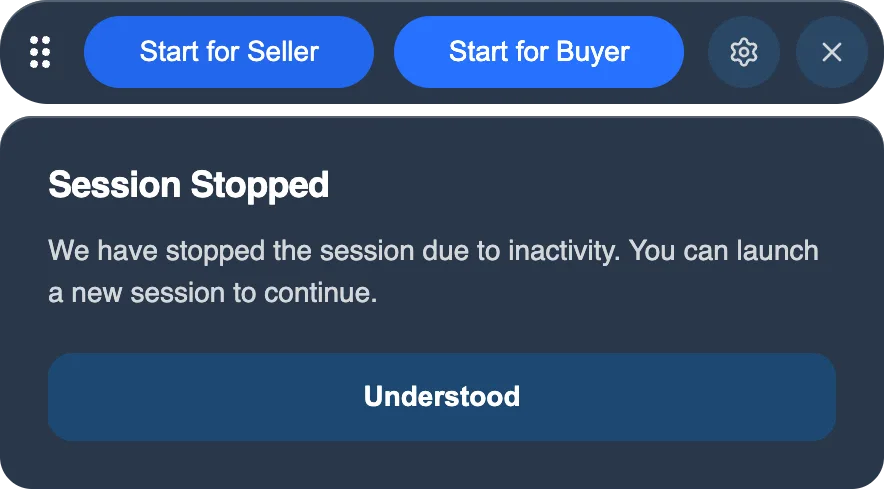
The default is 5 minutes. When it triggers, the Coach widget shows Session Stopped with "We have stopped the session due to inactivity. You can launch a new session to continue." Click Understood. The conversation is saved like any other.
Change the time
- Open Settings from the Sayso menu or the gear in the Coach widget.
- Click General.
- Drag the Auto Stop slider. You can choose from 2 to 10 minutes.
The setting is saved to your account, so it follows you to any computer.
Auto Stop and Buffer Time are different
| Auto Stop | Buffer Time | |
|---|---|---|
| What it does | Ends the session after the lead has been silent too long | Waits before coaching starts |
| When it applies | During a session, when no one is talking | Right after you press Start or Reset |
| Where to set it | Settings > General | Settings > Cue |
| Range | 2 to 10 minutes (default 5) | 0 to 30 seconds (default 0) |
What we recommend
Leave it at 5 minutes. Between calls, do only what has to happen now: send the calendar invite if you booked an appointment, copy your notes into your CRM, and dial the next lead. Save follow-up emails and CRM cleanup for after you press Stop.
If Auto Stop ends sessions in the middle of your dial block, your gaps between conversations are longer than your Auto Stop time. Raise it a little, or press Stop and start again after a long break.
Read more about Buffer Time.
Was this article helpful?
Still stuck? Email support@asksayso.com or join office hours (every Wednesday at 11am PT / 2pm ET).