Connect Sure Send
Updated November 23, 2026
Sure Send connects with an API token that you create in Sure Send. Once connected, you can link any conversation to a Sure Send lead and Sayso adds the call notes to it.
Step 1: Create a token in Sure Send
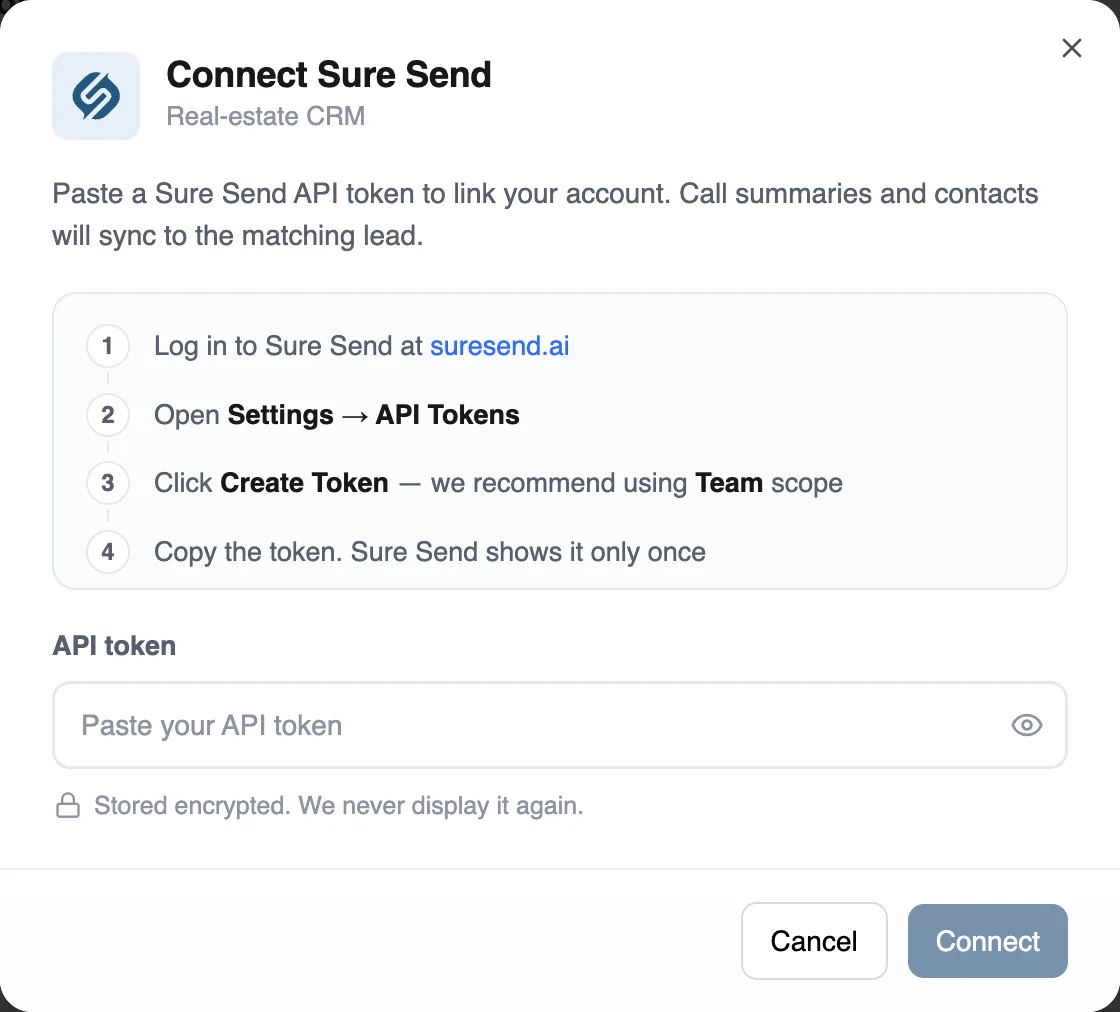
- Log in to Sure Send at suresend.ai.
- Open Settings → API Tokens.
- Click Create Token. We recommend the Team scope.
- Copy the token right away. Sure Send shows it only once. If you lose it, revoke it in Sure Send and create a new one.
Step 2: Paste it into Sayso
- In the web app, open Account Settings > Connections.
- On the Sure Send card, click Connect.
- Paste the token into API token.
- Click Connect.
When it works, you see Sure Send connected. Click Done. The card now shows Connected with the Sure Send account name, for example "Team: Your Team Name".
If the token isn't accepted
You see "That token wasn't recognized." Check that you copied the whole token with no spaces at the start or end. If it still fails, create a fresh token in Sure Send and paste that one.
Limits
- Each agent connects their own Sure Send token.
- When you create a new lead in Sure Send from Sayso, Email and Stage are required.
- If you also connected Follow Up Boss, Sayso uses Follow Up Boss for linking leads.
Related
Was this article helpful?
Still stuck? Email support@asksayso.com or join office hours (every Wednesday at 11am PT / 2pm ET).