Uninstall or reinstall Sayso
Updated November 23, 2026
Uninstalling the desktop app doesn't delete your Sayso account or your saved conversations. Those stay in the web app. To close your account, see Delete your account or data.
- If a session is running, click Stop in the Coach widget first.
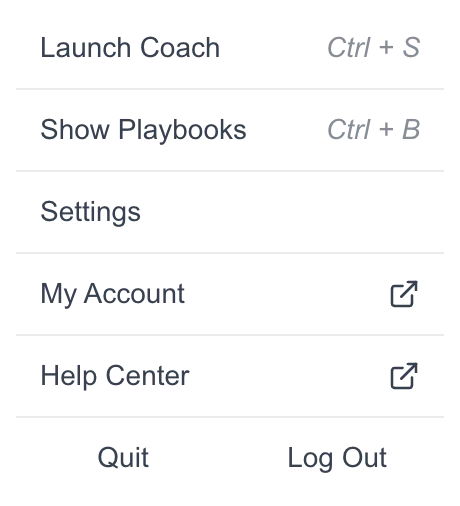
- Click the Sayso icon in the menu bar, then Quit.
- Open your Applications folder.
- Drag Sayso to the Trash. Your Mac may ask for your password.
- Empty the Trash.
To reinstall cleanly, delete every copy of Sayso from Applications first (including ones named "Sayso 2"), empty the Trash, then follow Install Sayso on a Mac.
- If a session is running, click Stop in the Coach widget first.
- Click the Sayso icon near the clock, then Quit.
- Open Settings > Apps > Installed apps (on Windows 10: Apps & features).
- Find Sayso, click the ... menu (or select it) and click Uninstall.
- Follow the prompts.
Uninstalling also removes Sayso from your startup apps if you had Launch at Login turned on.
To reinstall, download the latest installer and run it. See Install Sayso on Windows.
A reinstall fixes most problems that a restart doesn't, especially "permissions look on but Sayso says they're missing" on a Mac.
Was this article helpful?
Still stuck? Email support@asksayso.com or join office hours (every Wednesday at 11am PT / 2pm ET).