Get set up in 15 minutes
Updated November 23, 2026
Work through these steps in order. Each step links to its full article.
1. Get into your account
- Signing up on your own: create your account at app.asksayso.com. See Create your Sayso account.
- Joining a team: open the invite email from your team and click the link. See Join your team from an invite.
2. Install the desktop app
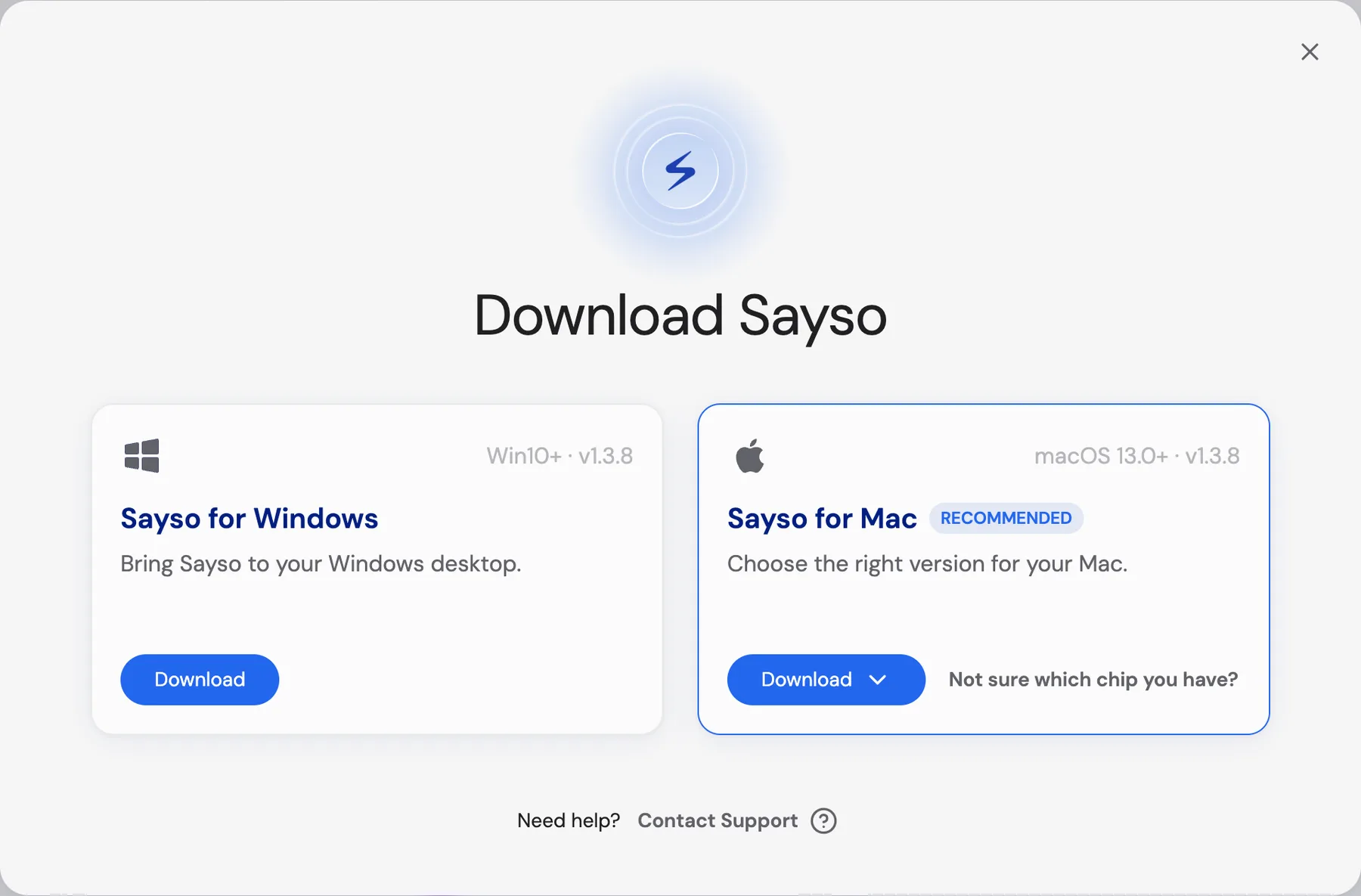
- In the web app, click Download Sayso and pick your computer. See Download Sayso.
- Install it on Mac or Windows.
- Sign in with the same email and password you use in the web app. See Sign in to the desktop app.
3. Allow the permissions
Sayso needs your microphone to hear you. On a Mac it also needs Screen & System Audio to hear the person on the call.
Follow Allow microphone and screen & system audio on Mac. You'll need to quit and reopen Sayso once after you turn on Screen & System Audio.
4. Set up your audio and dialer
- Put on headphones. See Set up your audio.
- Set your dialer to place calls through your computer, not your cell phone. See Set up your dialer for Sayso.
5. Find Sayso
Sayso lives in your Mac menu bar or your Windows taskbar, not in the Dock. See Sayso's menu explained, then keep its icon visible:
6. Make your first coached call
Follow Your first coached call. Before a full dial block, do a test call with a teammate to confirm Sayso hears both sides.
7. Optional: connect your CRM
If you use Follow Up Boss or Sure Send, connect it to send call notes to the lead. See Connect Follow Up Boss or Connect Sure Send.
Was this article helpful?
Still stuck? Email support@asksayso.com or join office hours (every Wednesday at 11am PT / 2pm ET).