Open Sayso automatically when your computer starts
Updated November 23, 2026
Sayso only coaches you and notices calls while it's running. With Launch at Login on, it opens when you sign in to your computer.
Turn it on
- Click the Sayso icon in your menu bar (Mac) or taskbar (Windows).
- Click Settings.
- On the General tab, set Launch at Login to Enabled.
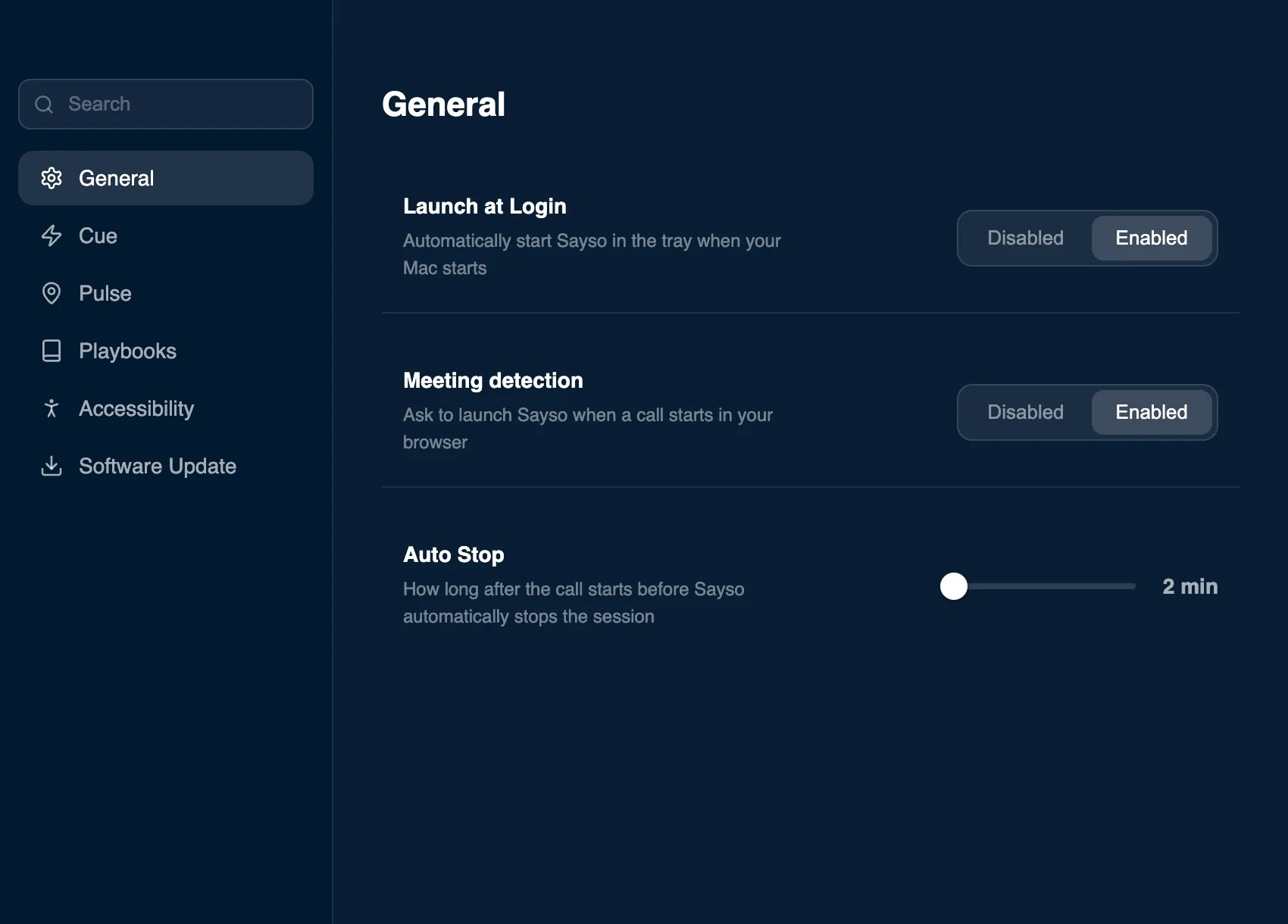
Sayso then starts in the background when you sign in. No window opens; the icon appears in your menu bar or taskbar.
It's off until you turn it on. This setting belongs to the computer, so set it on each computer you use.
Turn it off
Set Launch at Login back to Disabled. You can also remove Sayso from your computer's startup list:
System Settings > General > Login Items & Extensions (or Login Items), then remove Sayso from Open at Login.
Settings > Apps > Startup, then turn off Sayso. You can also do this in Task Manager on the Startup apps tab.
Was this article helpful?
Still stuck? Email support@asksayso.com or join office hours (every Wednesday at 11am PT / 2pm ET).