Update the desktop app
Updated November 23, 2026
How updates work
Sayso checks for a new version when it opens and every hour after that. When one is ready, Sayso shows New Update Available with two choices:
- Update Now downloads the update. Sayso closes the Coach widget, installs the update and restarts.
- Not Now hides the prompt. You can update later from the Sayso menu or from Settings.
Never mid-call
If an update arrives while you're in a coaching session, Sayso waits. The prompt shows after your session ends, and the Sayso menu shows Update Available in the meantime.
Update later
- The Sayso menu: click the Sayso icon in your menu bar (Mac) or taskbar (Windows), then click Update Available. It opens Settings on the Software Update tab.
- Settings: open Settings > Software Update and click Update Now.
While an update downloads, the Sayso menu shows Update in progress… and the Coach widget and Settings items are unavailable for a moment.
Check which version you have
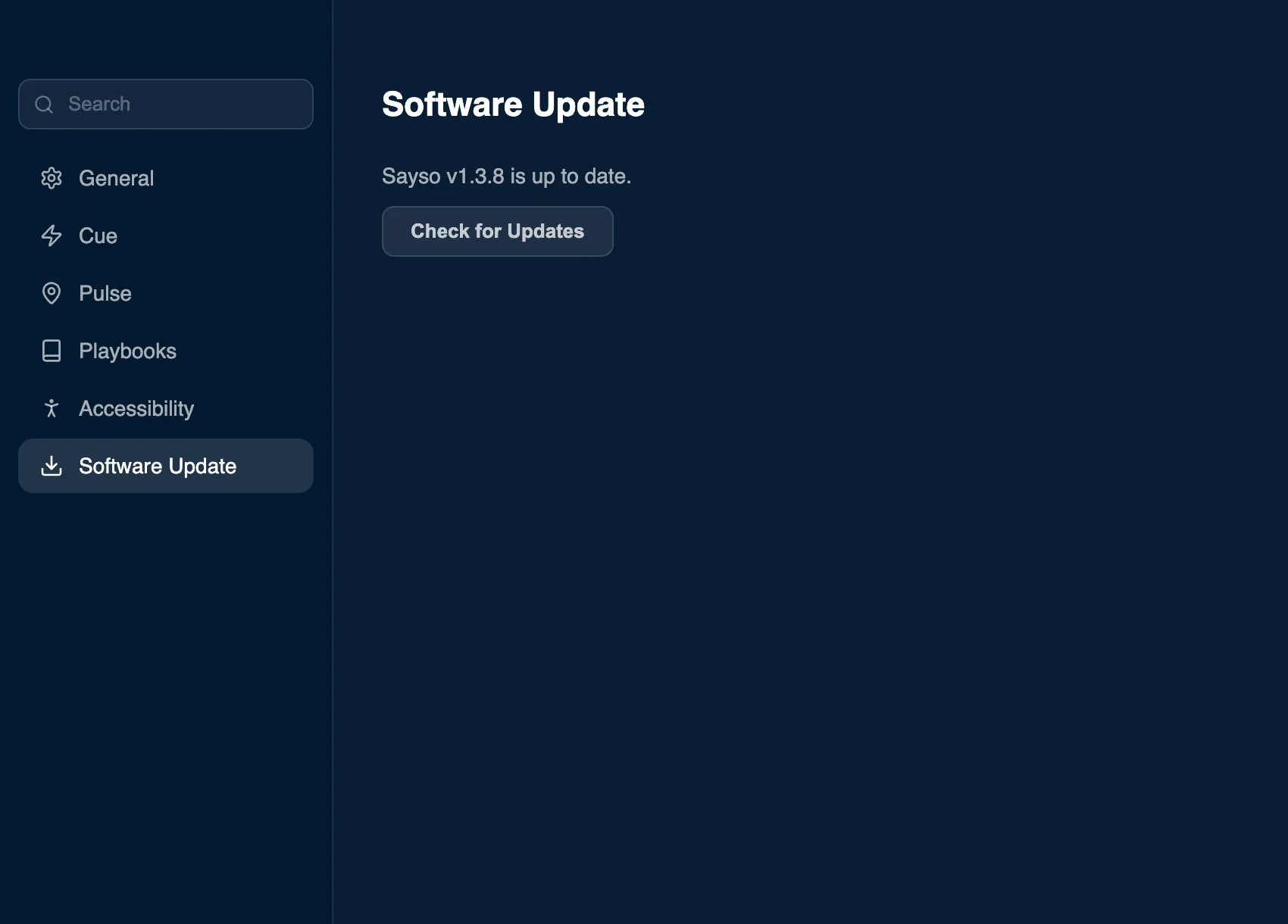
Open Settings > Software Update. When you're current, it says Sayso vX.X.X is up to date. Click Check for Updates to check right now.
If the update won't install
| What you see | What to do |
|---|---|
| Move Sayso to Applications to install updates. (Mac) | Quit Sayso, drag it into your Applications folder, then open it from there. See Install Sayso on a Mac. |
| No internet connection. Please check your network and try again. | Reconnect to the internet, then click Try Again. |
| Couldn't reach the update server. Please try again shortly. | Wait a few minutes and click Try Again. |
| Your Mac asks for your password after an update | Enter it to finish. |
If an update keeps failing, download the latest version from the web app and install it over the old one, choosing Replace on a Mac. See Download Sayso.
Was this article helpful?
Still stuck? Email support@asksayso.com or join office hours (every Wednesday at 11am PT / 2pm ET).