Find and review your conversations
Updated November 23, 2026
When you stop a session in the desktop app, Sayso saves the call to Conversations in the web app. This is where you look back at a call, fix your notes, and send them to your CRM.
Open a conversation
- In the web app, click Conversations in the left sidebar.
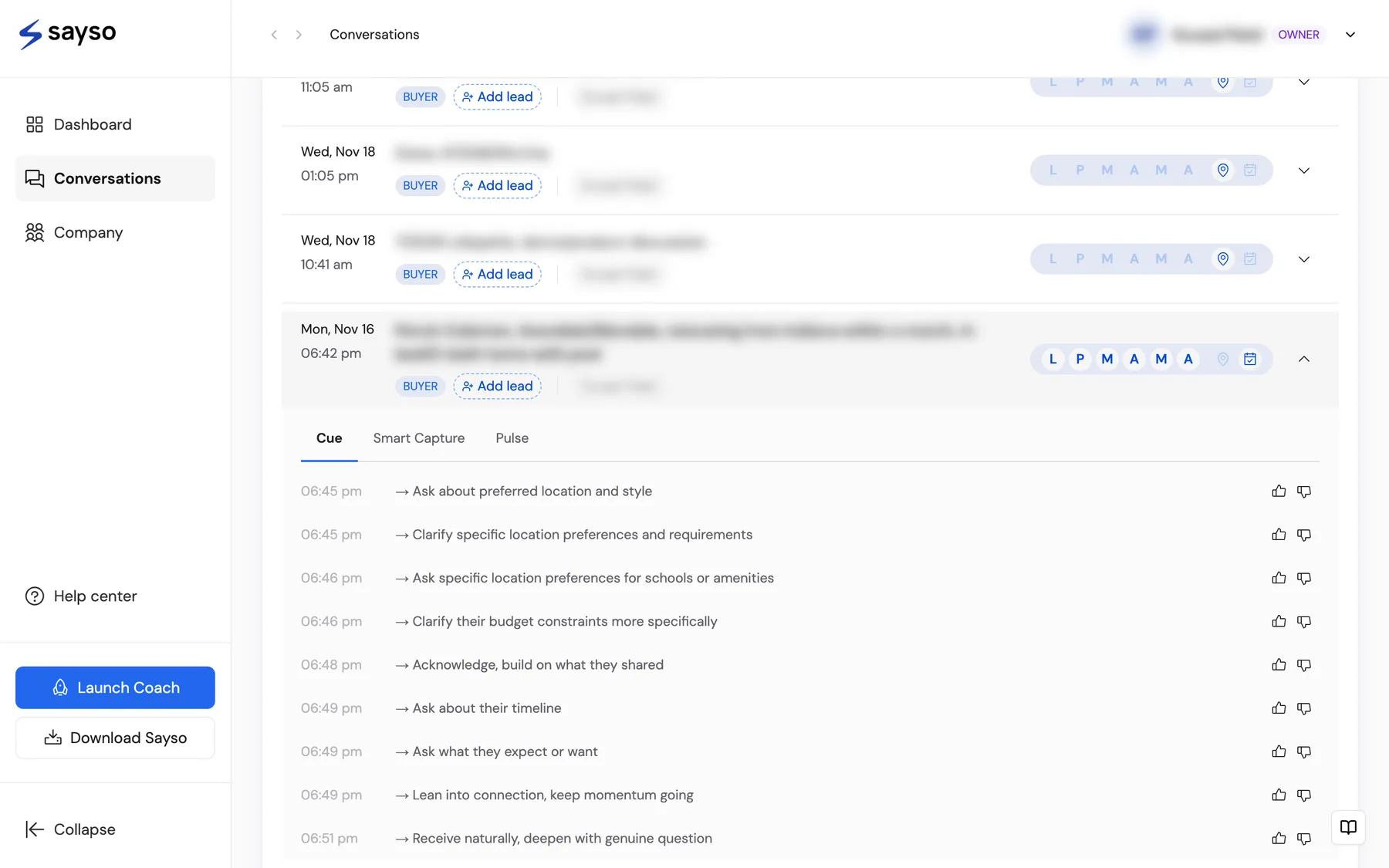
- Your most recent calls are at the top. Each row shows the date and time, the summary, the lead type (Buyer or Seller), the linked CRM lead if there is one, and small icons for what was captured.
- Click a row to open it.
Scroll to the bottom and click Load more to see older calls.
What's inside a conversation
An open conversation has three tabs:
- Cue: every insight Cue showed you during the call, with the time it appeared. Rate them with thumbs up or down. See Rate Cue's insights.
- Smart Capture: your LPMAMA notes (Location, Price, Motivation, Agent, Mortgage, Appointment). You can edit them. See Edit Smart Capture notes after a call.
- Pulse: the market data you pulled up on the call. See Pulse on a conversation.
The icons on the right of each row show whether the call has Smart Capture notes, Market Pulse data (with the ZIP code), and whether an appointment was booked.
New calls
A new call shows up after you press Stop, with the note New conversation. Creating summary.... The summary appears when it's ready, without a page refresh.
Why isn't my call here?
The call was a voicemail or didn't connect.
Sayso doesn't list voicemails or calls that never connected. They can still use minutes if Cue showed insights during them. See How coaching minutes are counted.
Nothing happened on the call.
If Cue gave no insight, Smart Capture caught nothing and you didn't use Pulse, the session doesn't show in Conversations and doesn't use any minutes.
The list is filtered.
By default, Conversations shows calls that have a summary. Check the chips under the search bar and remove any filter you don't need. See Search and filter conversations.
Team owners and admins
You see your whole company's conversations, with the agent's name on each row. You can read every tab, but only the agent who made the call can rate insights, edit notes or link a lead. See Review your agents' conversations.
Related
Was this article helpful?
Still stuck? Email support@asksayso.com or join office hours (every Wednesday at 11am PT / 2pm ET).