Move an agent to another team or off a team
Updated November 23, 2026
Each agent can be on one team at a time. Owners and Admins can move them from the team's page.
Transfer an agent to another team
- Open Company > Teams and click the agent's current team.
- In the Team members list, open the agent's row menu and choose Transfer member.
- From shows their current team. Pick the new team in To.
- Click Save. You will see "Member transferred to" followed by the new team name.
If you see "No other teams yet", create the second team first with Add team.
The agent's usage this month moves with them, so both teams' hours update. If the old team had a usage warning and drops back below 80% of its cap, it can warn again later in the month.
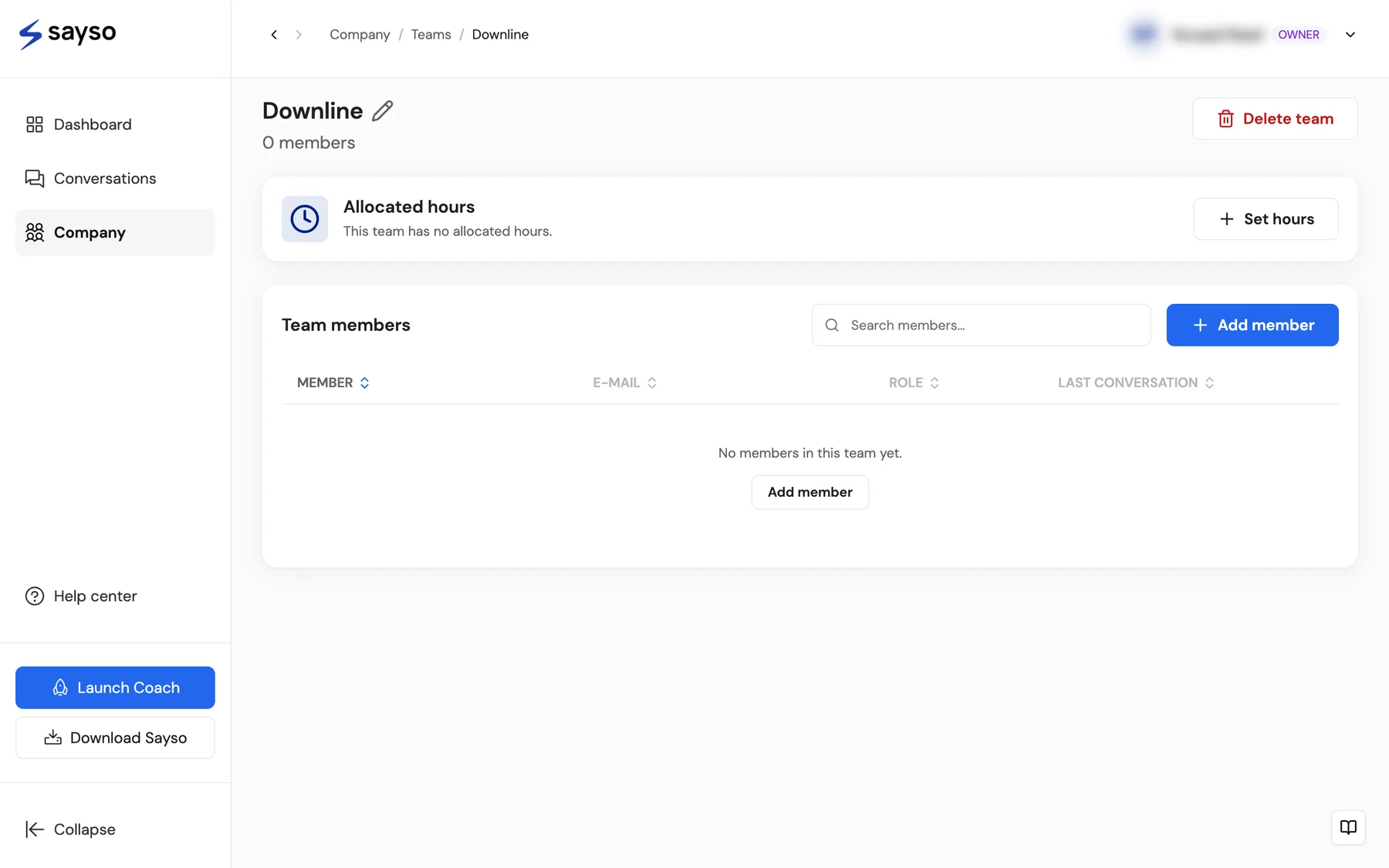
Take an agent off a team
- Open the team's page and choose Remove from team in the agent's row menu.
- Confirm with Yes, remove. You will see "Member removed from team."
They stay in your company with no team, keep their account and conversations, and can be added to a team again any time.
Remove from team only takes someone off a team. Remove member on the Members tab deletes their account. See Remove an agent from your company.
An agent with no team has no team hour cap. They use your company's plan hours like everyone else.
Related
Was this article helpful?
Still stuck? Email support@asksayso.com or join office hours (every Wednesday at 11am PT / 2pm ET).