Turn on two-factor authentication
Updated November 23, 2026
Two-factor authentication (2FA) adds a second step to sign-in. After your password, Sayso asks for a 6-digit code from an authenticator app on your phone, such as Google Authenticator, Microsoft Authenticator, Authy or 1Password. Someone with your password alone can't get in.
Turn it on
- In the web app, click your name in the top-right corner and choose Account Settings.
- Open Security.
- On the Two-factor authentication card, switch the toggle on.
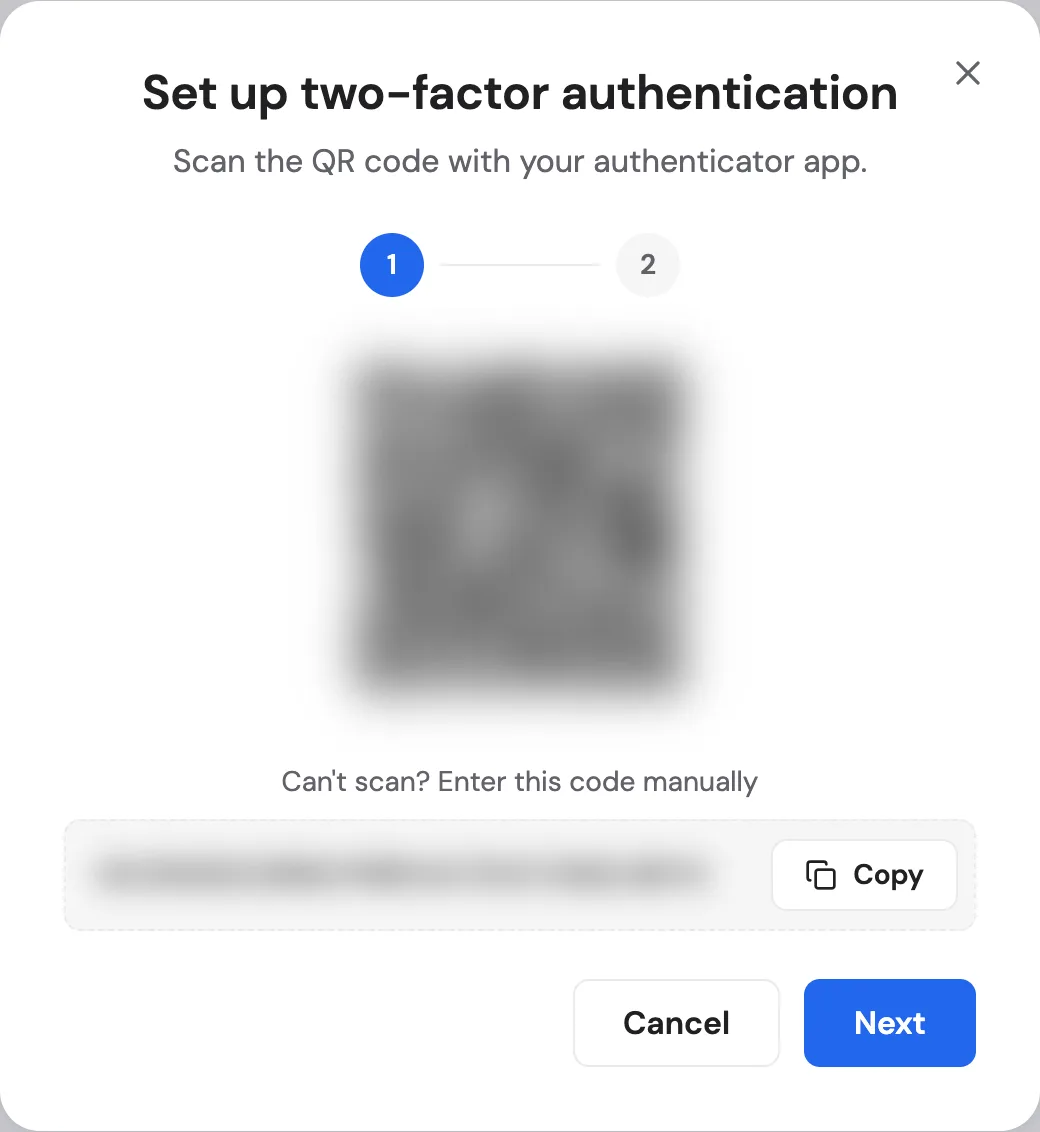
- In Set up two-factor authentication, scan the QR code with your authenticator app. Can't scan? Copy the code under Can't scan? Enter this code manually and add it to the app by hand.
- Click Next.
- Enter the 6-digit code your app shows and click Verify.
The card now shows Enabled and reads "Your account is protected with 2FA".
Signing in with 2FA
- Web app: after Sign in, enter the code on the Two-factor authentication screen and click Verify.
- Desktop app: after Log In, the app asks for the same 6-digit code.
- Changing your password: you also enter a code to confirm. See Change your password.
Turn it off
- Go to Account Settings > Security.
- Switch the Two-factor authentication toggle off.
- In Disable Two-Factor Authentication, click Yes, Disable.
Lost your phone?
If you can't get codes anymore, you can't sign in by yourself. Email support@asksayso.com from your account email and we'll help you get back in.
Related
Was this article helpful?
Still stuck? Email support@asksayso.com or join office hours (every Wednesday at 11am PT / 2pm ET).