Create a team
Updated November 23, 2026
Owners and Admins can create teams.
- Open Company in the sidebar and switch to the Teams tab.
- Click Add team. If you don't have any teams yet, the button is under Create your first team.
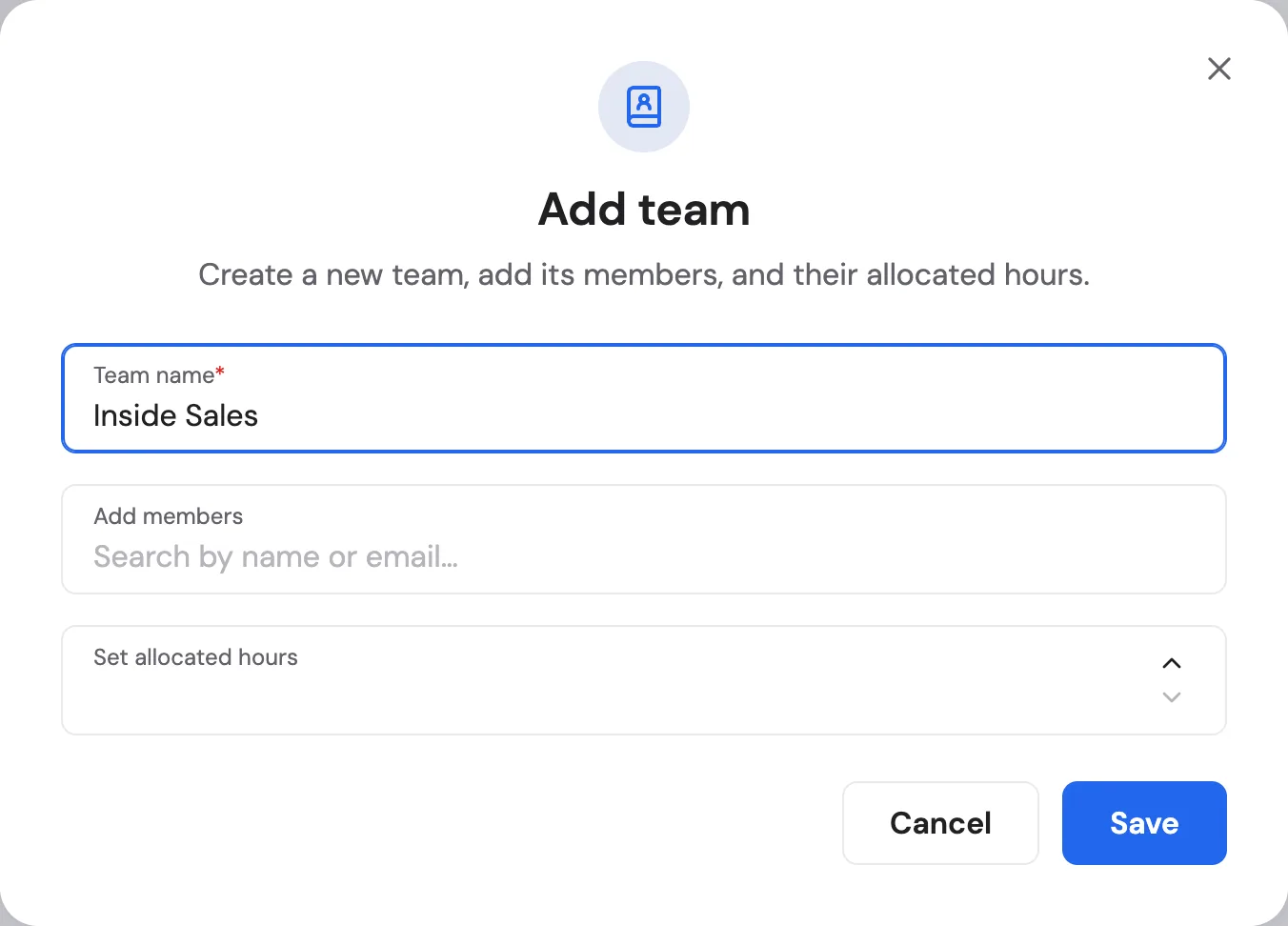
- Enter a Team name (required, up to 80 characters). Each team in your company needs a different name.
- Optional: in Add members, pick the agents to put on the team. People who are already on another team are greyed out; move them first with Transfer member.
- Optional: enter Set allocated hours, the team's monthly cap, from 1 to 10,000 hours. Leave it empty for no cap.
- Click Save.
You will see Team created successfully with the team name, its members and its allocated hours. Click Continue to go back to the list, or Edit to open the team's page.
If it doesn't save
- "A team with that name already exists": pick a different name.
- "Some accounts already belong to a team": someone you picked joined another team in the meantime. Remove them from the list and try again.
You can also invite people straight onto a team: choose the team in the Team field when you invite agents.
Related
Was this article helpful?
Still stuck? Email support@asksayso.com or join office hours (every Wednesday at 11am PT / 2pm ET).