Send a conversation to your CRM
Updated November 23, 2026
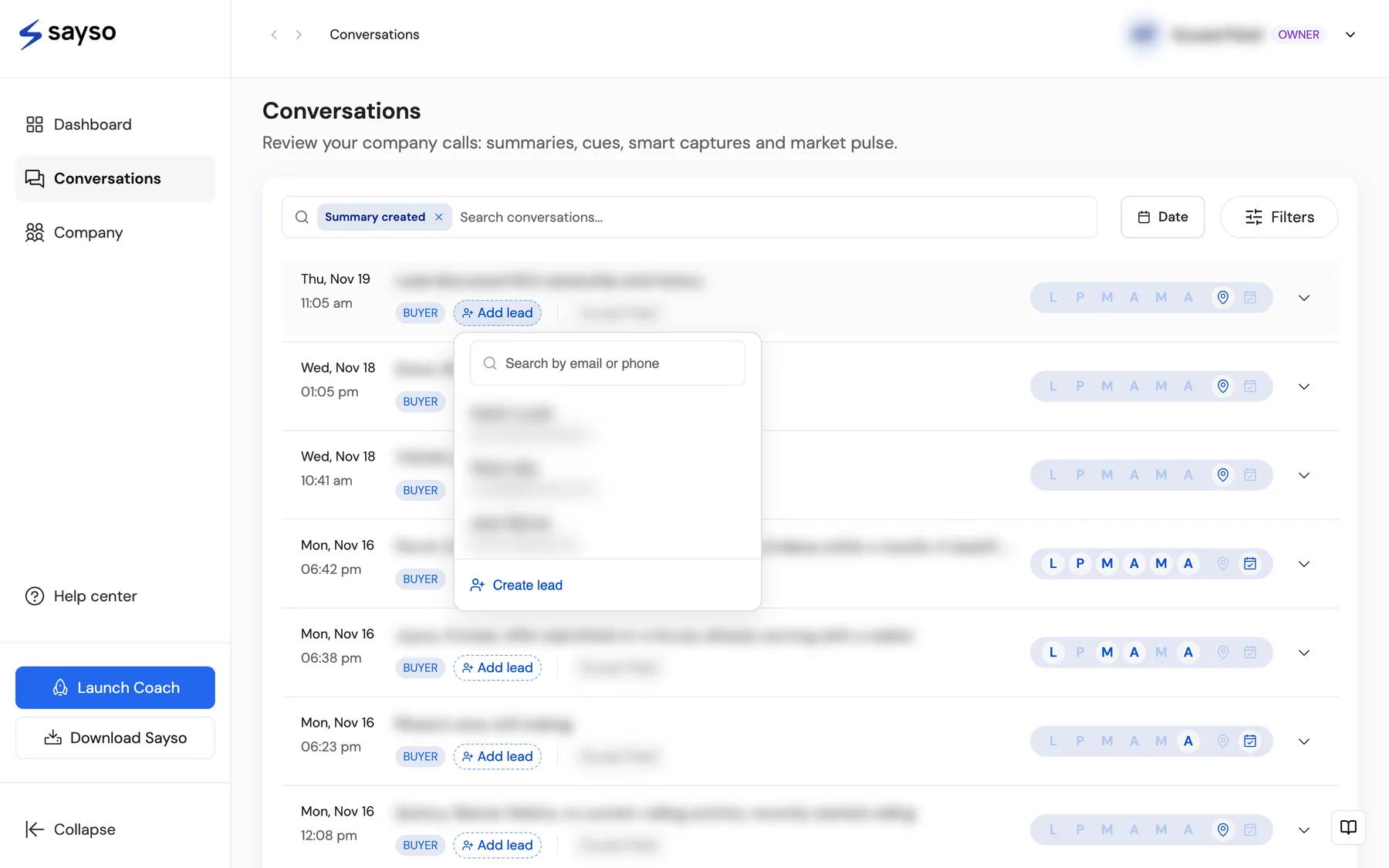
With Follow Up Boss or Sure Send connected, each of your conversations has an Add lead button. Pick the lead the call was with, and Sayso posts the call notes to that lead in your CRM.
Not connected yet? See Connect Follow Up Boss or Connect Sure Send.
Link the call to an existing lead
- Open Conversations and find the call.
- Click Add lead under the summary.
- Type the lead's email or phone number in Search by email or phone.
- Click the lead.
The lead's name now shows on the conversation, and Sayso adds the note to that lead in your CRM.
Create a new lead
If the person isn't in your CRM yet:
- Click Add lead, then Create lead at the bottom of the menu.
- Fill in First name, Last name and Phone. Email is optional for Follow Up Boss and required for Sure Send. Sure Send also asks for a Stage.
- Click Create lead.
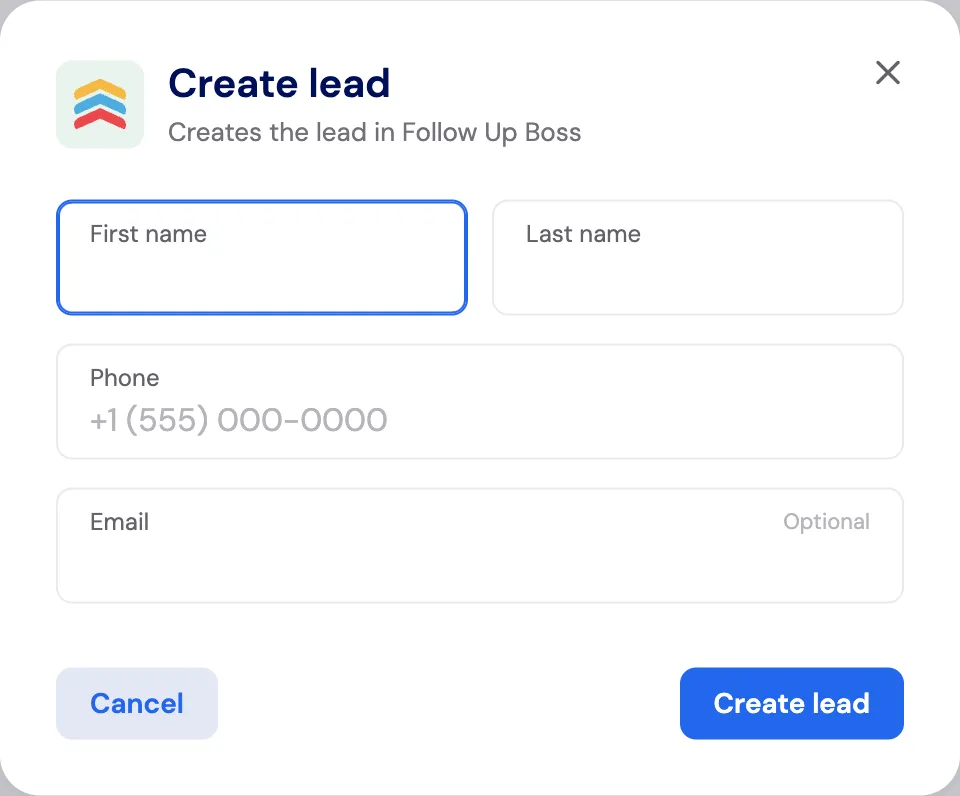
Sayso creates the lead in your CRM and links the call to it. In Follow Up Boss, the new lead's source is Sayso.
What the note in your CRM looks like
Sayso adds a note titled Sayso Note to the lead. It includes:
- The call summary
- Every Smart Capture field (Location, Price, Motivation, Agent, Mortgage, Appointment). Empty fields say "Not captured", which tells you what to ask next time.
- Market Pulse numbers, if you used Pulse
- Appointment: Booked, if Sayso detected one
Smart Capture can mishear names and street names. Check the notes before you link the lead, or fix them afterward and resync. See Edit Smart Capture notes after a call.
Limits
- You can only link leads on your own calls.
- Calls aren't sent to your CRM automatically. Linking is what sends the note.
- Using a CRM Sayso doesn't connect to yet? Copy the notes from the Smart Capture tab and paste them into your CRM. Then request an integration.
Related
Was this article helpful?
Still stuck? Email support@asksayso.com or join office hours (every Wednesday at 11am PT / 2pm ET).