My microphone isn't working
Updated November 23, 2026
Sayso uses whichever microphone is selected as your computer's input, and it follows that setting if you change it.
First step, always
Quit Sayso from the Sayso menu and open it again.
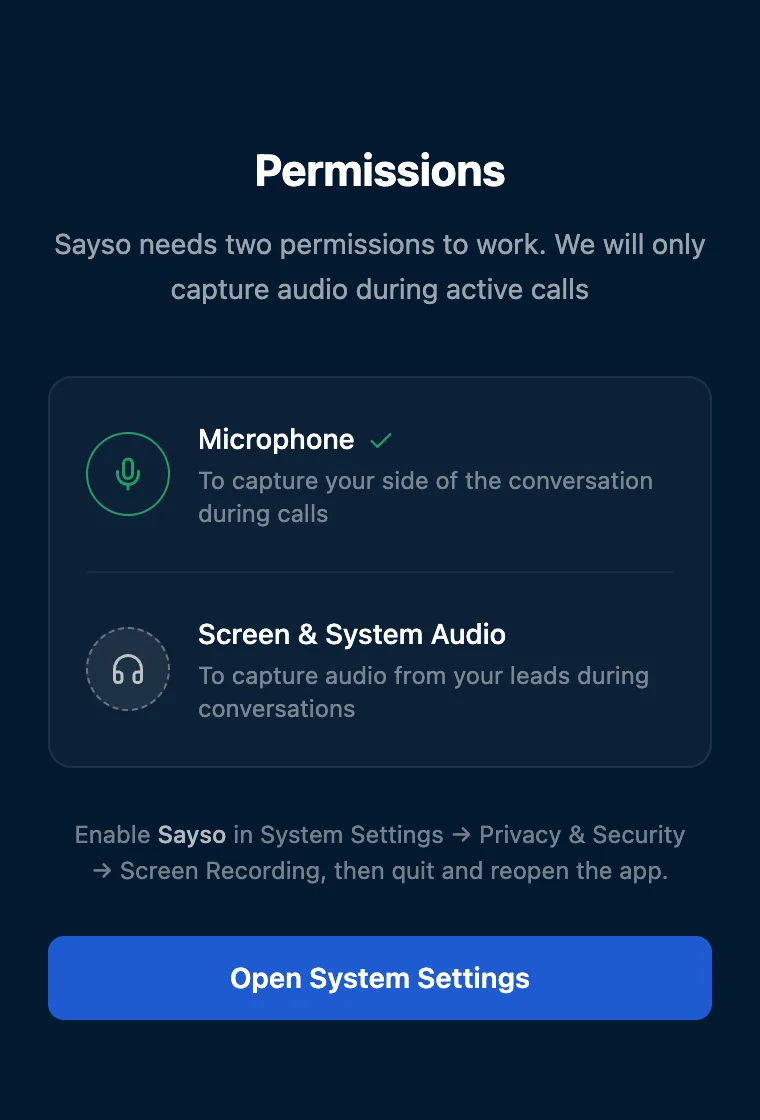
Check the permission
- Open System Settings > Privacy & Security > Microphone.
- Turn on Sayso.
Permission on but Sayso says it's missing? See Permissions look on but Sayso says they are missing.
Check which microphone is selected
- Open System Settings > Sound > Input.
- Select your headset microphone.
- Talk and check that the input level moves.
Check the permission
- Open Settings > Privacy & security > Microphone.
- Turn on Microphone access and Let desktop apps access your microphone.
Check which microphone is selected
- Right-click the speaker icon in the taskbar and click Sound settings.
- Under Input, select your headset microphone.
- Talk and check that the level bar moves.
Bluetooth headset mic cutting out? Some Windows laptops struggle with Bluetooth microphones. Use a wired headset, or keep the Bluetooth headset for listening and set the laptop microphone as your input.
Other causes
- Another app is holding the microphone. If the Coach widget says Sayso couldn't access your microphone. Another app may be using it., close other calling or recording apps and start again.
- Your headset was unplugged mid-call. If the Coach widget says Sayso lost your microphone and couldn't reconnect it, reconnect it and press Reset.
- You just stopped a session. If the Coach widget says Sayso isn't receiving microphone audio yet, wait a few seconds and try again.
- Safari. Open your dialer and CRM in Google Chrome. Safari has grabbed the microphone in the past.
- Muted headset. Check the mute switch on your headset cable or earcup.
Connect your headset before you start a session.
Still not working
Email support@asksayso.com with your computer (Mac or Windows) and its version, the headset you use, your dialer and CRM, and your logs.
Was this article helpful?
Still stuck? Email support@asksayso.com or join office hours (every Wednesday at 11am PT / 2pm ET).