Search and filter conversations
Updated November 23, 2026
The top of the Conversations page has a search bar, a date picker and a Filters button.
Search
Type in Search conversations.... Sayso matches words in the call summaries, for example a street name, a neighborhood or "pre-approved". Results update as you type.
Pick dates
- Click Date.
- Pick a start date and an end date on the calendar.
- Click Apply.
To go back to all dates, open the calendar again and click Reset.
Filters
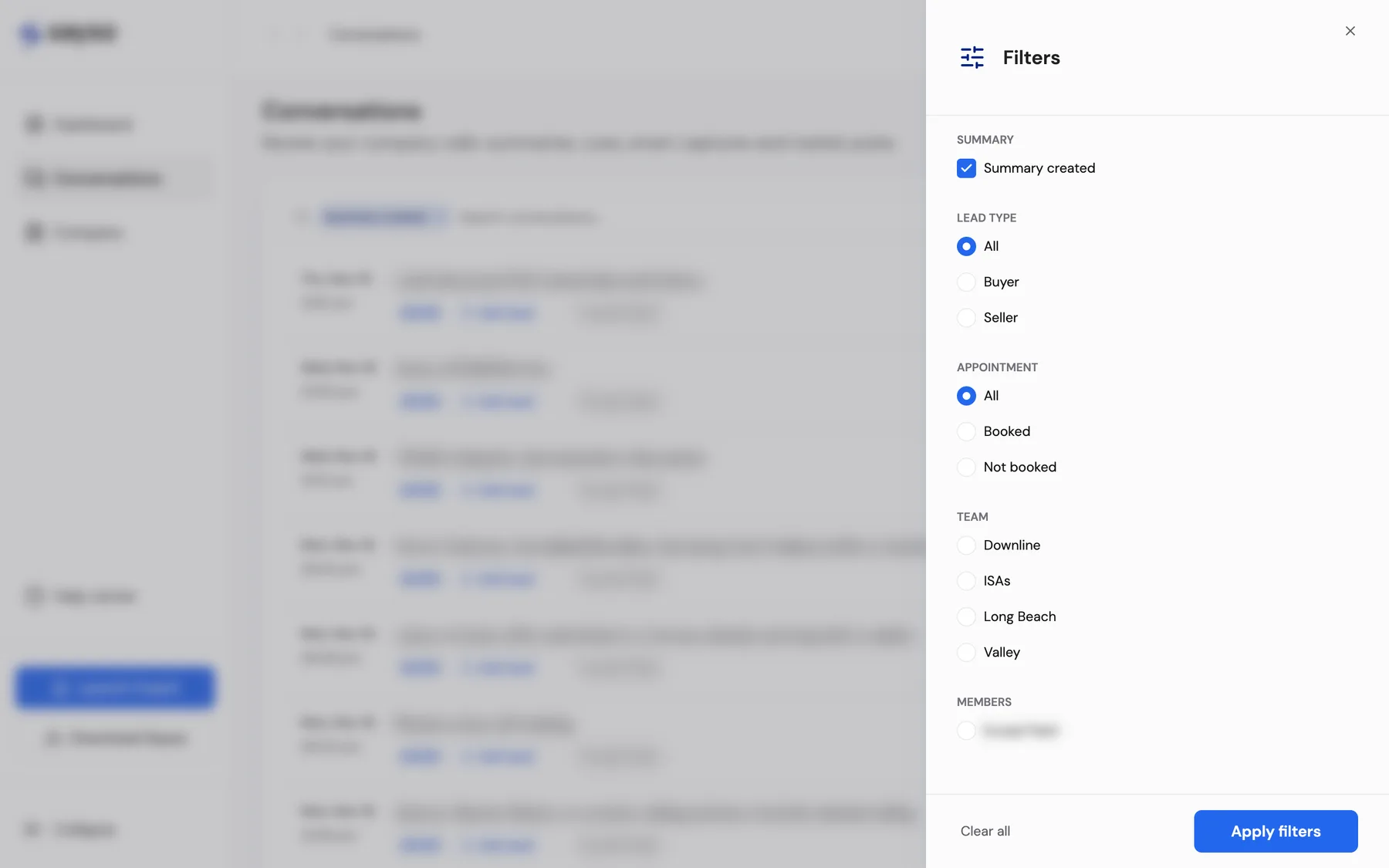
Click Filters to open the filter panel:
| Filter | Options |
|---|---|
| Summary | Summary created (on by default): only calls that have a summary |
| Lead type | All, Buyer or Seller |
| Appointment | All, Booked or Not booked |
Click Apply filters. Each active filter shows as a chip under the search bar. Click the x on a chip to remove it, or open Filters and click Clear all.
Team owners and admins
The filter panel also has Team and Members sections to narrow the list to one team or one agent.
No results?
You see a message such as "No conversations match your filters." Remove a chip or widen the dates, and check the spelling in the search box.
Related
Was this article helpful?
Still stuck? Email support@asksayso.com or join office hours (every Wednesday at 11am PT / 2pm ET).