Coach widget tour
Updated November 23, 2026
The Coach widget changes shape depending on whether a session is running.
Before a session

| Part | What it does |
|---|---|
| Drag handle (dotted grip on the left) | Click and drag to move the Coach widget. |
| Start for Seller and Start for Buyer | Starts a coaching session for that kind of lead. See Start a session. |
| Gear | Opens desktop Settings. |
| X | Closes the Coach widget. Sayso keeps running in your menu bar or taskbar. |
During a session
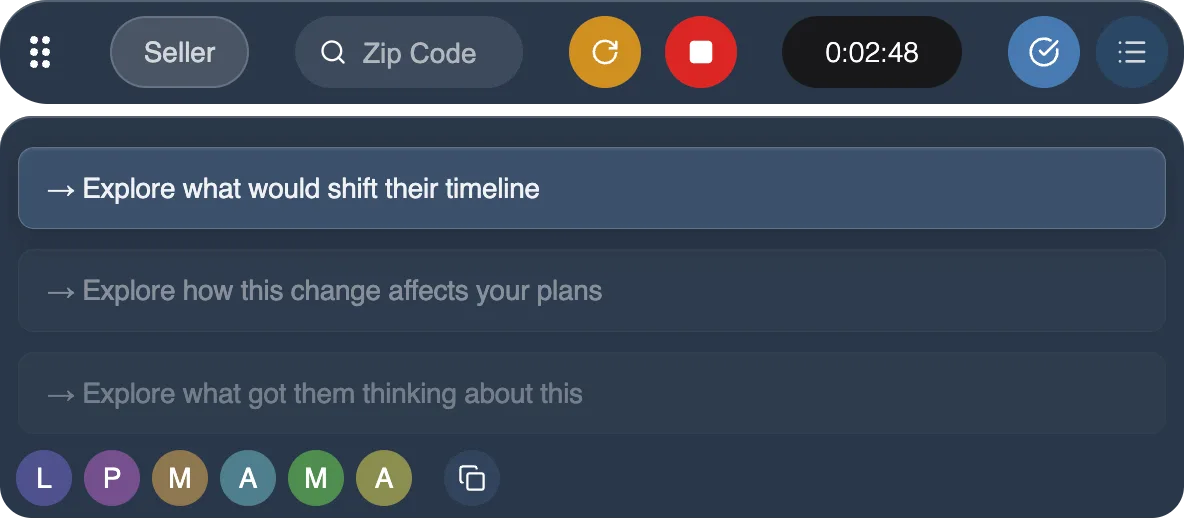
| Part | What it does |
|---|---|
| Buyer or Seller label | The lead type you chose. It can't be changed mid-session. |
| Zip Code | Type a 5-digit ZIP to pull up Pulse market data. Shown when Pulse is on. |
| Reset (orange, circular arrow) | Saves the current conversation and starts a fresh one for the next call. See Reset a session. |
| Stop (red, square) | Ends the session and saves it. See Stop a session. |
| Timer | How long this session has been running (hours:minutes:seconds). |
| Insights (check circle) | Shows or hides Cue's insights. A red dot means new insights arrived while they were hidden. |
| Playbooks (list) | Opens or closes your Playbooks next to the Coach widget. |
Below the bar
When the insights panel is open, it shows:
- Cue's insights: pinned insights at the top, then the newest insights. Each has a pin and an X. See Cue and Pin an insight.
- The Smart Capture row: six letters for Location, Price, Motivation, Agent, Mortgage and Appointment, plus a copy button. See Smart Capture.
Messages also appear under the bar, for example when Sayso is reconnecting or a session couldn't start. See Messages in the Coach widget.
Was this article helpful?
Still stuck? Email support@asksayso.com or join office hours (every Wednesday at 11am PT / 2pm ET).