Find Sayso in the Mac menu bar
Updated November 23, 2026
On a Mac, Sayso puts a lightning bolt icon in the menu bar at the top right of your screen, near the clock, Wi-Fi and battery icons. Click it to open the Sayso menu.
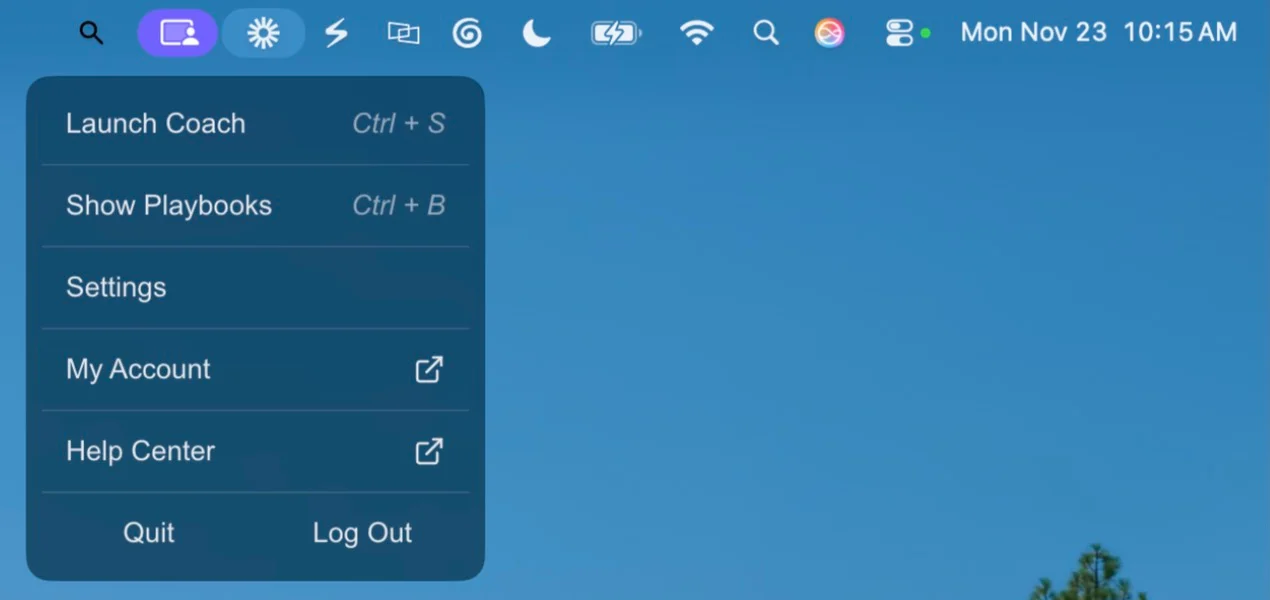
Keep the bolt visible
The menu bar fills up fast, and on MacBooks with a camera notch, icons that don't fit are hidden behind the notch. Move the bolt to the right so it always shows:
- Hold down ⌘ Command.
- Click the Sayso bolt and drag it to the right, toward the clock.
- Let go.
You can also free up space by removing menu bar icons you don't use (hold ⌘ Command and drag them down off the menu bar), or with a menu bar manager app.
The bolt isn't there
- Check that Sayso is open. Open your Applications folder and double-click Sayso. If Sayso is already running, this opens the Sayso menu.
- Check that it's allowed in the menu bar. On newer versions of macOS, open System Settings > Menu Bar and turn on Sayso.
- Make room. Quit a few other menu bar apps, or move the bolt to the right as shown above.
Use the Dock instead
While Sayso is running, its icon also shows in your Dock. Clicking it opens the Sayso menu. To keep it there:
- Right-click the Sayso icon in the Dock.
- Click Options.
- Click Keep in Dock.
To open the Coach widget without the icon, press Ctrl + S from any app. See Keyboard shortcuts.
Was this article helpful?
Still stuck? Email support@asksayso.com or join office hours (every Wednesday at 11am PT / 2pm ET).