"Sayso identified a call" prompt doesn't appear
Updated November 23, 2026
Work through these checks in order.
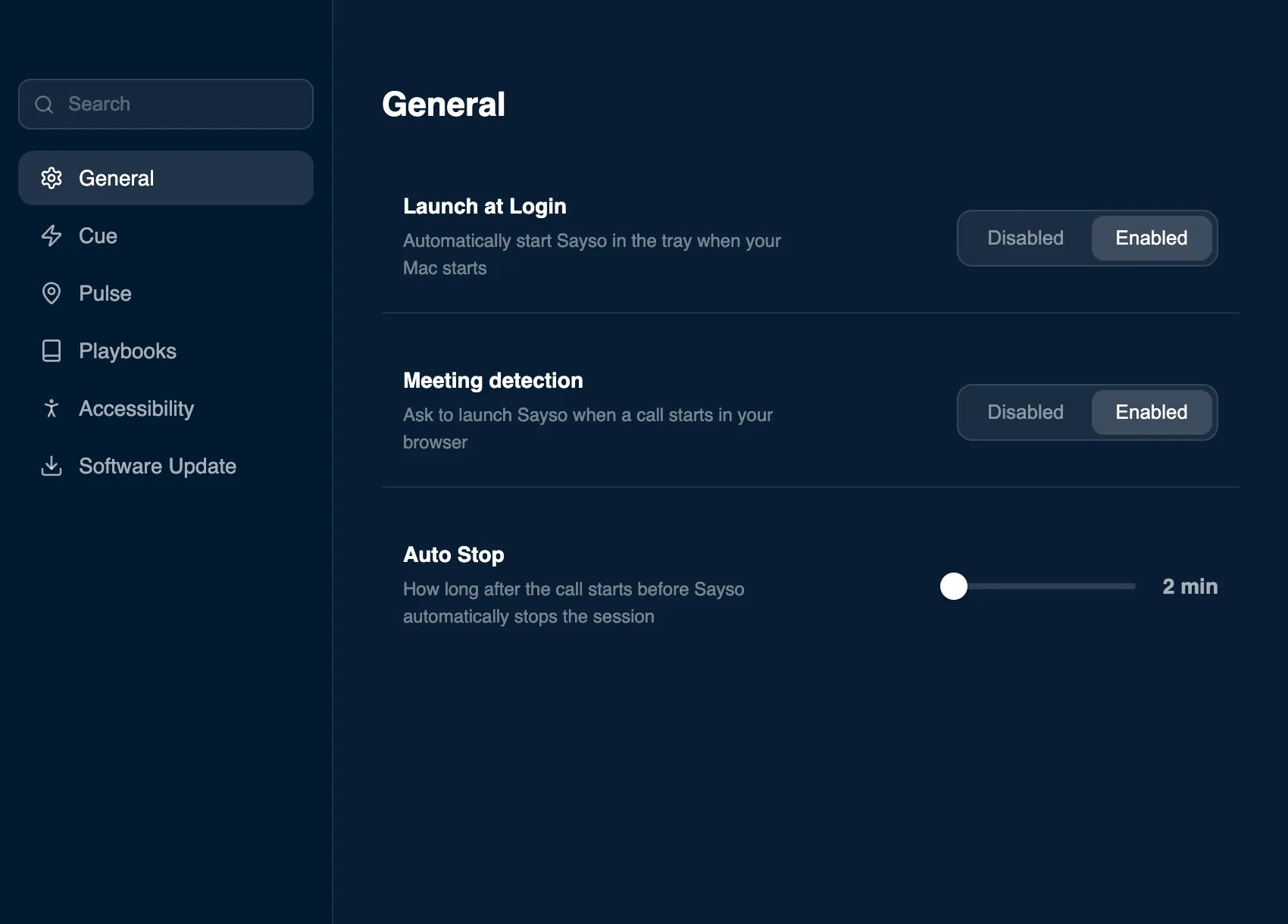
- Is Sayso running? Meeting detection only works while Sayso is open. Look for the Sayso icon in your menu bar or taskbar, and turn on Launch at Login so it's always running.
- Is the call in a web browser? Sayso detects calls in Chrome, Edge, Safari, Firefox, Arc, Brave, Opera and Vivaldi. It doesn't detect the Zoom or Teams desktop apps, other desktop dialer apps, or calls on your phone. For those, open the Coach widget yourself with Ctrl + S (Mac) or Alt + Shift + S (Windows).
- Is the setting on? Open Settings > General and check that Meeting detection is Enabled.
- Is your Mac new enough? Meeting detection needs macOS 14.2 or newer. Check Apple menu > About This Mac. On older versions, open the Coach widget yourself.
- Is the Coach widget already open? Sayso doesn't prompt when the Coach widget is open or a session is running. Click a Start button in the Coach widget.
- Did you already dismiss it? If you closed the prompt or let it time out, Sayso won't ask again during that same call. It asks again on your next call.
- Are you signed in with an active subscription? Sayso doesn't prompt when you're signed out or the account has no active subscription.
- Is Sayso reconnecting? Sayso doesn't prompt while it's reconnecting to the internet.
Sayso shows the prompt once the browser has held your microphone for about 3 seconds. If your dialer only turns the microphone on after the lead answers, the prompt appears then.
Still nothing? Quit and reopen Sayso, then email support@asksayso.com with your browser, dialer and your logs.
See Meeting detection for how it works.
Was this article helpful?
Still stuck? Email support@asksayso.com or join office hours (every Wednesday at 11am PT / 2pm ET).