Company page explained
Updated November 23, 2026
The Company page is in the sidebar of the web app at app.asksayso.com. Only the Owner and Admins on a team account see it. Agents with the Member role and individual accounts don't have it.
Members tab
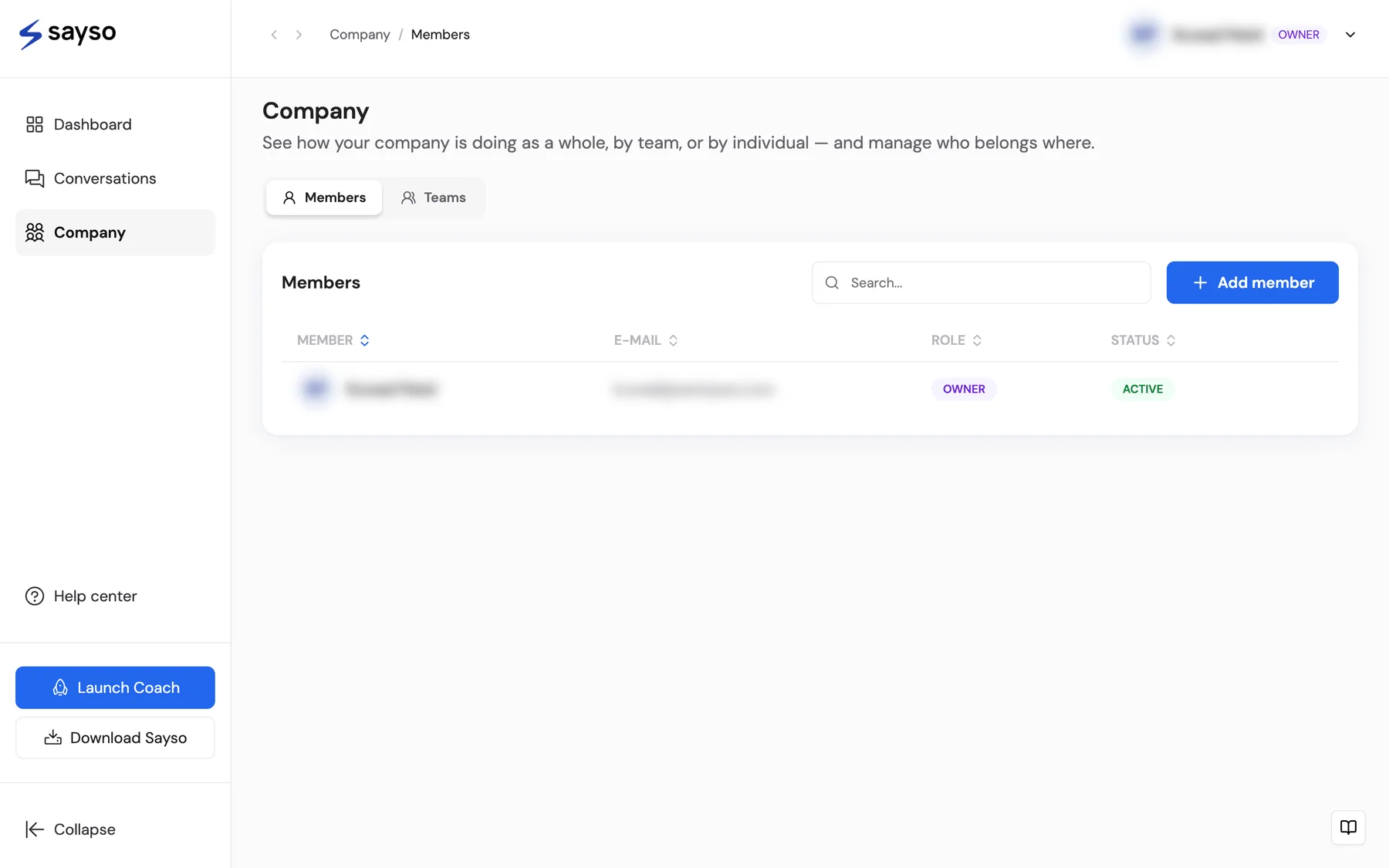
Members lists everyone in your company and every invite that hasn't been accepted yet.
| Column | What it shows |
|---|---|
| Member | The person's name. Pending invites have no name yet. |
| The email they sign in with, or the email you invited. | |
| Role | Owner, Admin or Member. |
| Status | Active (joined), Invited (invite sent, not accepted yet) or Expired (invite older than 14 days). |
Click a column name to sort. Use Search... to find someone by name or email. Use Add member to send invites. Each row has a menu with the actions you're allowed to take on that person.
Teams tab
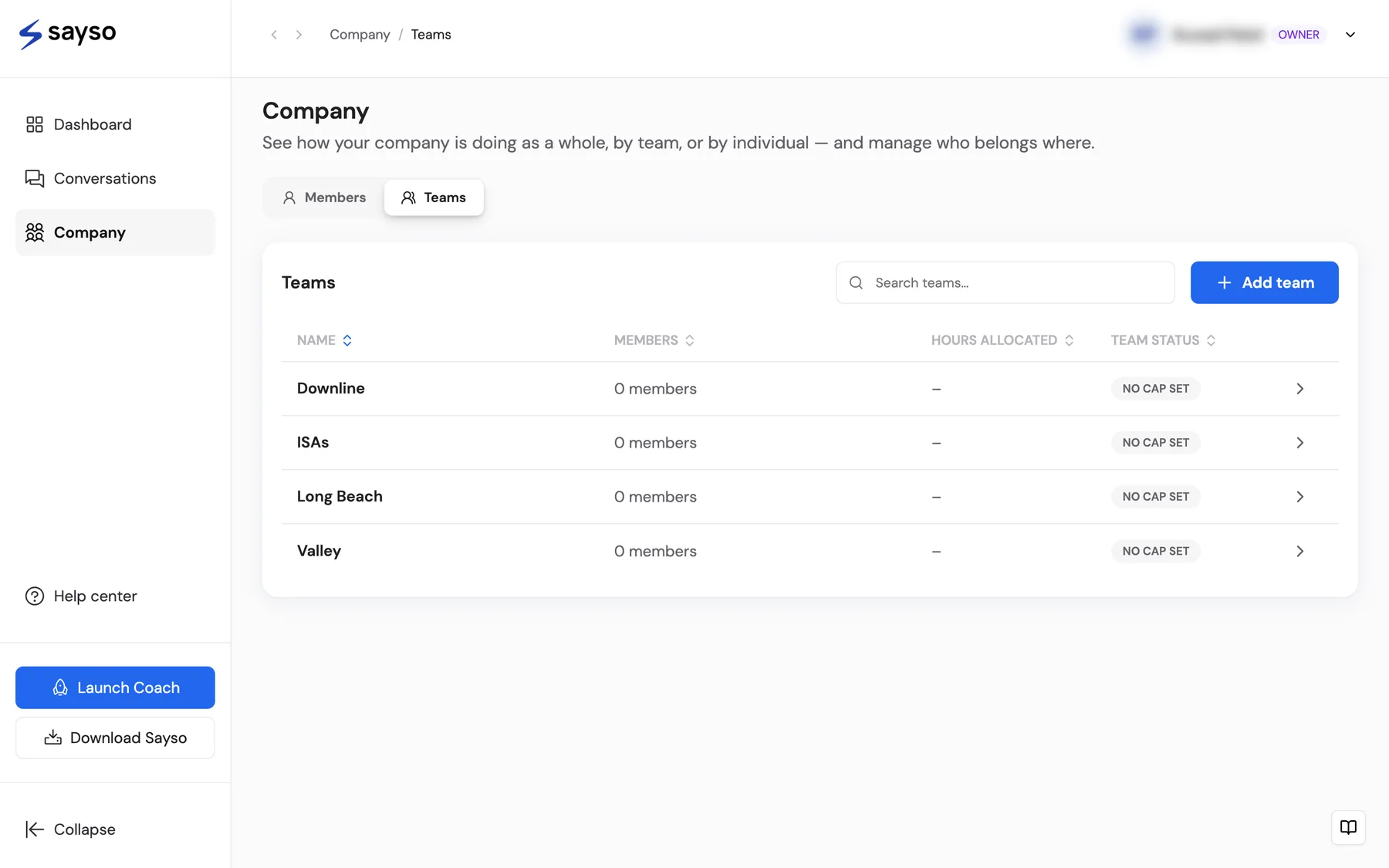
Teams lists the teams inside your company.
| Column | What it shows |
|---|---|
| Name | The team name. |
| Members | How many people are on the team. |
| Hours allocated | Hours used this month out of the team's cap, for example 20 / 25h. A dash means no cap is set. |
| Team status | On track, Approaching, Over or No cap set. |
Click a team to open its page, where you can add members, set hours, rename or delete it. Use Add team to create one. If you have no teams yet, you'll see Create your first team.
Related
Was this article helpful?
Still stuck? Email support@asksayso.com or join office hours (every Wednesday at 11am PT / 2pm ET).