Allow microphone and screen and system audio on Mac
Updated November 23, 2026
The first time you sign in on a Mac, Sayso shows a Permissions screen with two items. Sayso needs both to coach you:
| Permission | Why Sayso needs it |
|---|---|
| Microphone | To capture your side of the conversation during calls |
| Screen & System Audio | To capture audio from your leads during conversations |
Sayso only captures audio during active calls. It does not record or save your screen. See Why Sayso needs these permissions.
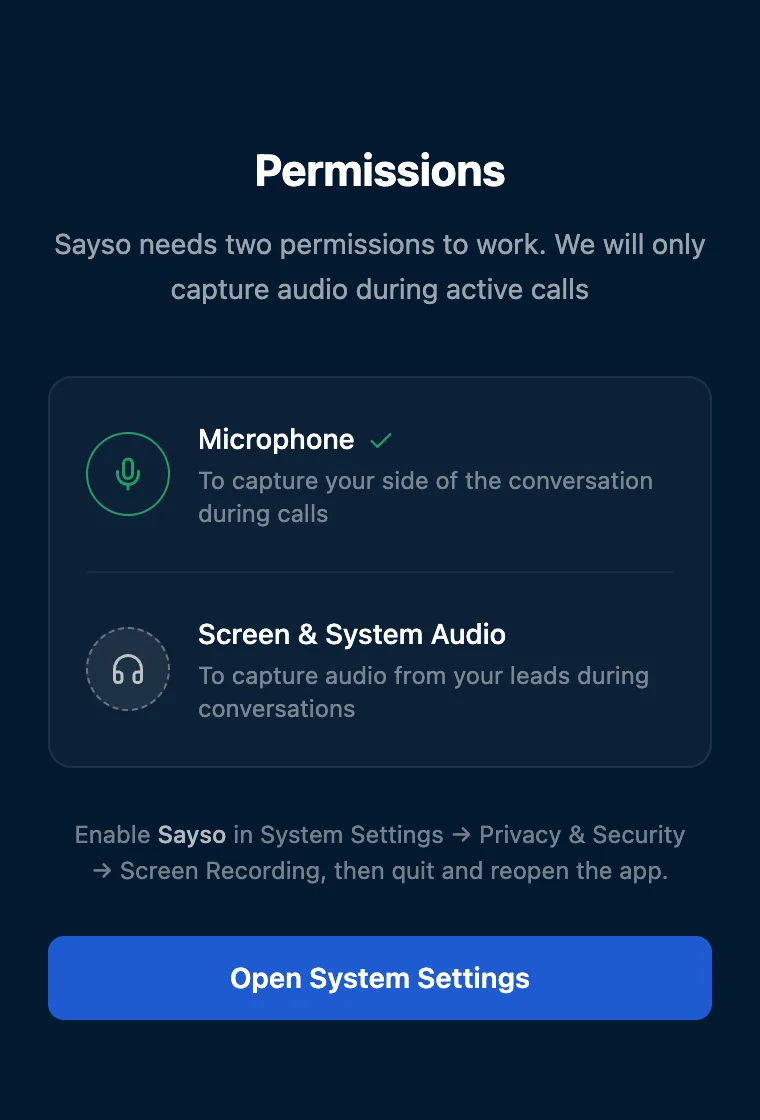
Turn on both permissions
- Click Allow Microphone. When macOS asks, click Allow. The Microphone row turns green.
- Click Open System Settings. macOS shows its own screen recording prompt. Click its Open System Settings button.
- In System Settings, under Privacy & Security, open Screen & System Audio Recording (called Screen Recording on some macOS versions).
- Turn on the switch next to Sayso. If macOS asks, enter your Mac password.
- Go back to Sayso and click Quit and Reopen →.
Sayso restarts. If both permissions are on, Sayso opens in the menu bar.
Why Sayso has to restart
macOS only applies the screen and system audio permission when an app starts. Sayso can't see it until it reopens, which is why the last step is Quit and Reopen. If the permission was not turned on, Sayso shows the Permissions screen again after it reopens.
If you clicked "Don't Allow"
macOS won't ask a second time. Turn the permission on yourself:
- Open the Apple menu, then System Settings.
- Click Privacy & Security.
- Open Microphone and turn on Sayso.
- Open Screen & System Audio Recording (or Screen Recording) and turn on Sayso.
- Quit Sayso from the menu bar and open it again.
Sayso keeps asking even though both are on
This usually means there are two copies of Sayso, or permissions from an older version are stuck. See Permissions look on but Sayso says they are missing.
Was this article helpful?
Still stuck? Email support@asksayso.com or join office hours (every Wednesday at 11am PT / 2pm ET).