Sign in to the desktop app
Updated November 23, 2026
The desktop app uses the same account as the web app. There is no separate desktop password.
Sign in
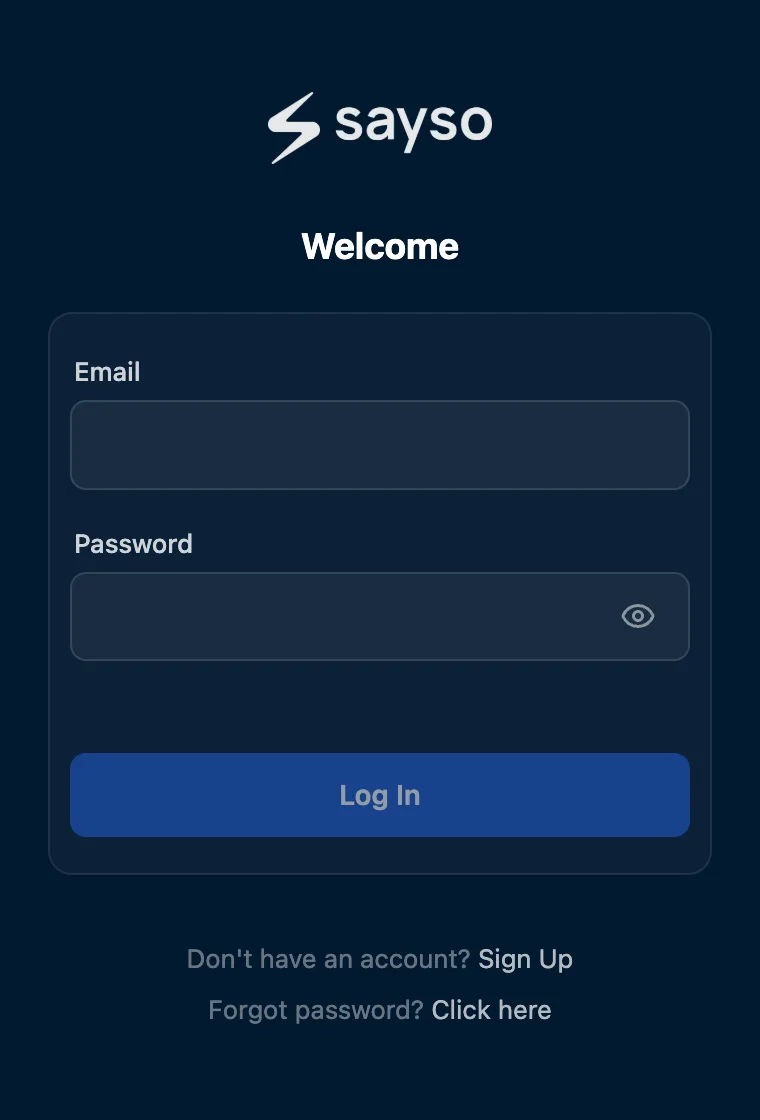
- Open Sayso. The Welcome screen appears.
- Enter your Email and Password.
- Click Log In.
If you turned on two-factor authentication, Sayso shows One More Step. Open your authenticator app, type the 6-digit code for Sayso and click Verify. If the code is rejected, wait for a new code and try again. Back to Log In takes you back to the first screen.
The first time you sign in on a computer, Sayso walks you through permissions next. See Mac permissions or Windows microphone access.
No account yet, or forgot your password?
- Sign Up opens account creation in your browser. See Create your Sayso account.
- Forgot password? Click here opens password reset in your browser. See Reset your password.
"Your session has expired"
Sayso keeps you signed in, but a sign-in can expire. When it does, Sayso shows Your session has expired. Please log in again. Sign in again on the Welcome screen.
Signed in but you can't launch the Coach widget
Launch Coach and Show Playbooks only appear in the Sayso menu when your account has an active subscription. If you're on a team, ask your team's owner or admin to check the subscription. If it's your own account, see Your subscription.
Related
Was this article helpful?
Still stuck? Email support@asksayso.com or join office hours (every Wednesday at 11am PT / 2pm ET).