See your team's activity on the Dashboard
Updated November 23, 2026
As an Owner or Admin, the Dashboard shows your whole company by default ("Across this company").
Filter to a team or an agent
- Open Dashboard in the sidebar.
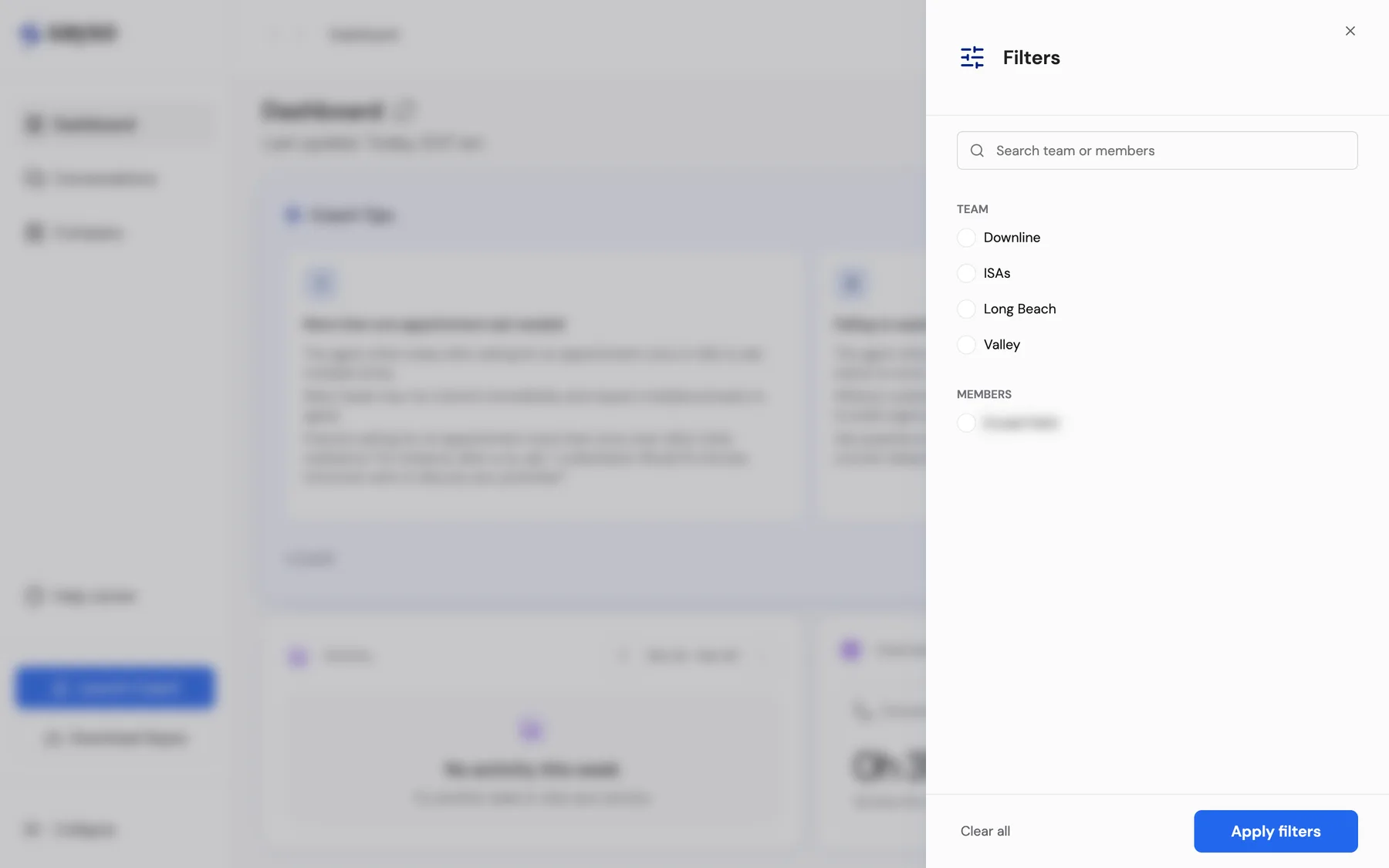
- Click the Filters button next to the title.
- Pick one team under Team or one person under Members. Use Search team or members to find them.
- Click Apply filters.
The filter shows as a chip under the title. Remove the chip, or choose Clear all in the filters panel, to go back to the whole company.
What you see
- Coach Tips: coaching patterns for the selection.
- Activity: minutes of conversation per day, one week at a time.
- Overview: Conversation time and Appointments booked for Last 7 days, Last 14 days, Last 30 days, Last 3 months or Last 6 months, compared with the period before.
To see an agent's individual calls, use Conversations.
Use it for coaching
Pick one agent, look at their conversation time and appointments over the last 30 days, then open their recent conversations. Look for patterns such as skipping motivation questions, not asking for the appointment, or getting stuck on the same objection, and use them as the agenda for a 1:1.
To measure the change Sayso makes, take a snapshot of your CRM numbers (calls, conversations, appointments) from the 30 to 60 days before you started, and compare.
Related
Was this article helpful?
Still stuck? Email support@asksayso.com or join office hours (every Wednesday at 11am PT / 2pm ET).