Sayso hears me but not the lead
Updated November 23, 2026
Sayso hears your voice through your microphone and the lead's voice through your computer's audio output. When the lead's side is missing, Cue has nothing to react to.
1. Place the call from your computer
If the call rings on your cell phone, Sayso can't hear it.
- Dial from your CRM or dialer on the computer, in Google Chrome.
- Check your dialer's calling setting. It must be set to call through the computer, internet or "ask me". If it's set to always use your mobile phone, the call goes to your cell.
- Calls you answer on your cell phone, including Zillow calls, don't work with Sayso.
See Set up your dialer for Sayso.
2. Play the call through your default speakers or headphones
Sayso listens to your computer's default audio output. Put your headphones on before the call and make them the output device:
Open System Settings > Sound > Output and select your headphones.
Right-click the speaker icon in the taskbar, click Sound settings, and under Output select your headphones.
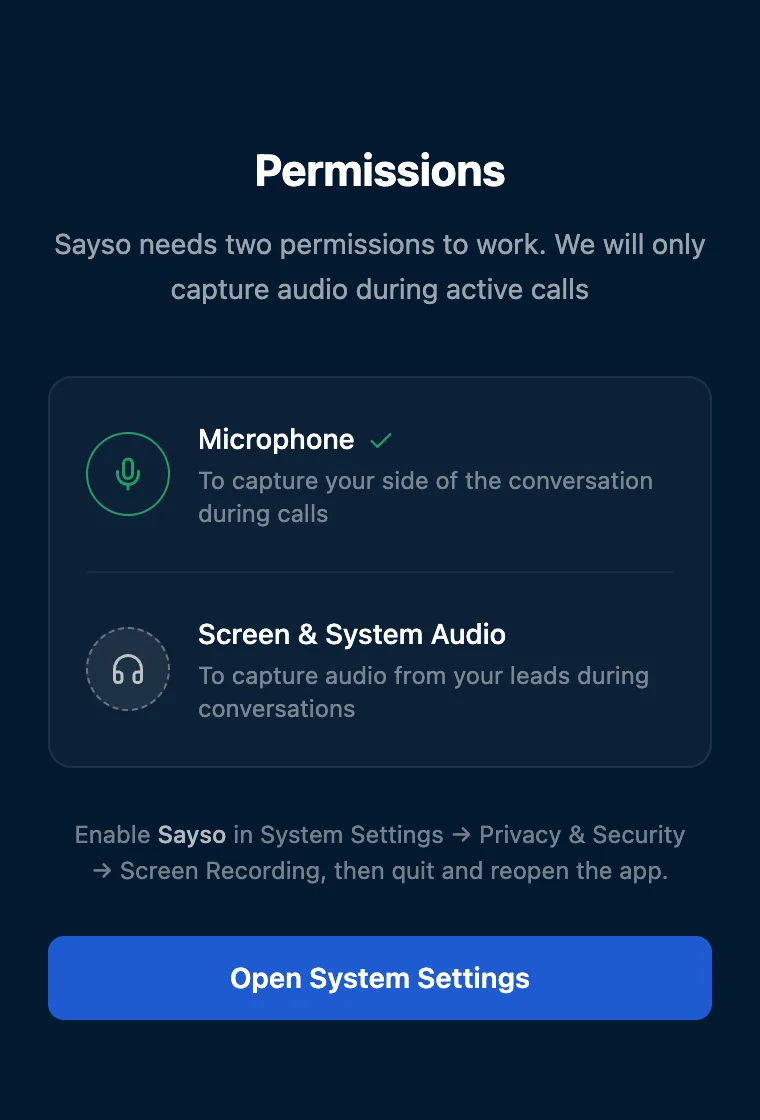
3. On a Mac, check the screen and system audio permission
This permission is how Sayso hears the lead on a Mac. Sayso only uses the audio and never records your screen.
- Open System Settings > Privacy & Security.
- Open Screen & System Audio Recording (or Screen Recording).
- Turn on Sayso.
- If you just turned it on, quit Sayso and open it again. macOS only applies this permission when an app starts.
Permission on but still nothing? See Permissions look on but Sayso says they are missing.
Test it
Start a session, press Reset, and have a teammate call you. If Smart Capture fills in with what they say, Sayso is hearing them.
Was this article helpful?
Still stuck? Email support@asksayso.com or join office hours (every Wednesday at 11am PT / 2pm ET).