Quit and reopen Sayso
Updated November 23, 2026
Closing the Coach widget doesn't close Sayso. Sayso keeps running in your menu bar or taskbar so it's ready for your next call. To close it completely, quit it from the Sayso menu.
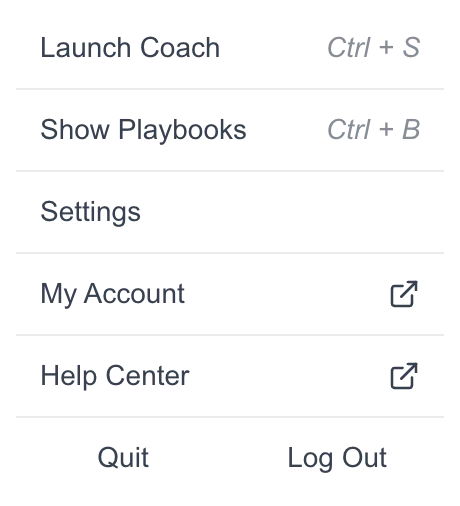
Quit Sayso
- If a coaching session is running, click Stop in the Coach widget so the conversation is saved.
- Click the Sayso icon in your menu bar (Mac) or taskbar (Windows).
- Click Quit.
While Sayso is closed, it can't coach you or ask to launch when a call starts.
Open it again
Open your Applications folder and double-click Sayso, or click Sayso in your Dock if you kept it there. You can also press ⌘ Command + Space, type Sayso and press Return.
Double-click the Sayso shortcut on your desktop, or open the Start menu and click Sayso.
If Sayso is frozen or the icon is gone
- Open the Apple menu and click Force Quit.
- Select Sayso and click Force Quit.
- Open Sayso again from Applications.
- Press Ctrl + Shift + Esc to open Task Manager.
- Select Sayso and click End task.
- Open Sayso again from the desktop shortcut or Start menu.
Quitting and reopening is the first thing to try for almost any problem. It also installs an update that's waiting.
Was this article helpful?
Still stuck? Email support@asksayso.com or join office hours (every Wednesday at 11am PT / 2pm ET).