Log out or switch accounts on the desktop app
Updated November 23, 2026
Log out
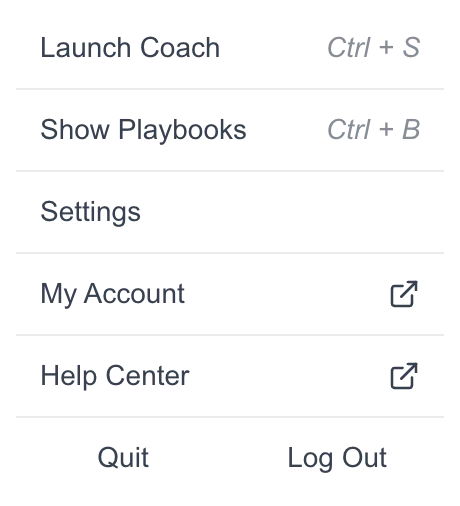
- Click the Sayso icon in your menu bar (Mac) or taskbar (Windows).
- Click Log Out.
If a coaching session is running, Sayso stops it and saves the conversation before signing you out. The Coach widget, Playbooks and Settings windows close, and the sign-in screen opens.
Logging out of the desktop app doesn't sign you out of the web app in your browser. Use Log out in the web app's user menu for that.
Sign in with a different account
- Log out as shown above.
- On the Welcome screen, sign in with the other account's email and password.
To sign back in later, click the Sayso icon and choose Log In, or open Sayso.
Your desktop settings that live on your account (Meeting detection, Auto Stop, Prompt Style, Buffer Time, Pulse, Playbooks and Font Size) follow you to any computer you sign in on. Launch at Login stays with the computer.
Was this article helpful?
Still stuck? Email support@asksayso.com or join office hours (every Wednesday at 11am PT / 2pm ET).