Buffer Time: when prompts start
Updated November 23, 2026
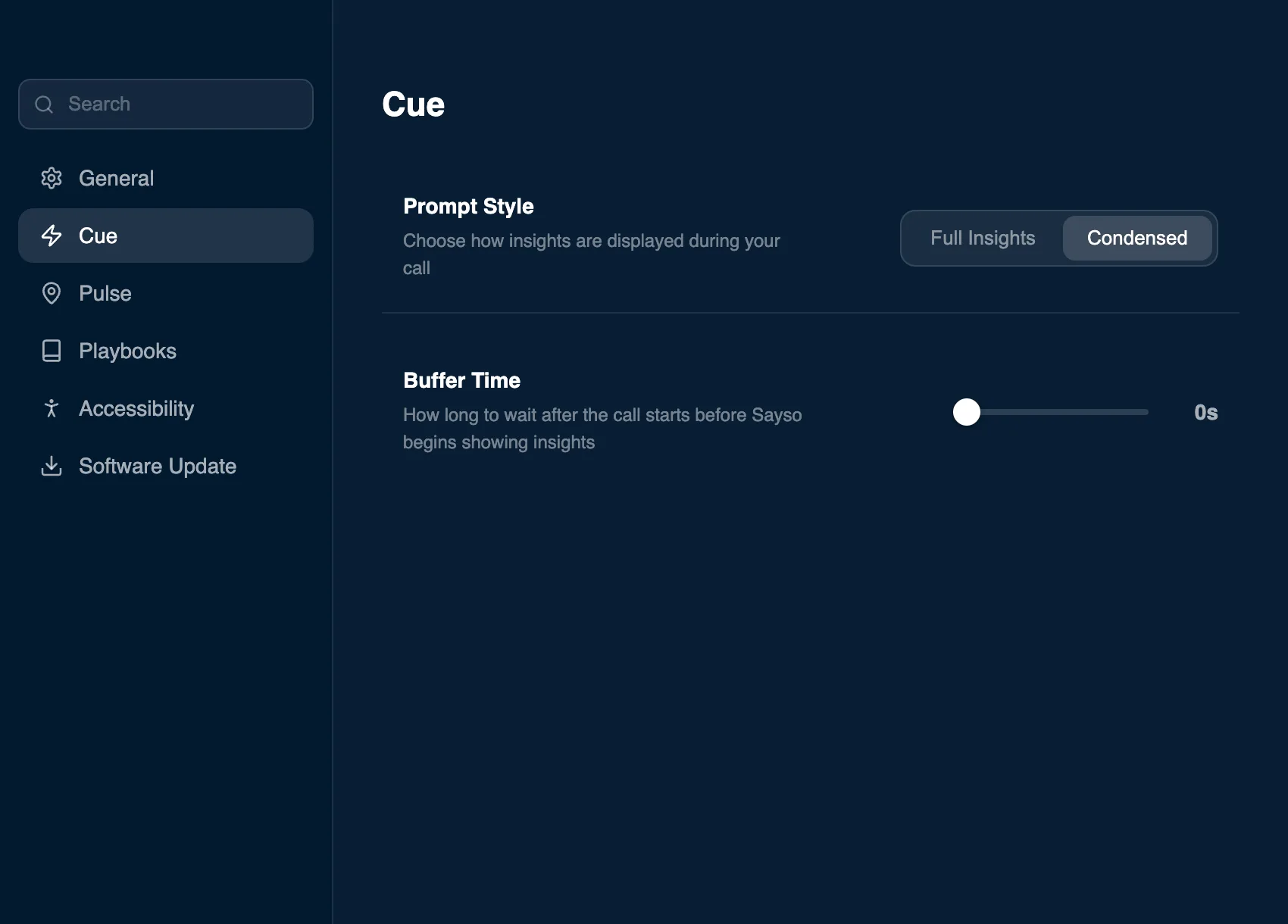
Every time you start a session or press Reset, Sayso waits for the Buffer Time before Cue starts prompting and Smart Capture starts taking notes. This keeps ringing, call-screening messages ("please state your name") and voicemail greetings out of the conversation.
Recommended: 0 seconds
Leave it at 0 (the default) and press Reset when a person answers and starts talking. Coaching starts right away and nothing from before the pickup gets in.
When to add seconds
- You press Reset as soon as you dial, before anyone answers.
- Your dialer plays a screening message or menu after the person picks up.
In those cases, set enough seconds to cover what plays before the person is on the line. Start around 7 to 10 seconds and adjust.
Change it
- Open Settings from the Sayso menu or the gear in the Coach widget.
- Click Cue.
- Drag the Buffer Time slider. You can choose from 0 to 30 seconds.
The setting is saved to your account. See When to hit Reset for how Reset and Buffer Time work together.
Buffer Time and Auto Stop are different
| Auto Stop | Buffer Time | |
|---|---|---|
| What it does | Ends the session after the lead has been silent too long | Waits before coaching starts |
| When it applies | During a session, when no one is talking | Right after you press Start or Reset |
| Where to set it | Settings > General | Settings > Cue |
| Range | 2 to 10 minutes (default 5) | 0 to 30 seconds (default 0) |
Read more about Auto Stop.
Was this article helpful?
Still stuck? Email support@asksayso.com or join office hours (every Wednesday at 11am PT / 2pm ET).