Keep Sayso visible on the Windows taskbar
Updated November 23, 2026
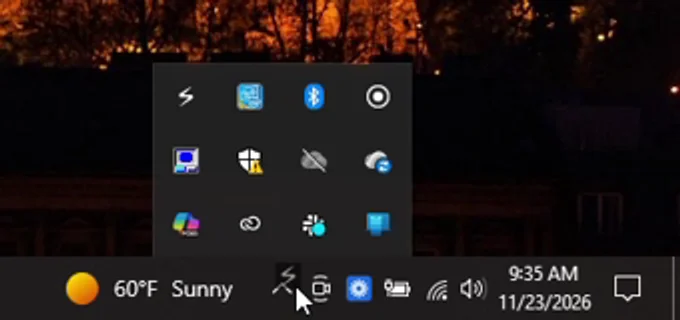
On Windows, Sayso puts its lightning bolt icon in the notification area of the taskbar, next to the clock. Windows usually hides new icons, so you may need to look behind the ^ arrow first.
Find Sayso
- Click the ^ (Show hidden icons) arrow next to the clock.
- Click the Sayso bolt. The Sayso menu opens.
Keep the icon always visible
Drag the Sayso bolt out of the hidden icons panel and drop it on the taskbar next to the clock.
Or use Windows Settings:
- Right-click an empty spot on the taskbar and click Taskbar settings.
- Expand Other system tray icons.
- Turn on Sayso.
- Right-click an empty spot on the taskbar and click Taskbar settings.
- Under Notification area, click Select which icons appear on the taskbar.
- Turn on Sayso.
Pin Sayso to the taskbar
Pinning adds a Sayso button to your taskbar. Clicking it opens Sayso if it's closed, or opens the Sayso menu if it's already running.
- Open the Start menu and find Sayso.
- Right-click it and click Pin to taskbar.
Sayso also puts a shortcut on your desktop when it installs.
To open the Coach widget without the icon, press Alt + Shift + S from any app. See Keyboard shortcuts.
Was this article helpful?
Still stuck? Email support@asksayso.com or join office hours (every Wednesday at 11am PT / 2pm ET).