Open, change or unlink a linked lead
Updated November 23, 2026
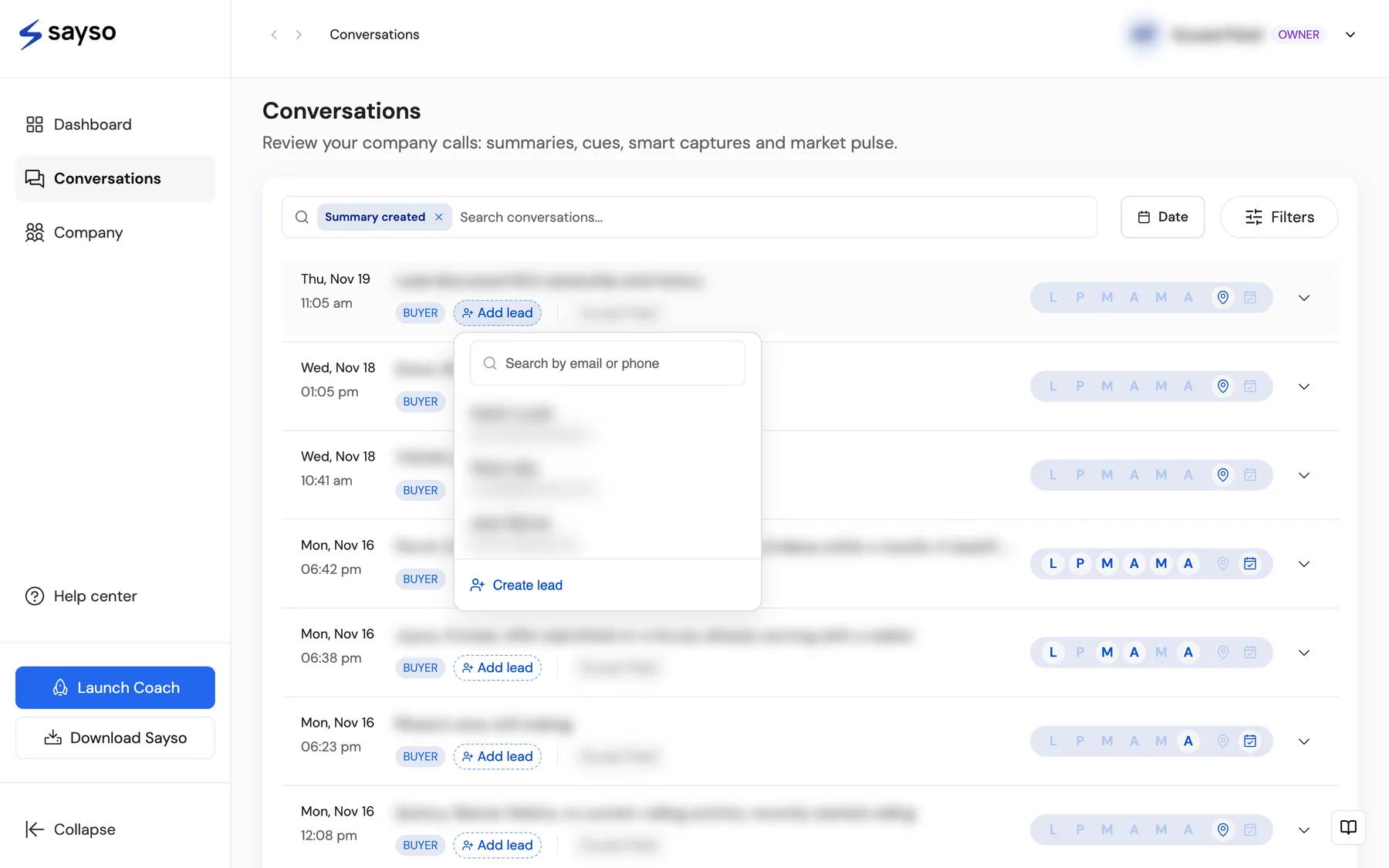
After you link a call to a lead, the lead's name shows on the conversation. Click the name to open the lead menu.
Open the lead in your CRM
Click Open linked lead in CRM. The lead opens in Follow Up Boss or Sure Send in a new tab.
Edit the lead's details
- Click Edit linked lead.
- Change the name, phone or email in Edit lead. The window notes that changes sync to your CRM.
- Click Save changes. You see Lead updated.
Linked the wrong lead?
Click the lead's name, search for the right lead and click it. The call moves to the new lead and Sayso adds the note to it.
Unlink the lead
Click Unlink from conversation. Sayso adds a short note to the lead saying it was unlinked from a Sayso conversation, and the call goes back to showing Add lead.
Changed your notes after linking?
Edit the Smart Capture fields and choose Yes, resync when Sayso asks. See Edit Smart Capture notes after a call.
Related
Was this article helpful?
Still stuck? Email support@asksayso.com or join office hours (every Wednesday at 11am PT / 2pm ET).