Your subscription: status, hours and invoices
Updated November 23, 2026
Open it from your name in the top-right corner > Account Settings > Subscription.
Only people who pay for their own plan and the owner of a team account see this tab. Agents and admins on a team don't.
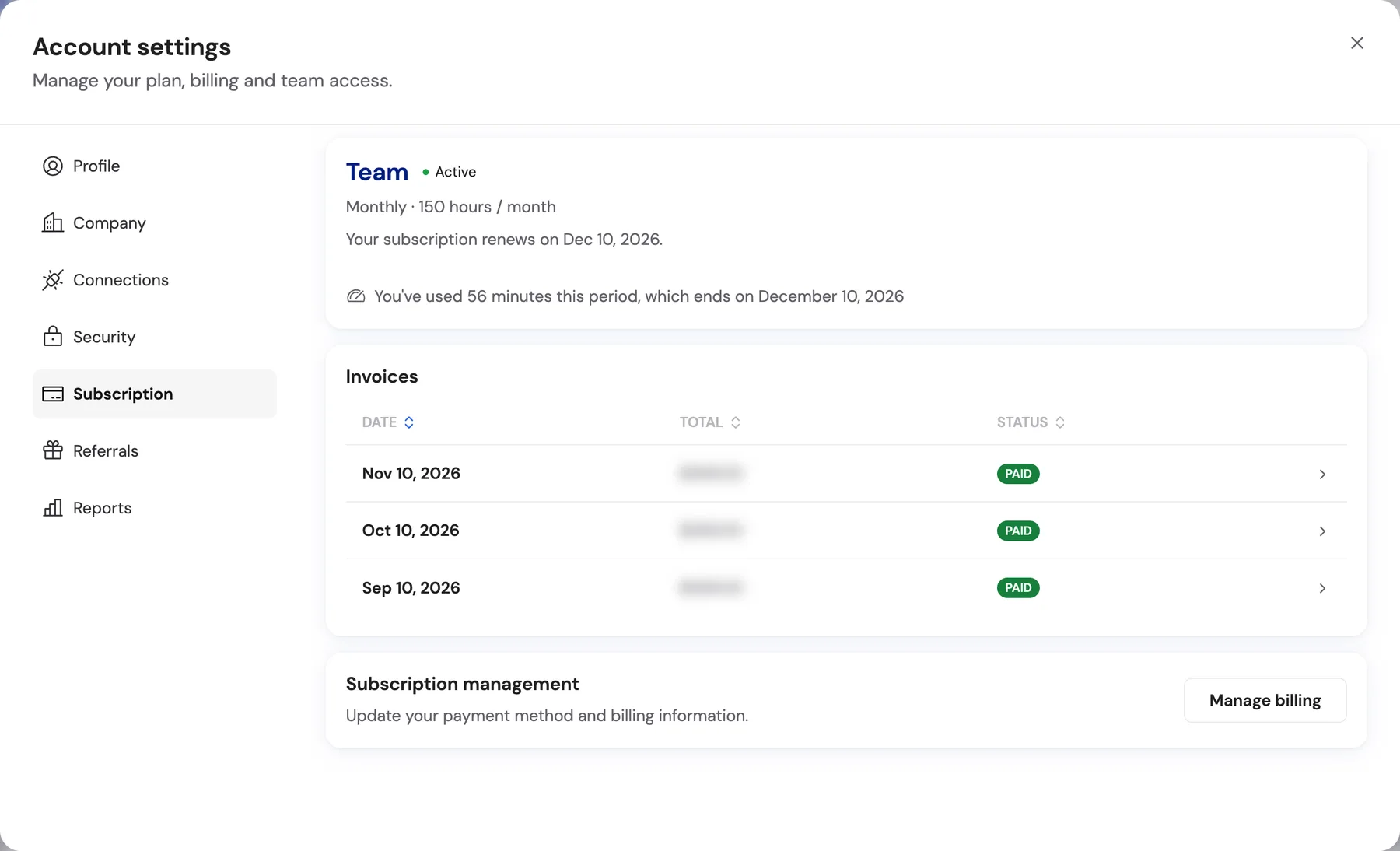
Your plan
The top card shows:
- Your plan name and status
- Monthly or Yearly billing, and the hours included per month
- Your renewal date, for example "Your subscription renews on December 15, 2026"
- How much you've used: "You've used 312 minutes this period, which ends on…"
Statuses
| Status | What it means |
|---|---|
| Active | Your plan is paid and working. |
| Cancelling | You asked to cancel. You can keep using Sayso until the date shown. |
| Cancelled | Your plan has ended. |
| Paused | Your plan is on hold. You can still sign in, but coaching is off until it resumes. |
| Past due | The last payment didn't go through. Update your card under Manage billing. |
Invoices
Every invoice is listed with its Date, Total and Status (Paid, Pending or Rejected). Click an invoice to open it, download it or print it. Click a column name to sort.
Subscription management
Click Manage billing to open the Stripe billing page, where you update your card and billing details. See Update your card and download invoices.
Paid by a partner?
If a partner organization pays for your plan, the card says so, and there's no Manage billing button. Contact that organization about billing.
Related
Was this article helpful?
Still stuck? Email support@asksayso.com or join office hours (every Wednesday at 11am PT / 2pm ET).