Download Sayso for Mac or Windows
Updated November 23, 2026
Sayso has two parts. The web app at app.asksayso.com is where you manage your account and review your conversations. The desktop app is what coaches you live on your calls, so you need it installed on the computer you call from.
Before you start
- Create your account and choose your plan first. See Create your Sayso account.
- Check that your computer is supported: macOS 13 (Ventura) or newer, or Windows 10 or 11. See System requirements.
- Download on the computer you make your calls from.
Download the app
- Sign in at app.asksayso.com.
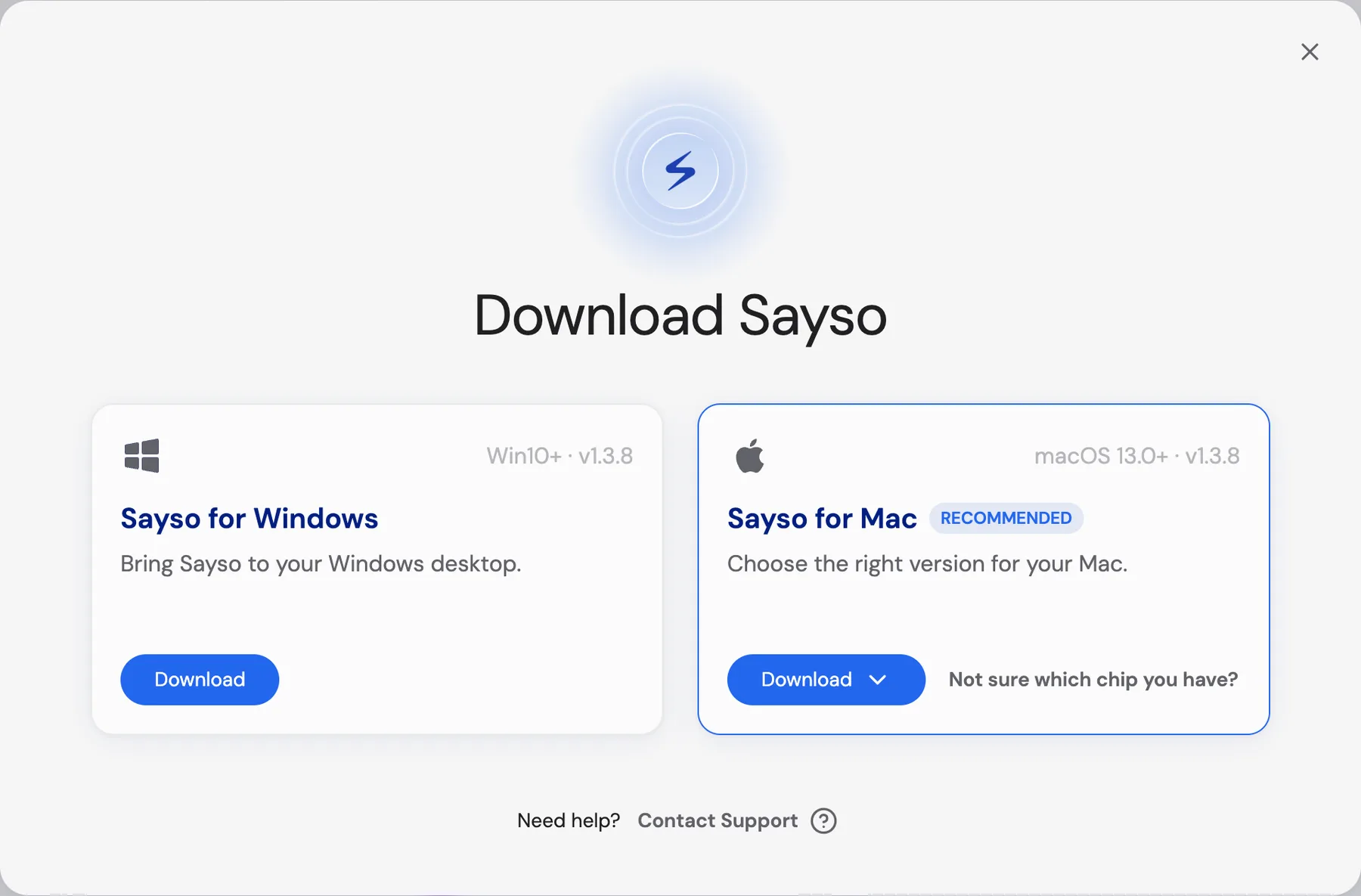
- Click Download Sayso in the left sidebar. The Download Sayso window opens. The version that matches your computer is marked RECOMMENDED.
- Pick your version:
Under Sayso for Mac, click Download and choose Apple Silicon or Intel.
Picking the wrong one is the most common reason Sayso doesn't work on a Mac. If you are not sure, click Not sure which chip you have? or read Which Mac do I have?
Under Sayso for Windows, click Download. The installer works on Windows 10 and 11.
The file lands in your Downloads folder. Next, follow Install Sayso on a Mac or Install Sayso on Windows.
On a phone or tablet
Sayso is a desktop app, so it can't be installed on a phone. If you open the download from your phone, Sayso offers to email you the link instead:
- Enter your email address.
- Tap Send me the Link.
- Open the email on your computer and download from there.
You can also go straight to app.asksayso.com/download. It opens your Dashboard with the download window already open.
Related
Was this article helpful?
Still stuck? Email support@asksayso.com or join office hours (every Wednesday at 11am PT / 2pm ET).