Edit Smart Capture notes after a call
Updated November 23, 2026
Smart Capture fills in your LPMAMA notes while you talk. It can mishear a name or a street, or miss a detail. You can fix any field after the call.
Edit a field
- Open Conversations and click the call.
- Click the Smart Capture tab. You see six cards: Location, Price, Motivation, Agent, Mortgage and Appointment.
- Click the pencil on a card. Empty fields read Not captured, and you can fill those in too.
- Type your change.
- Press Enter or click Save.
To add a line break, press Shift + Enter. To cancel, press Esc.
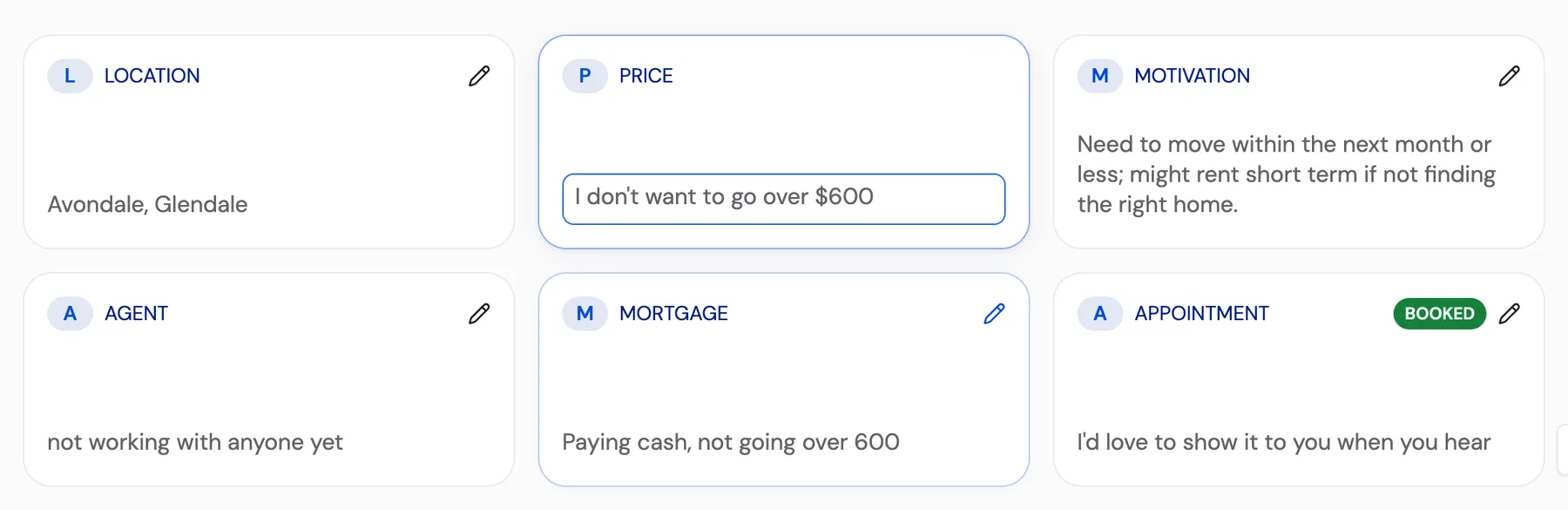
The Appointment card shows a Booked badge when Sayso detected that you set an appointment.
Resync to your CRM
If the call is linked to a lead in Follow Up Boss or Sure Send, Sayso asks Resync this conversation? after you save.
- Click Yes, resync to send the updated notes to the lead. You see Notes saved. Conversation resynced. when it's done.
- Click Dismiss to keep the change in Sayso only.
If the resync fails, click Retry. If your CRM connection expired, reconnect it first. See Disconnect or reconnect a CRM.
Who can edit
- Only the agent who made the call can edit its notes.
- Use Not captured fields as your list of what to ask on the next call.
Related
Was this article helpful?
Still stuck? Email support@asksayso.com or join office hours (every Wednesday at 11am PT / 2pm ET).