Send your notes to Follow Up Boss or Sure Send
Updated November 23, 2026
Before you start
Connect your CRM once in the web app under Settings, Connections. Each agent connects their own account. See Connect Follow Up Boss or Connect Sure Send.
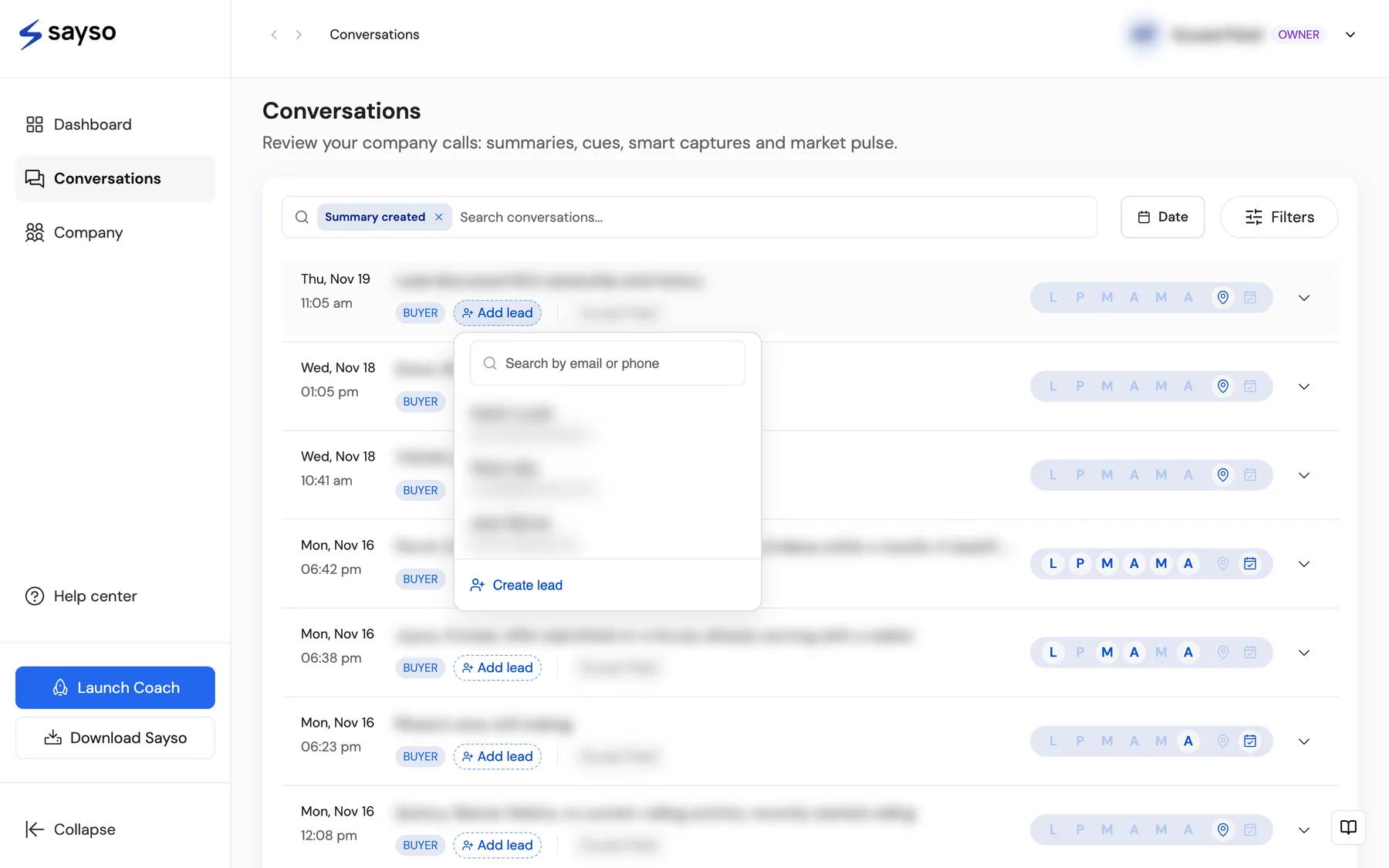
Send a conversation to a lead
- In the web app, open Conversations and find the call.
- Click Add lead.
- Search for the lead by email or phone and pick them. If they're not in your CRM yet, choose Create lead and fill in the required fields.
- Sayso links the conversation to that lead and adds a Sayso note in your CRM with the call summary, Smart Capture notes, market data and whether an appointment was booked.
Leads you create from Sayso show Sayso as their source in your CRM.
Full details, including the fields each CRM requires: Send a conversation to your CRM.
If you edit notes after sending
If you edit Smart Capture on a conversation that's already linked, Sayso asks Resync this conversation? Choose Yes, resync to update the note in your CRM. See Open, change or resync a linked lead.
Other CRMs
Copy your notes and paste them in:
- During the call, click the copy icon at the end of the Smart Capture row in the Coach widget.
- After the call, copy from the Smart Capture tab in Conversations.
Was this article helpful?
Still stuck? Email support@asksayso.com or join office hours (every Wednesday at 11am PT / 2pm ET).